Pages
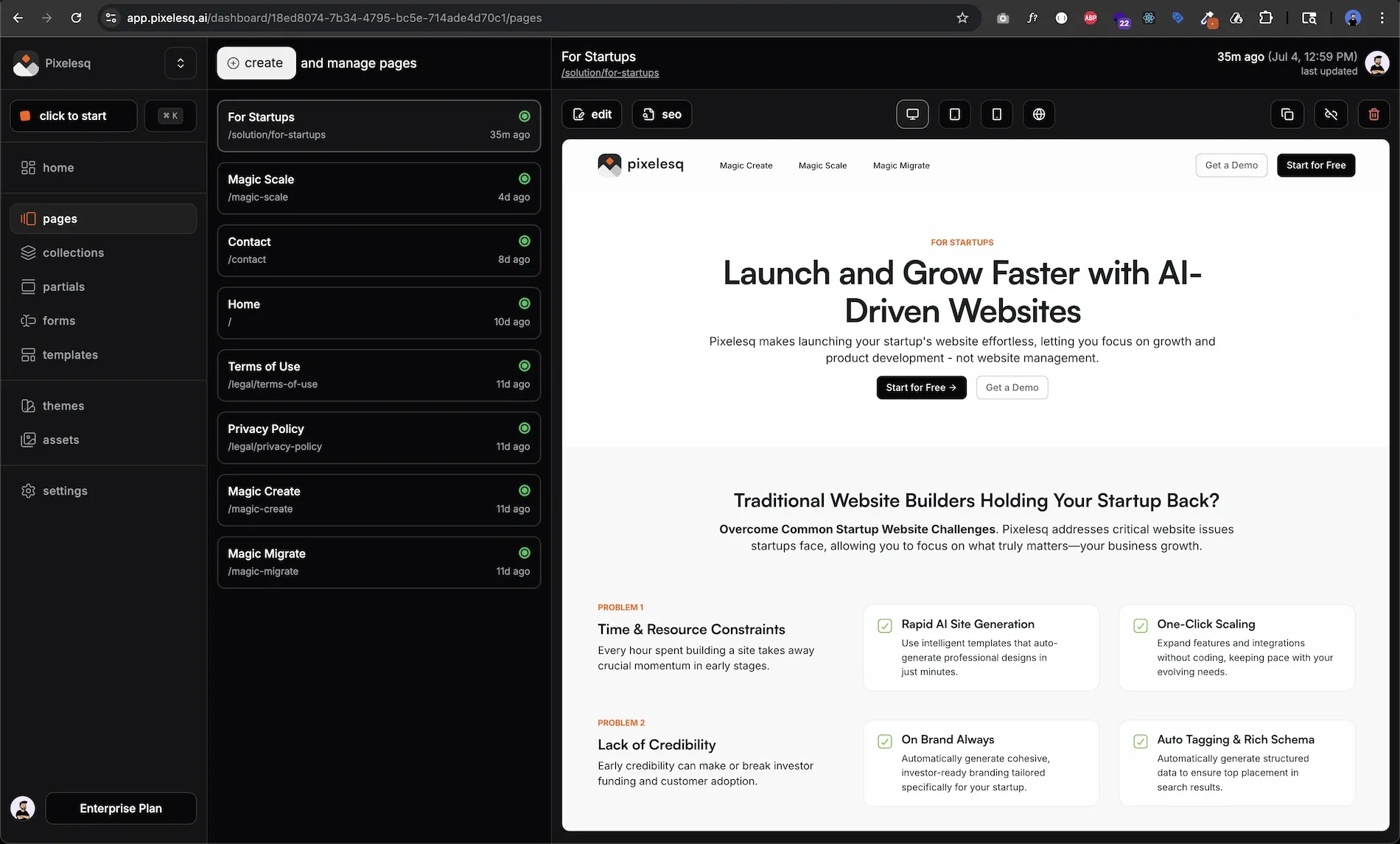
Pages are standalone pieces of content with their own URL and layout. Your homepage, about page, contact page, and landing pages are all examples of pages.
Each page is built from sections that you arrange in the visual editor. You have full control over the layout, content, and design of every page. Changes are saved automatically and you can preview before publishing.
Create a Page
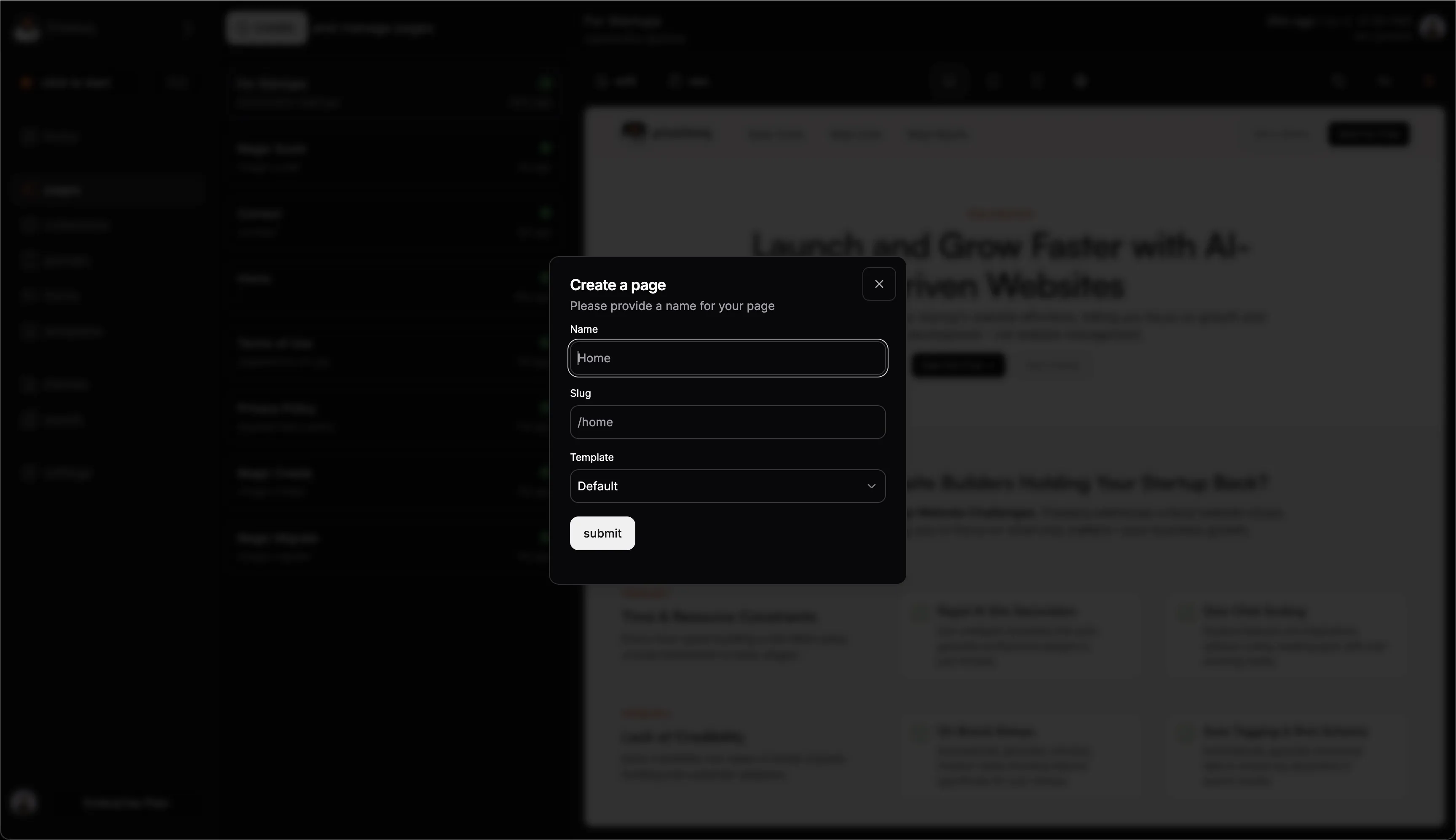
To create a new page:
Go to Pages in the sidebar
Click + Create in the top right
Enter a name for your page
Choose a starting point: blank page, existing template, or Magic Create
The page opens in the visual editor where you can start adding sections and content.
The Visual Editor
The visual editor is where you build and edit pages. The left panel shows your page structure and settings. The center is a live preview of your page. The right panel shows properties for the selected element.
Click on any text to edit it directly. Select elements to adjust their styling, spacing, and layout. Everything updates in real-time so you can see exactly how your page will look.
Working with Sections
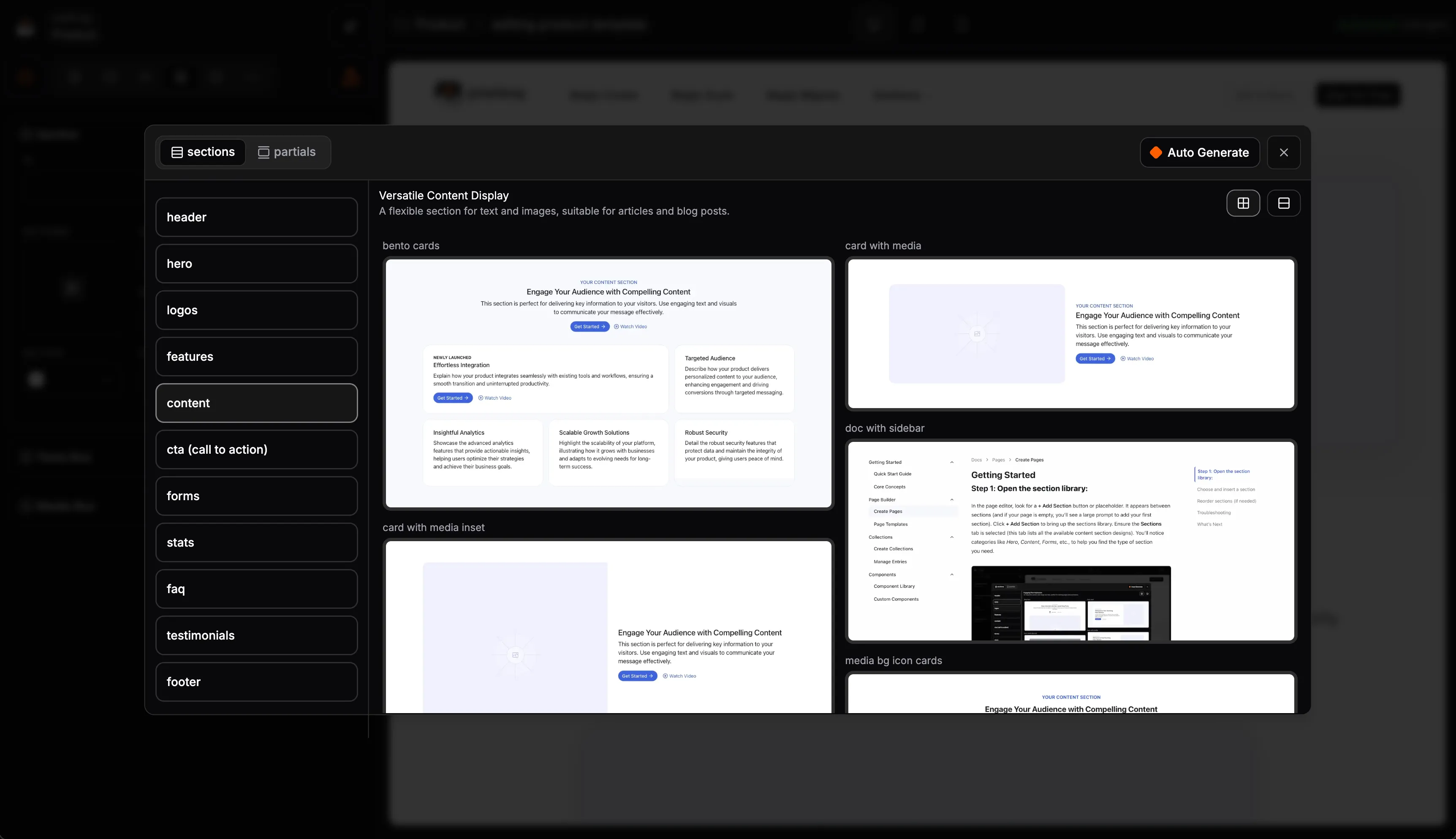
Pages are built from sections stacked vertically. Each section contains a layout with text, images, buttons, and other elements.
Add a section by clicking the + button between existing sections or at the bottom of the page. Browse the section library or search for what you need. Sections are organized by type: heroes, features, testimonials, CTAs, FAQs, and more.
Rearrange sections by dragging them in the left panel. Click and hold the drag handle, then move the section up or down.
Delete a section by selecting it and clicking the trash icon, or right-click and choose Delete.
Duplicate a section to quickly create variations. Select the section, right-click, and choose Duplicate.
Page Settings
Every page has settings that control its URL, SEO, and visibility. Access settings from the gear icon in the top bar or the Settings tab in the left panel.
URL Slug: The path for your page. A page with slug "about" lives at yoursite.com/about. Keep slugs short, lowercase, and use hyphens for spaces.
Page Title: The title shown in browser tabs and search results. Make it descriptive and include relevant keywords.
Meta Description: The summary shown in search results below the title. Keep it under 160 characters and make it compelling.
Social Image: The image shown when your page is shared on social media. Use a 1200x630 image for best results.
Publishing
New pages start as drafts. When you're ready to go live, click Publish in the top right. Published pages are immediately visible on your website.
To unpublish a page, open page settings and toggle off the Published switch. The page will no longer be accessible but all your content is preserved.
You can preview any page before publishing using the Preview button. This opens a new tab showing exactly how the page will appear to visitors.
Magic Create
Magic Create generates complete pages from a text description. Instead of starting from scratch, describe what you want and let AI build the first draft.
When creating a new page, choose Magic Create as your starting point. Describe the page in detail: what sections it should have, what messaging to use, what the call to action should be. The more specific you are, the better the result.
Magic Create uses your brand context to match your tone and style. Review the generated page and make any adjustments in the visual editor.
Duplicate a Page
To create a copy of an existing page, right-click the page in the sidebar and choose Duplicate. This creates a new draft with all the same sections and content. Useful for creating variations or using an existing page as a starting point.
Delete a Page
To delete a page, right-click it in the sidebar and choose Delete. You'll be asked to confirm. Deleted pages cannot be recovered, so make sure you want to remove it permanently.
If you just want to hide a page temporarily, unpublish it instead of deleting.


