How to Add Google Analytics 4 (GA4) to Your Pixelesq Site
Quick Answer
Go to Settings → Website → Analytics, paste your GA4 Measurement ID (starts with G-) into the Google Analytics ID field, and click Update. Publish your site, and tracking begins immediately on all pages.
What You Need
A Pixelesq account with an active project
A Google Analytics 4 property (create one free at analytics.google.com)
Your GA4 Measurement ID (starts with
G-, e.g.,G-ABC123XYZ)
Get Your GA4 Measurement ID
Log in to Google Analytics at analytics.google.com.
Click the Admin gear icon in the bottom left. Under your property, click Data Streams. Select your web stream (or create one if you haven't yet). Copy the Measurement ID displayed at the top. It looks like G-ABC123XYZ.
If you don't have a GA4 property yet, click Create Property in the Admin section and follow Google's setup wizard. It takes about 2 minutes.
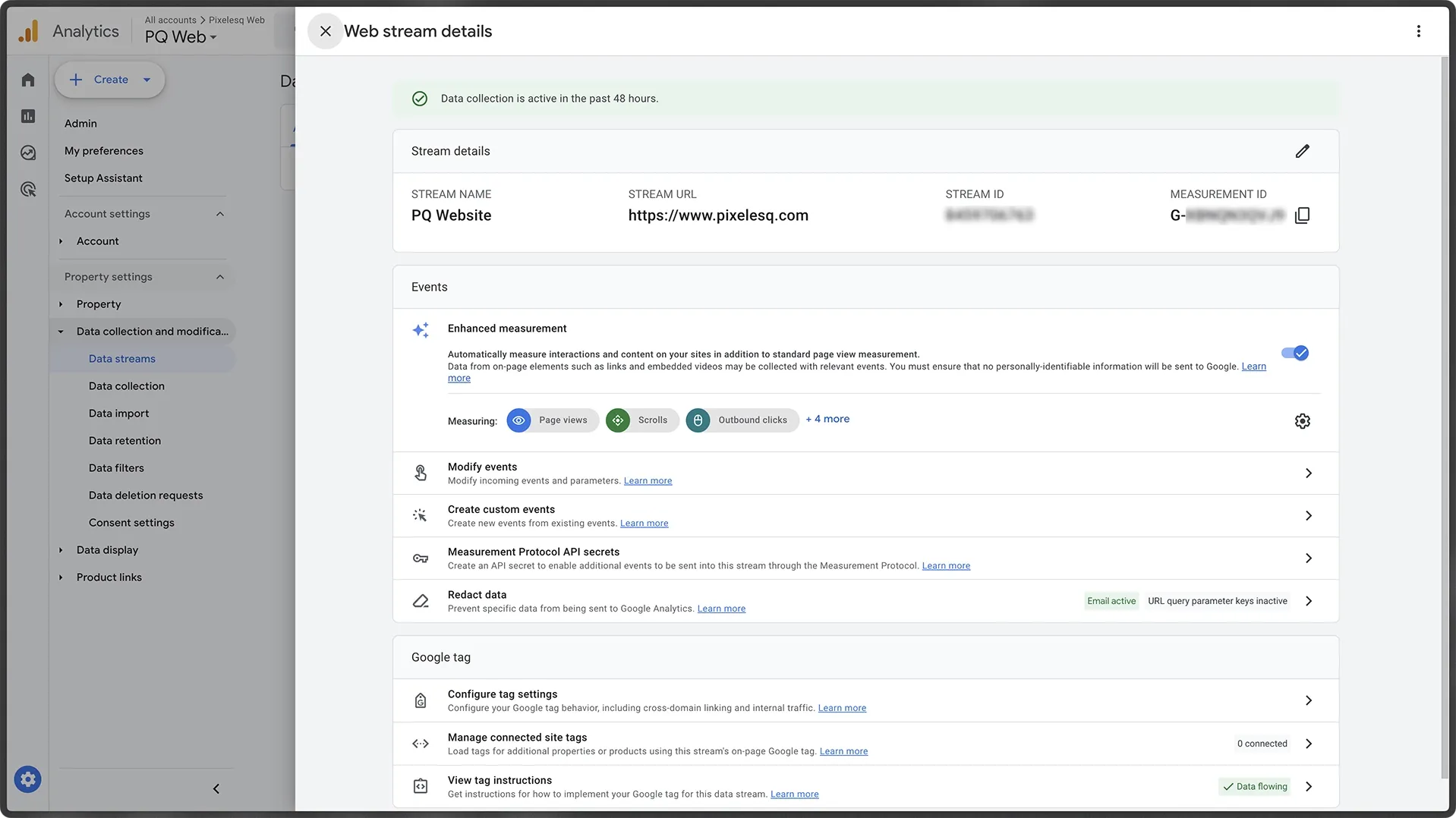
[Screenshot: GA4 Admin → Data Streams page with Measurement ID highlighted]
Open the Analytics Settings in Pixelesq
In your Pixelesq dashboard, go to your project. Click Settings in the sidebar. You'll land on the Settings page with several tabs.
Click the Website tab, then select the Analytics subtab.
You'll see three integration cards: Google Analytics, Google Tag Manager, and Meta Pixel. Each has its own dedicated field.
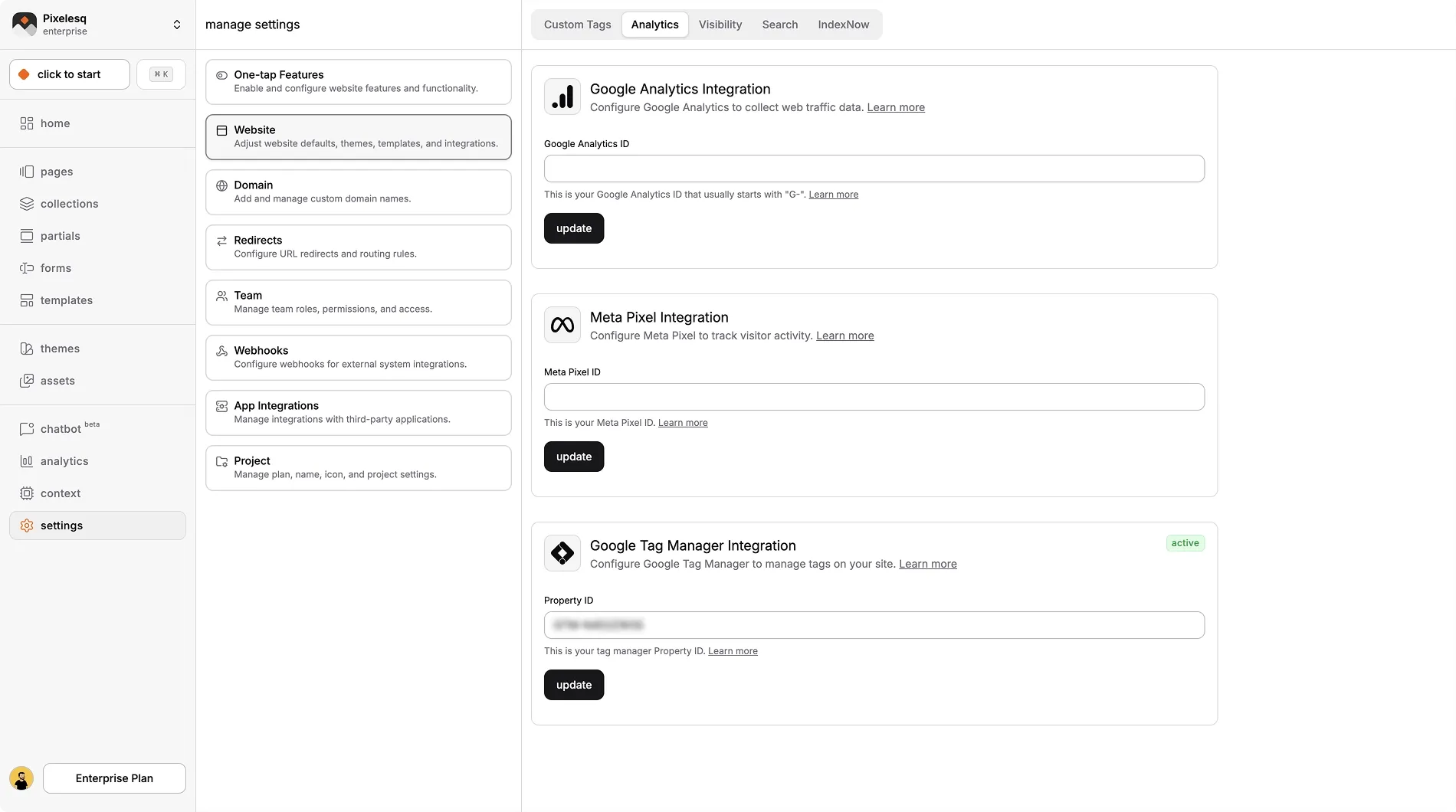
[Screenshot: Settings → Website → Analytics subtab showing the three integration cards]
Paste Your GA4 ID and Save
Find the Google Analytics card. Paste your Measurement ID (e.g., G-ABC123XYZ) into the Google Analytics ID field. Click Update.
You'll see a green Active badge appear on the card, confirming GA4 is connected.
That's it. Pixelesq automatically injects the GA4 tracking script into every published page on your site. No custom code needed.
With AI: You can also tell the Pixelesq AI agent: "Add Google Analytics to my site with ID G-ABC123XYZ" and it will configure the integration for you.
[Screenshot: Google Analytics card with ID pasted and Active badge visible]
Publish Your Site
GA4 tracking only works on published pages. If you haven't published yet, go to any page and click Publish. If your pages are already published, the tracking script is added automatically on the next page load.
Verify Tracking Is Working
Open your published site in a browser. Then go to GA4 and click Reports → Realtime. You should see your visit appear within a few seconds.
You can also install the Google Tag Assistant Chrome extension to verify that the GA4 tag is firing correctly on your pages.
[Screenshot: GA4 Realtime report showing an active visitor]
Pro Tips
Don't double-count: If you're also using Google Tag Manager and have GA4 configured through GTM, don't add the GA4 ID directly in Pixelesq too. Pick one method. Using both causes double-counting of pageviews and events.
Enable Enhanced Measurement: In GA4, go to your data stream settings and turn on Enhanced Measurement. This automatically tracks scrolls, outbound clicks, site search, video plays, and file downloads with zero extra setup.
Use Pixelesq's built-in analytics too: Pixelesq has its own analytics dashboard with live visitors, AI-powered insights, and Core Web Vitals monitoring. Use both GA4 and Pixelesq analytics for a complete picture of your site performance.
GTM and Meta Pixel too: The same Analytics settings page has dedicated fields for Google Tag Manager and Meta Pixel. You can set up all three in under 5 minutes.
Troubleshooting
GA4 isn't showing any data: Make sure your pages are published. The tracking script only loads on published pages, not in the editor preview. Also verify your Measurement ID starts with G- (not UA-, which is the old Universal Analytics format).
Data appears delayed: Realtime data shows within seconds. Standard reports in GA4 can take 24-48 hours to populate. This is normal GA4 behavior, not a Pixelesq issue.
Ad blocker interfering: Many ad blockers block GA4 tracking scripts. Test in an incognito window with extensions disabled to rule this out.
Active badge not showing: If you pasted your ID but don't see the Active badge, try refreshing the settings page. Make sure the ID format is correct (e.g., G-ABC123XYZ).
FAQ
Where do I find my GA4 Measurement ID?
In your Google Analytics account, go to Admin → Data Streams and select your web stream. Your Measurement ID starts with G- (e.g., G-ABC123XYZ) and is displayed at the top of the stream details page.
Does Pixelesq have built-in support for Google Analytics 4?
Yes. Pixelesq has a dedicated Analytics integration under Settings → Website → Analytics. Just paste your GA4 Measurement ID into the Google Analytics field and click Update. The tracking script is automatically added to all published pages. No custom code or script tags needed.
Can I use Google Tag Manager instead of adding GA4 directly?
Yes. The same Analytics settings page has a dedicated field for Google Tag Manager. Paste your GTM ID there instead. Just don't add GA4 both directly and through GTM, as that causes double-counting of pageviews and events. Pick one method.
Will GA4 tracking work on my custom domain?
Yes. Once you've added your GA4 Measurement ID, tracking works on every domain connected to your Pixelesq project, including your custom domain and the default Pixelesq subdomain.
How do I verify that GA4 is working on my Pixelesq site?
After publishing, open your site in a browser and check GA4's Realtime report (Reports → Realtime). You should see your visit appear within a few seconds. You can also use the Google Tag Assistant Chrome extension to confirm tags are firing.
Can I add GA4, GTM, and Meta Pixel at the same time?
Yes. The Analytics settings page has separate fields for all three. You can configure Google Analytics 4, Google Tag Manager, and Meta Pixel independently. Just avoid running GA4 both directly and through GTM simultaneously.
On this page


