Linear Integration

The Linear integration lets you manage your Pixelesq website directly from Linear using @pixel, an AI agent that lives in your workspace.
Mention @pixel in any issue or comment to create pages, update content, add sections, and more. Describe what you need in plain English and @pixel handles the rest, using your brand context to generate accurate, on-brand content.
Setup takes under two minutes. Once connected, your entire team can manage the website without leaving Linear.
Connect Linear
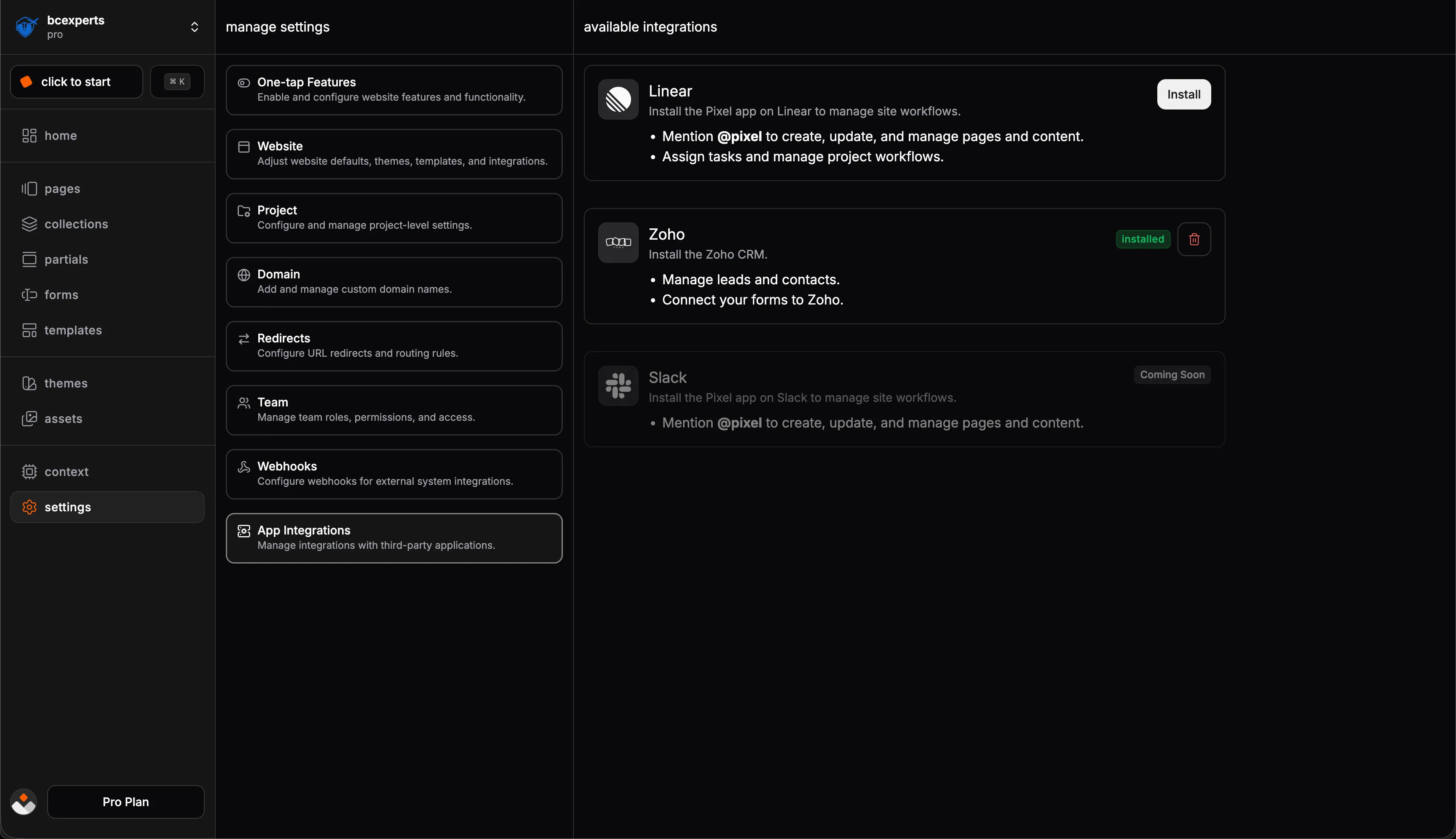
To connect your Linear workspace:
Go to Settings → App Integrations in your Pixelesq dashboard
Click Install next to Linear
Authorize Pixelesq in the Linear popup
Select which Pixelesq project to connect (if you have multiple)
Once authorized, you'll see a green "installed" badge. The @pixel agent is now available in your Linear workspace.
Using @pixel
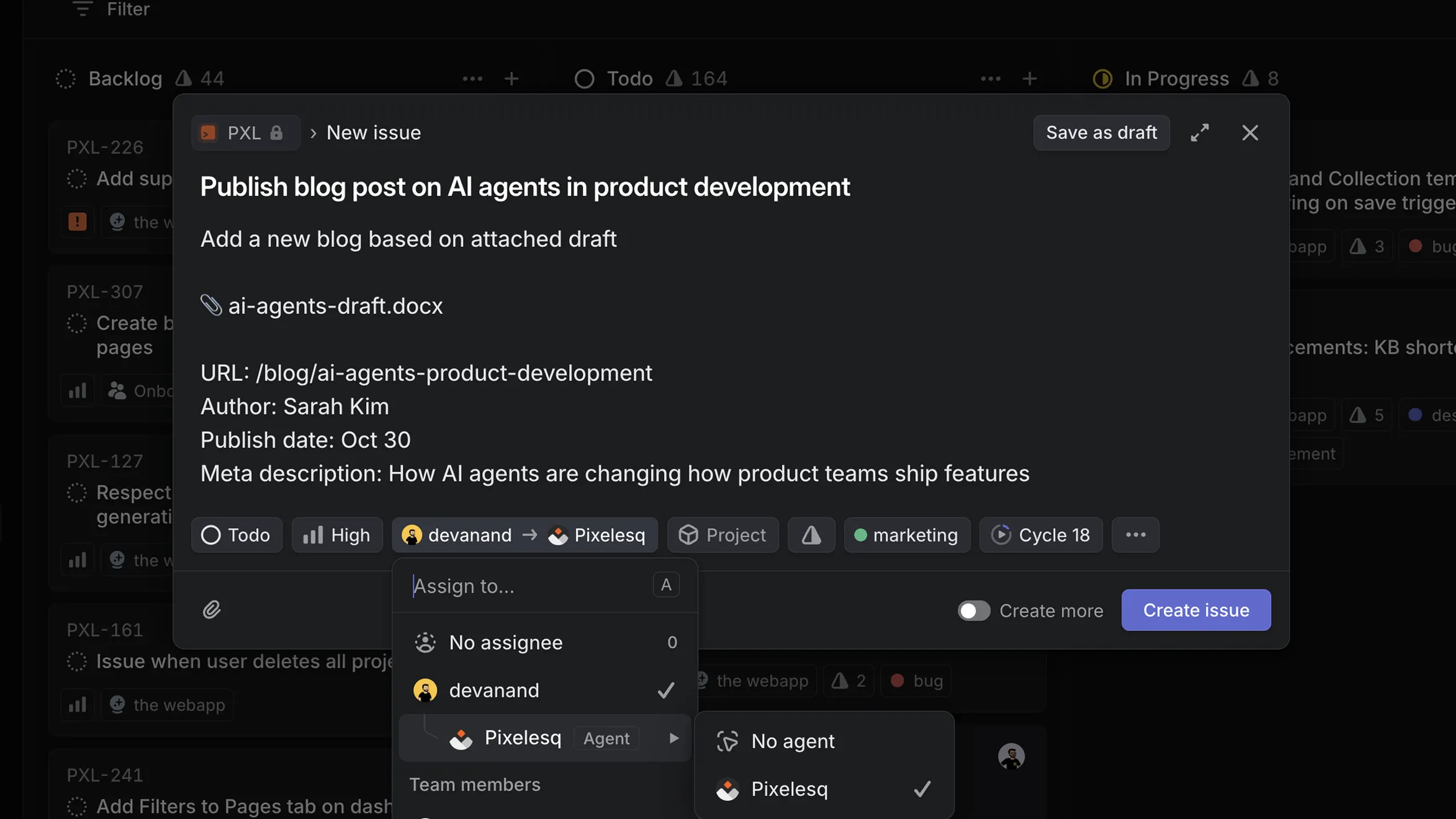
@pixel responds to mentions in Linear issues and comments. Type @pixel followed by what you want, in plain English.
@pixel will process your request, update your Pixelesq site, and reply with what it did. If something's unclear, it will ask follow-up questions.
Use issues for new tasks you want to track. Use comments for follow-ups or refinements on existing work. @pixel maintains context within the same issue, so you can iterate until it's right.
What You Can Do
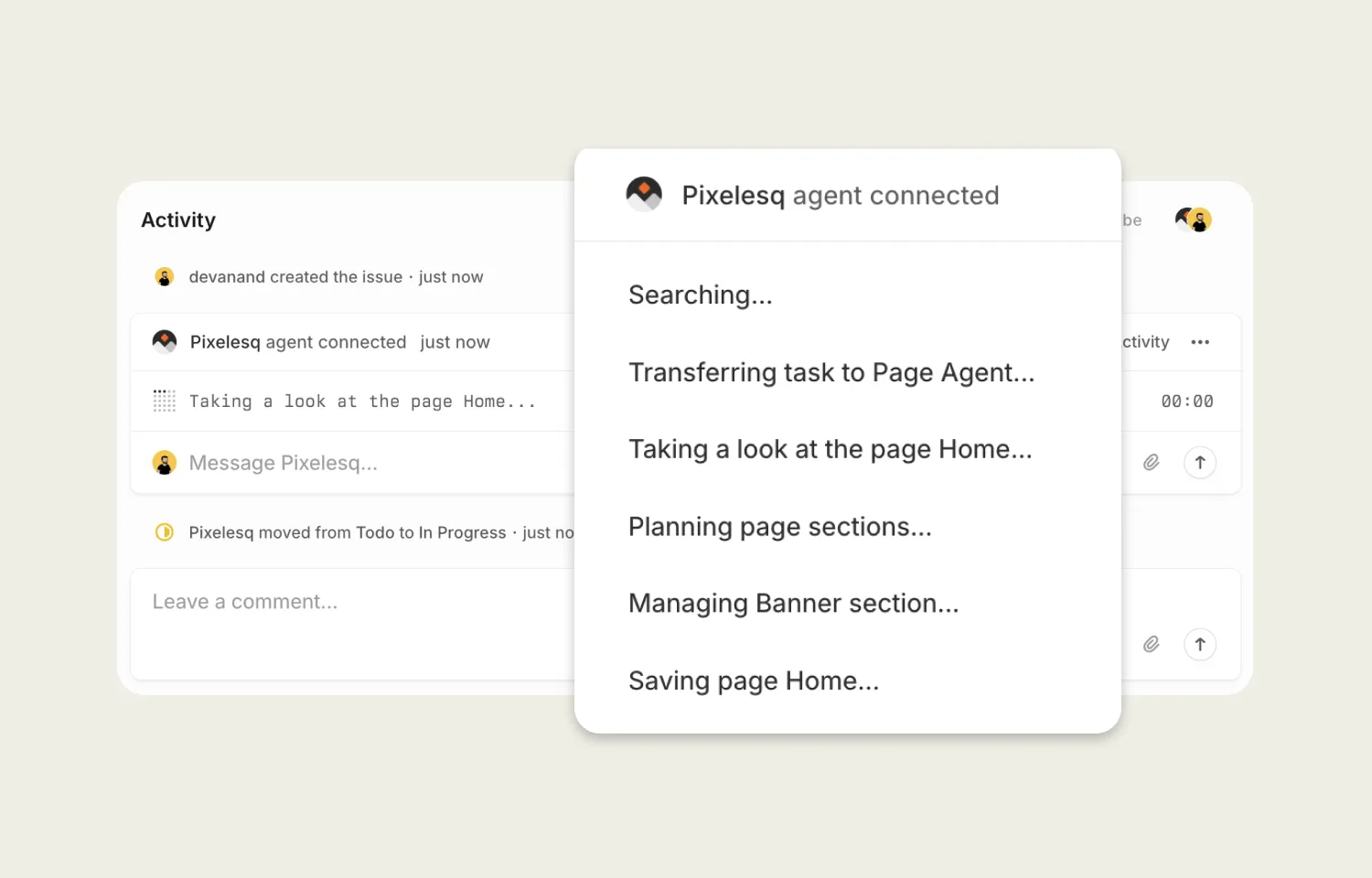
@pixel handles most website tasks through natural language:
Pages: Create new pages by describing what you need. Ask for a pricing page with three tiers, a careers page with open positions, or a landing page for your next launch. You can also update existing pages, duplicate them as starting points, or remove pages you no longer need.
Content: Update text on any page without opening the editor. Change headlines, rewrite body copy, update CTA buttons, or adjust any text content. Just tell @pixel what to change and where.
Sections: Add new sections to pages like testimonials, FAQs, or feature blocks. Remove sections that aren't working. Reorder sections to improve the flow. @pixel understands your site structure and makes changes in the right places.
Collections: Create entries for blogs, case studies, team members, or any other collection. Describe what you want and @pixel generates the content using your brand context.
SEO: Optimize meta titles and descriptions. Add structured data for rich search results. @pixel can update SEO for individual pages or generate missing meta descriptions across your collections.
Best Practices
Be specific. Instead of "create a page," describe exactly what you want: the sections, the messaging, the call to action. The more detail you provide, the better the result.
Use follow-ups. If the first result isn't perfect, reply in the same issue with feedback. @pixel refines its work based on your input.
Review before publishing. @pixel creates content in draft mode. Always check changes in Pixelesq before going live.
Manage the Integration
View your connection status in Settings → App Integrations. To disconnect, click the trash icon next to Linear and confirm. Your existing pages and content are not affected.
To switch workspaces or projects, disconnect first, then reconnect following the setup steps.
Troubleshooting
If @pixel isn't responding, check that the integration shows "installed" in Settings. Make sure you're mentioning @pixel in the connected workspace. Try disconnecting and reconnecting if issues persist.
If content seems off-brand, review your brand context in Context → Site Profile. Adding more detail to your requests also helps.
For any other issues, reach out to hello@pixelesq.com.


