Zoho Integration
The Zoho CRM integration automatically sends form submissions from your Pixelesq site to Zoho. Every lead, contact form, or signup gets pushed to your CRM instantly.
No more manual exports or copy-pasting between tabs. When someone fills out a form on your website, a new lead or contact is created in Zoho within seconds. You control exactly how form fields map to Zoho fields.
Setup takes just a few minutes. Once connected, all future submissions sync automatically.
Connect Zoho CRM
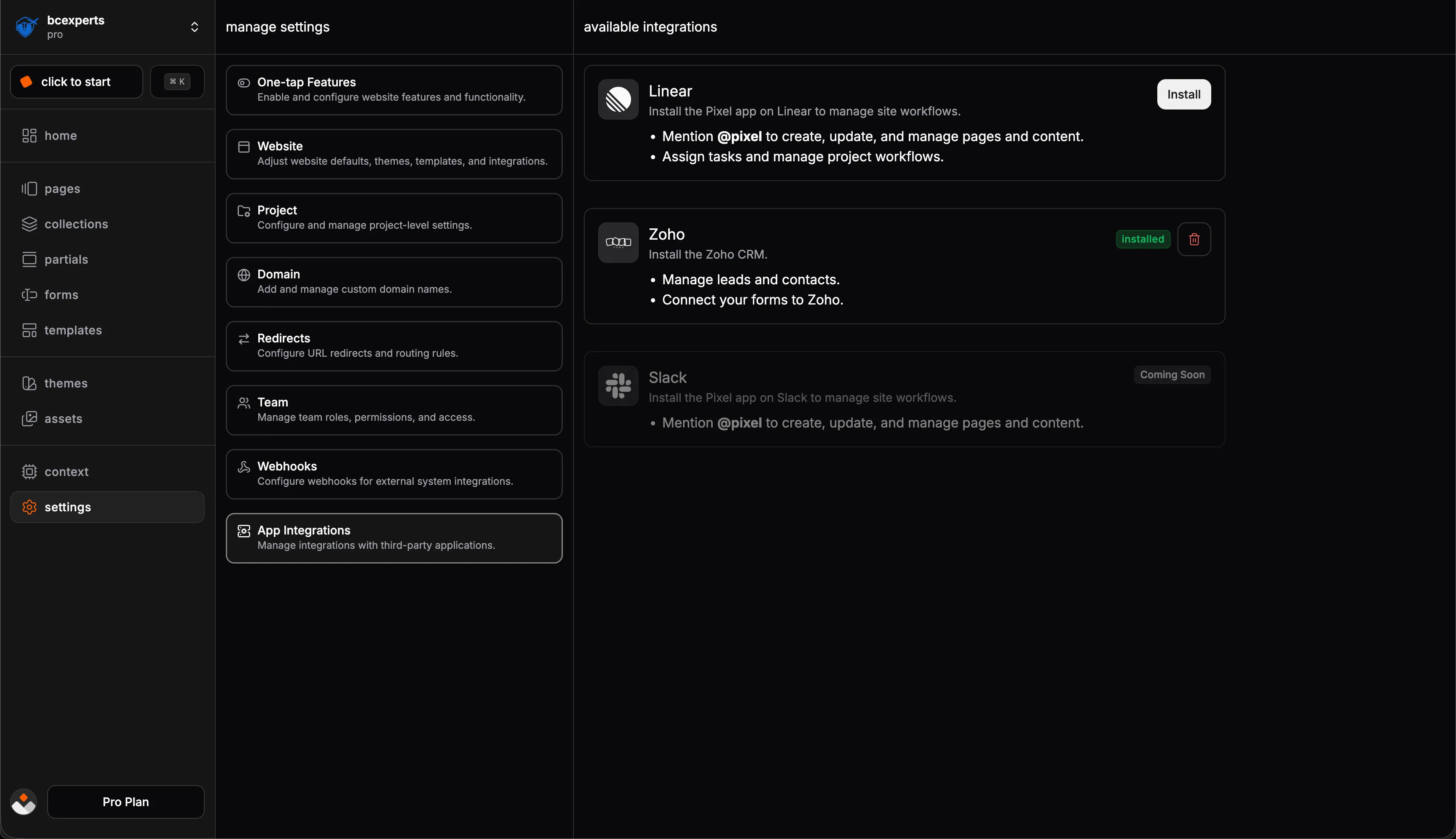
To connect your Zoho account:
Go to Settings → App Integrations in your Pixelesq dashboard
Click Install next to Zoho CRM
Sign in to your Zoho account in the popup
Authorize Pixelesq to access your CRM
Once authorized, you'll see a green "installed" badge. You can now configure which forms send data to Zoho.
Configure a Form
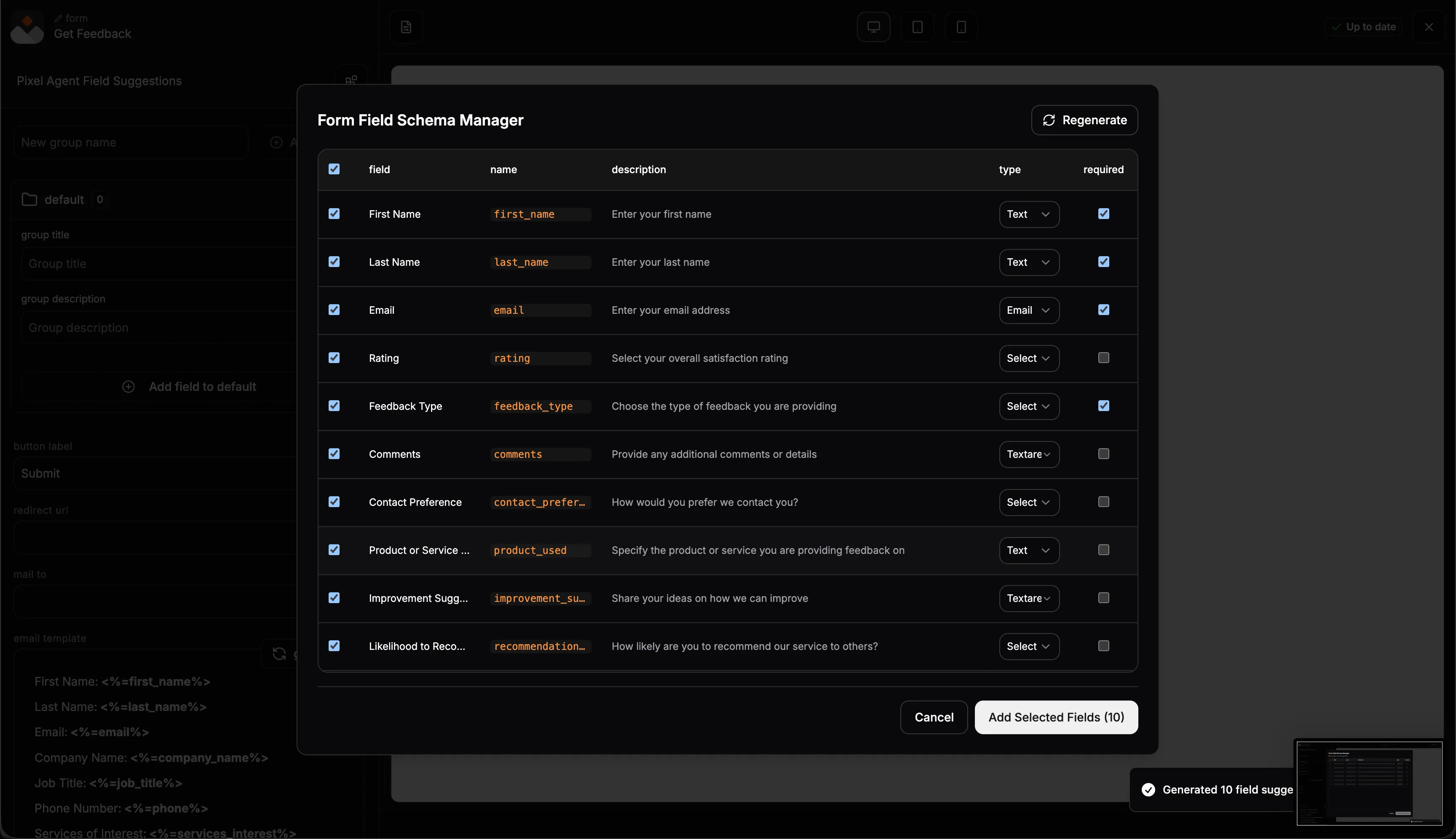
After connecting Zoho, set up each form you want to sync:
Go to Forms in the sidebar and select a form
Open the form's Settings tab
Find the Integrations section and enable Zoho CRM
Choose the Zoho module (Leads, Contacts, or a custom module)
Map each form field to the corresponding Zoho field
Common mappings include Name to Full Name, Email to Email, Phone to Phone, Company to Company, and Message to Description. Make sure all required Zoho fields are mapped or submissions won't sync.
Field Mapping
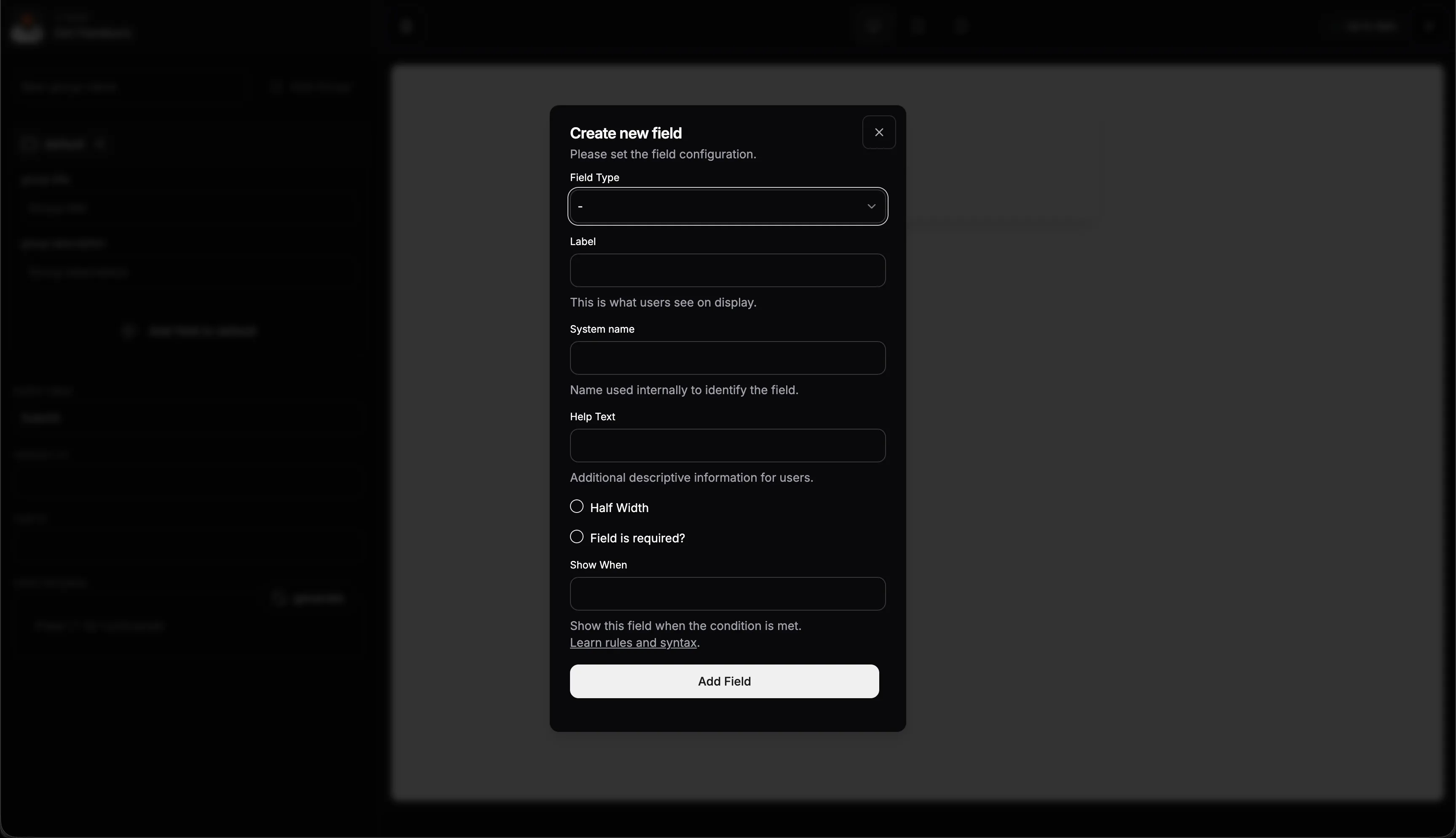
Field mapping controls how form data flows into Zoho. For each field in your form, select the matching Zoho field from the dropdown.
Leads typically require Last Name and Company. Contacts typically require Last Name. If you're using custom modules, check which fields Zoho marks as required.
You can set up different mappings for different forms. A contact form might go to Leads, while a newsletter signup goes to Contacts. Configure each form independently in its settings.
View Submissions
All form submissions are stored in Pixelesq regardless of the Zoho sync. Go to Forms → [Your Form] → Submissions to see all entries and their sync status.
Synced means the submission was sent to Zoho successfully. Pending means it's waiting to sync. Failed means something went wrong, usually a missing required field.
In Zoho, synced submissions appear in your selected module with a note indicating they came from Pixelesq.
Manage the Integration
View your connection status in Settings → App Integrations. To disconnect, click the trash icon next to Zoho CRM and confirm. Existing records in Zoho and submissions in Pixelesq are not affected.
To switch Zoho accounts, disconnect first, then reconnect following the setup steps.
Troubleshooting
If submissions aren't appearing in Zoho, check that the integration shows "installed" in Settings, verify the form has Zoho enabled, and ensure all required Zoho fields are mapped. Check the sync status on individual submissions for specific errors.
If records appear in Zoho but fields are empty, review your field mappings and make sure visitors are filling out those fields on your form.
For any other issues, reach out to hello@pixelesq.com.


