How to Verify Your Domain and Troubleshoot DNS Issues

The Verification Panel Has Three Steps
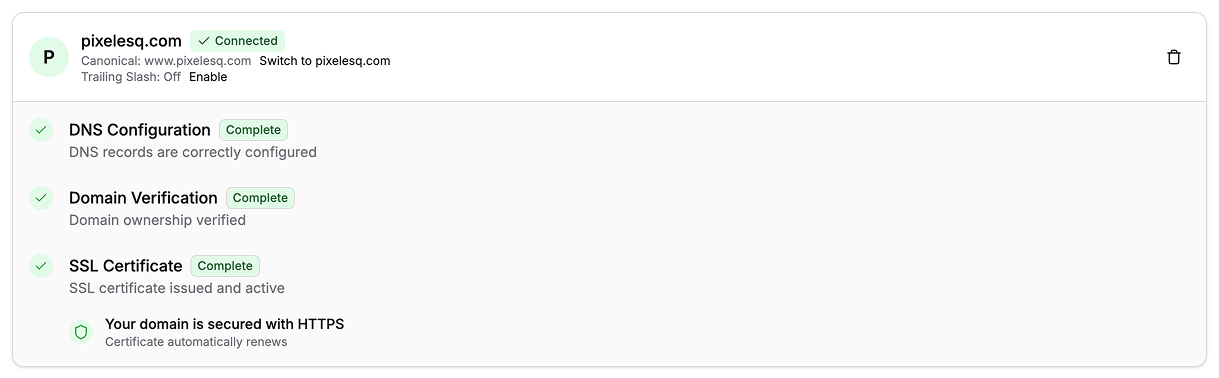
When you add a domain to Pixelesq, the configuration panel shows three steps:
DNS Configuration - your A and CNAME records need to point at Pixelesq's servers
Domain Verification - a TXT record proves you own the domain
SSL Certificate - automatic HTTPS is issued after the first two pass
Each step has a status color: green means complete, amber means pending or in progress, red means error. Troubleshooting starts with knowing which step is failing.
What Each Status Badge Means
BadgeColorWhat It MeansConnectedGreenDNS is correct, ownership is verified, SSL is active. You are fully live.Pending VerificationAmberDNS records are being checked, or the TXT verification record has not been added yet, or DNS is still propagating.Invalid ConfigurationRedDNS records are missing, wrong, or conflicting. Pixelesq cannot see the values it needs at your registrar.Sync ErrorRedPixelesq encountered an error talking to the SSL/infrastructure layer. Usually temporary.
Step 1: Confirm DNS Records Exist at Your Registrar
Log in to your registrar and open the DNS management page. You should see these two records:
A record, name
@, value76.76.21.21CNAME record, name
www, valuecname.vercel-dns.com.
If either is missing, add it. If either has a different value, edit it. Common mistakes at this stage:
Using
76.76.21.12or other incorrect IP addressesUsing
www.cname.vercel-dns.cominstead ofcname.vercel-dns.com.Adding the A record with name
wwwinstead of@Leaving an old conflicting A record from a previous host
Step 2: Check DNS Propagation Globally
After saving records at your registrar, use dnschecker.org to confirm the rest of the internet can see them.
Enter your domain in the search box.
Select record type: start with A, then check CNAME.
Review the results. Each region shows a green checkmark if it sees the expected value.
If most regions show the correct value, propagation is mostly done. Come back to Pixelesq and refresh the domain settings page. Pixelesq re-checks the records automatically.
If only a few regions show the correct value, wait 15-30 more minutes. Global propagation can take up to 48 hours for initial records, but most regions update within an hour.
Step 3: Verify Domain Ownership with the TXT Record
Once DNS is configured, Pixelesq shows a TXT record for ownership verification. It looks like:
Type: TXT
Name:
_vercelValue: a unique string generated for your domain
Add this record at your registrar using the same DNS management page where you added A and CNAME. The rules for TXT records are the same: the name is the subdomain prefix, the value is the literal string.
Then come back to Pixelesq and click Check Verification.
If Verification Fails on the First Check
TXT records are often the slowest to propagate because they are the least cached. Wait 5 minutes and click Check Verification again. If it fails after 3-4 attempts spread over 30 minutes, check these specific things:
Name field: Must be exactly
_vercelincluding the underscore. Some registrars auto-append your domain (so you see_vercel.yourbrand.comin the record list), which is correct. Others require you to include the full path. Check how other TXT records on your domain look for the expected format.Value field: Must match the Pixelesq value exactly, including any special characters. Some registrars wrap values in quotes automatically, which is fine. Others require you to add quotes manually. If in doubt, try without quotes first.
Only one TXT record at
_vercel: If you previously tried and failed, there may be an old TXT record still in place with a different (outdated) value. Delete any old _vercel records, leave only the current one.
Fix: "Invalid Configuration" Error
This red status means Pixelesq cannot see your DNS records. The fix is at your registrar, not in Pixelesq.
Open your registrar's DNS management page.
Compare your current records against what Pixelesq shows. Every character must match.
Delete any conflicting records (old A records, old CNAMEs pointing elsewhere).
Save changes at the registrar.
Wait 10 minutes and return to Pixelesq. Refresh the page.
Pixelesq re-checks automatically. The status updates to amber (pending) then green (connected) once DNS is correct.
Fix: "Sync Error" Badge
Sync Error is different from Invalid Configuration. It means Pixelesq talked to its infrastructure provider (for SSL and routing) and got an error back. Usually this resolves itself within a few minutes. If it persists:
Wait 5 minutes and refresh the settings page.
If still red, delete the domain from Pixelesq and re-add it. This triggers a fresh configuration request.
If the error persists after re-adding, contact Pixelesq support with your domain name.
Sync Error is rare. In almost all cases it is transient and clears on its own.
Fix: SSL Certificate Stuck on Pending
SSL certificates issue automatically as soon as DNS and verification both complete. If the SSL step stays amber for more than 10 minutes after the first two steps are green:
Confirm you visited the custom domain (not the Pixelesq default subdomain) with HTTPS. SSL cannot issue if the domain is unreachable.
Check that you are not proxying through Cloudflare (orange cloud). Cloudflare proxying breaks the SSL issuance flow.
Remove the domain from Pixelesq and add it again. This triggers a new certificate request.
Choose www or Root as Canonical
When your domain is verified, Pixelesq connects both yourbrand.com and www.yourbrand.com. One of them is the canonical, meaning the public URL visitors see. The other redirects to it.
By default, www.yourbrand.com is canonical. Change it in the domain settings by clicking Switch to yourbrand.com.
For SEO, pick one and stick with it forever. Switching canonical after indexing can cost you rankings as search engines treat it like a URL change.
Pro Tips
Google Search Console requires at least one custom domain. If you want to connect Pixelesq to Google Search Console for SEO analytics, you need to have at least one verified custom domain first. Pixelesq blocks the GSC integration until this is done.
Do not edit DNS and then immediately check Pixelesq. Give the records 2-5 minutes to propagate before hitting Check Verification. Hitting it repeatedly in the first minute will not make it work faster.
If you moved from Cloudflare proxied to DNS only, wait for propagation. The switch still counts as a DNS change and takes a few minutes to reach Pixelesq.
Screenshot your DNS records for your own reference. After everything is working, take a screenshot of the DNS records at your registrar. Next time you need to change something, you will know exactly what the current working configuration looks like.
Use incognito to test. Browser DNS caching can make it look like your custom domain is not working even when it is. Always test in an incognito window or with cleared DNS cache.
Troubleshooting
Pixelesq says DNS is configured but the domain does not load in my browser: Your computer may have cached an older DNS result. Try flushing your local DNS cache: on Mac run sudo dscacheutil -flushcache, on Windows run ipconfig /flushdns in Command Prompt, then test in incognito.
Verification works but SSL says "pending" indefinitely: Your DNS records are pointing at the wrong IP, or Cloudflare proxy is on. Double-check the A record is exactly 76.76.21.21 and not a Cloudflare proxy IP. In Cloudflare, verify the cloud icon is gray (DNS only).
I cannot find a TXT record option at my registrar: Every major registrar supports TXT records. The option is usually on the same page as A and CNAME, under record type selection. If you genuinely cannot find it, search your registrar's support docs for "add TXT record".
The domain loads on mobile but not on my office WiFi: Your office DNS resolver has a cached version of an older record. Office networks often have longer DNS caching. Mobile data uses a different resolver that has already updated. Wait up to 48 hours, or ask your office admin to flush the DNS cache on the router.
I deleted a record by accident and my site went offline: If you have the previous value, re-add it immediately. If not, re-add Pixelesq's values (A @ 76.76.21.21 and CNAME www cname.vercel-dns.com.) and wait for propagation. Future tip: always screenshot DNS records before editing.
FAQ
Why is DNS propagation so slow sometimes?
Propagation depends on the TTL of the previous DNS record, not the new one. If your old record had a TTL of 86400 (24 hours), DNS resolvers around the world will keep serving the old value for up to 24 hours. The new TTL only kicks in after the old one expires. Lower your TTL to 300 seconds 24-48 hours before making DNS changes for faster transitions.
Can I verify a domain I do not own yet?
No. The TXT record verification step exists specifically to prove ownership. You must have access to the DNS management at the registrar where the domain is registered. If you are buying a domain through an agency or reseller, make sure they give you DNS access, or have them add the TXT record on your behalf.
How often does Pixelesq check my DNS records?
Pixelesq checks DNS when you first add the domain and again when you click Check Verification. There is no automatic background polling. If you add records after initial setup, come back and click Check Verification to trigger a fresh check.
What happens to my verification if my DNS records change later?
Once verified, your domain stays verified even if you later change the TXT record. However, if you change the A or CNAME records to point somewhere else, your site becomes unreachable through Pixelesq. The verification flag and the DNS connection are separate concepts. Verification is a one-time check. DNS is ongoing.
Is there a way to verify ownership without adding a TXT record?
No. TXT record verification is the only method Pixelesq supports, and it is the standard across most hosting providers. File-based verification (uploading a file to your old server) is not supported because you may not have a previous server to upload to.
My domain works but Google Search Console cannot verify it through Pixelesq. What do I do?
Google Search Console has its own verification process, separate from Pixelesq's domain verification. When you connect GSC through Pixelesq's integration (Settings → App Integrations), Pixelesq uses OAuth to authorize GSC access. You do not add a separate TXT record for GSC. If GSC verification is failing inside Pixelesq, it usually means your custom domain is not fully connected yet, or GSC is not seeing the site as live. Wait for full DNS propagation, confirm your domain is reachable via HTTPS, and try again.
On this page


