HELP CENTER -> Lead capture
Create a form with AI by describing what you need

Create a form with AI
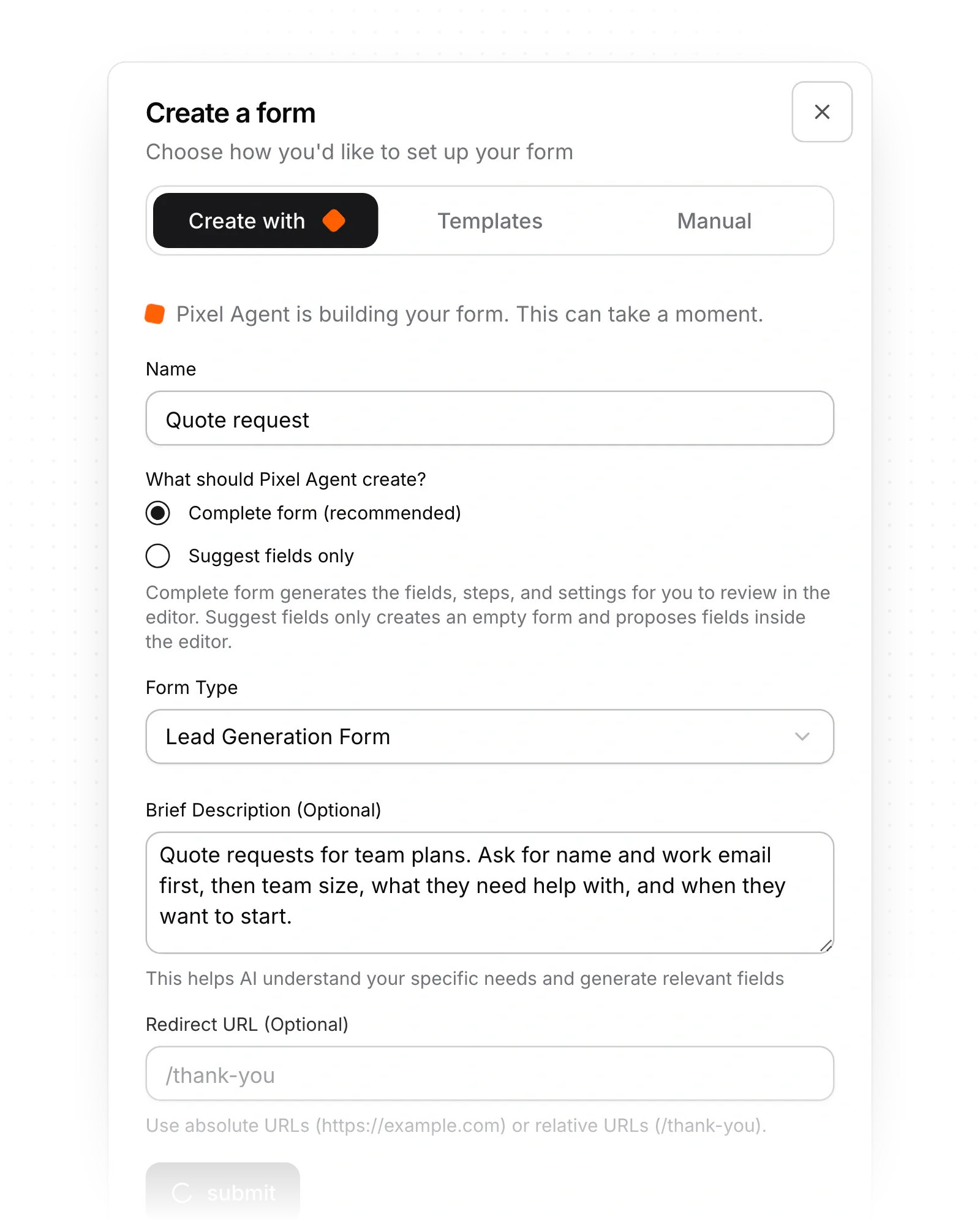
- Open forms, click create, then choose Create with Pixel Agent.
- Type a Name and pick Complete form (recommended) or Suggest fields only.
- Pick a Form Type and add a short description under Brief Description (Optional).
- Click submit and wait while Pixel builds the form.
- Review it in the editor. With Suggest fields only, tick the fields you want and click Add Selected Fields.
Or ask Pixel in chat
Click ask pixel and describe the form, for example "Create a demo request form with name, work email and company size".
Limits
- A complete AI form doesn't set up notification emails, Zoho, Slack or chat filling. Set those in the form editor.
- Pixel can't change notification addresses or email templates.
- Forms have no draft, so changes are live once saved.
Common questions
What if Pixel can't build a complete form?
Try again, or click Use field suggestions instead to pick the fields yourself.
Does Pixel ask before removing a field?
Yes. Pixel asks for your approval before it removes a field that holds answers.
On this page
Create a form with AIOr ask Pixel in chatLimitsCommon questions
Prerequisites
Still have questions?
Ask Pixel in your dashboard. It can make many changes for you, or take you to the right screen. Our team can also help you plan, build or move your site.


