HELP CENTER -> Design & styling
Publish theme changes and switch your site to another theme
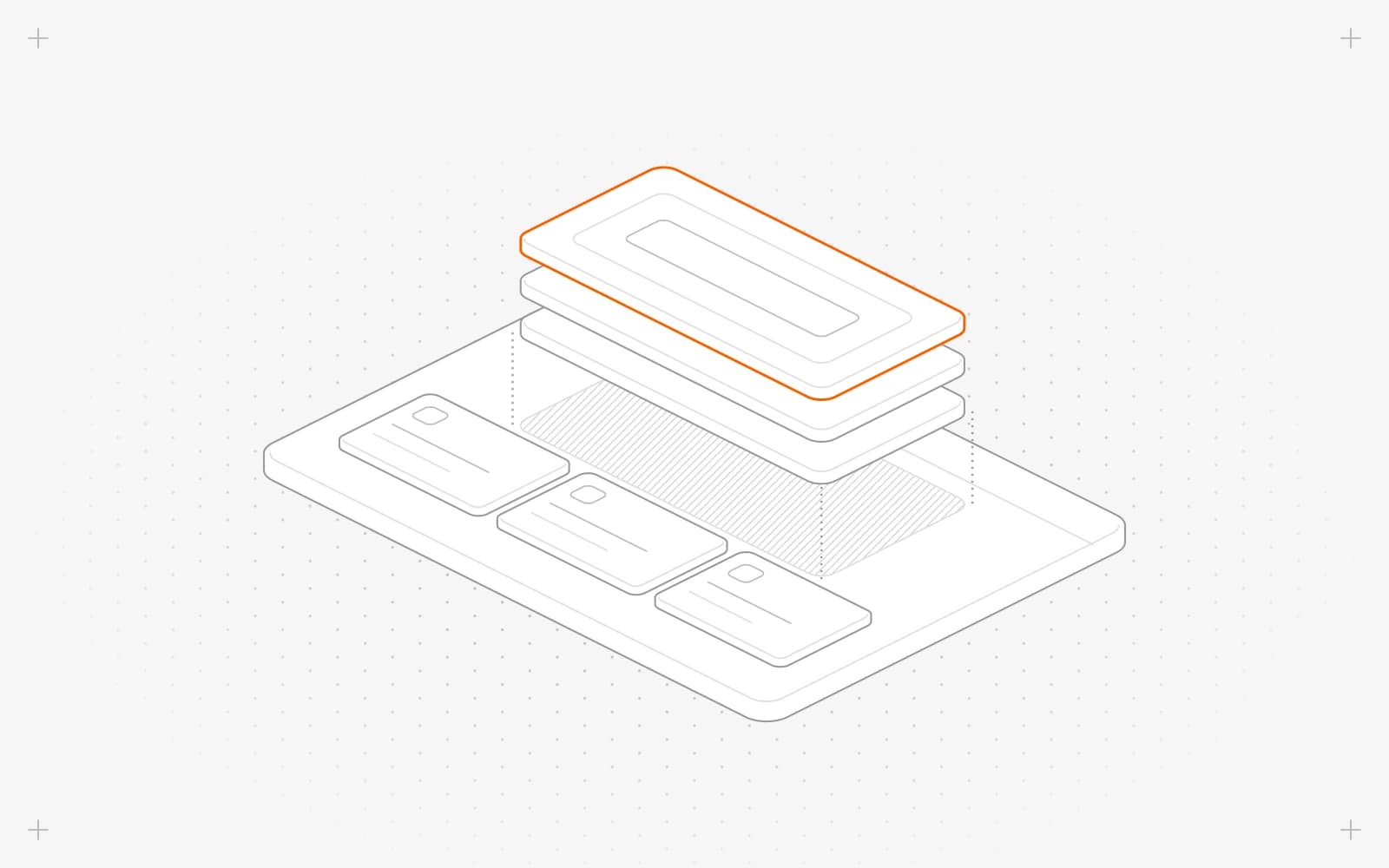
Publish theme changes
- In the theme editor, click Changes to see what changed since the last publish. Reset undoes one change, and Revert all undoes everything.
- Click publish. The dialog lists your changes.
- Click Publish.
If this is your active theme, every page updates at once. You don't need to republish your pages.
Switch to a different theme
- Open themes and double-click the theme you want.
- Publish it first if it has changes.
- Click Make Active. The header then shows Active.
Limits
- Publishing a theme that isn't active leaves your site as it is. Make it active to use it.
- Make Active switches the whole site at once, with no confirmation step.
- Every page uses the same active theme.
- The active theme can't be deleted.
Common questions
Why don't my theme changes show on my site?
Either the theme isn't published yet, or it isn't your active theme. Publish it, then click Make Active if needed.
How do I throw away my theme edits?
Click Discard draft to go back to the last published version.
Why is publish grayed out?
There are no changes to publish, or you're offline.
On this page
Publish theme changesSwitch to a different themeLimitsCommon questions
Prerequisites
Still have questions?
Ask Pixel in your dashboard. It can make many changes for you, or take you to the right screen. Our team can also help you plan, build or move your site.


