HELP CENTER -> Growth tools
Read your weekly growth briefing and act on it

Read the briefing
- Open your dashboard home.
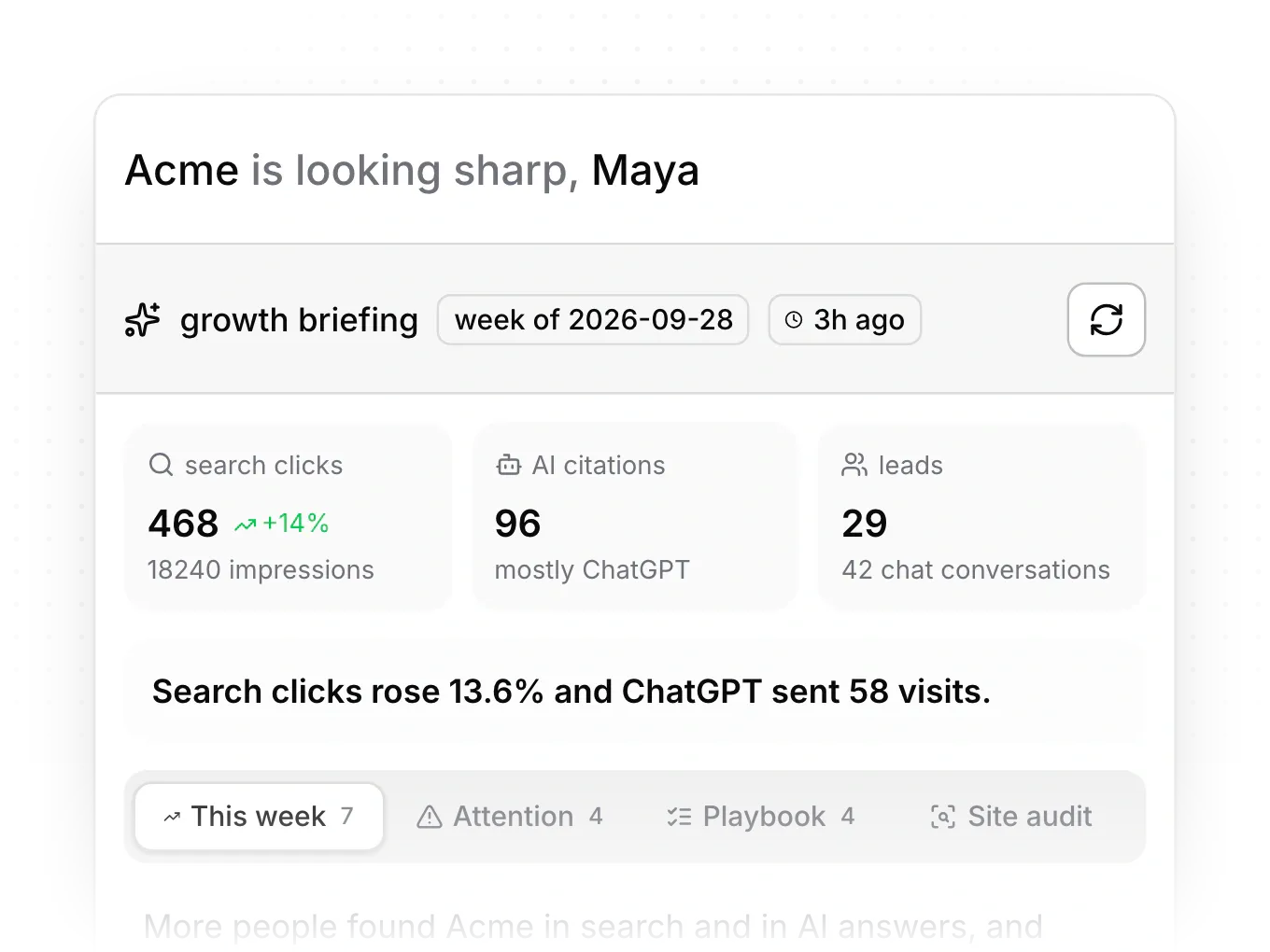
- Read the numbers and headline in growth briefing: search clicks, AI citations and leads.
- Switch between This week, Attention, Playbook and Site audit.
- In Playbook, click a card to open its fix, then use Mark as done or Dismiss this action.
Get it by email each week
- In growth, open Settings, then Weekly growth report.
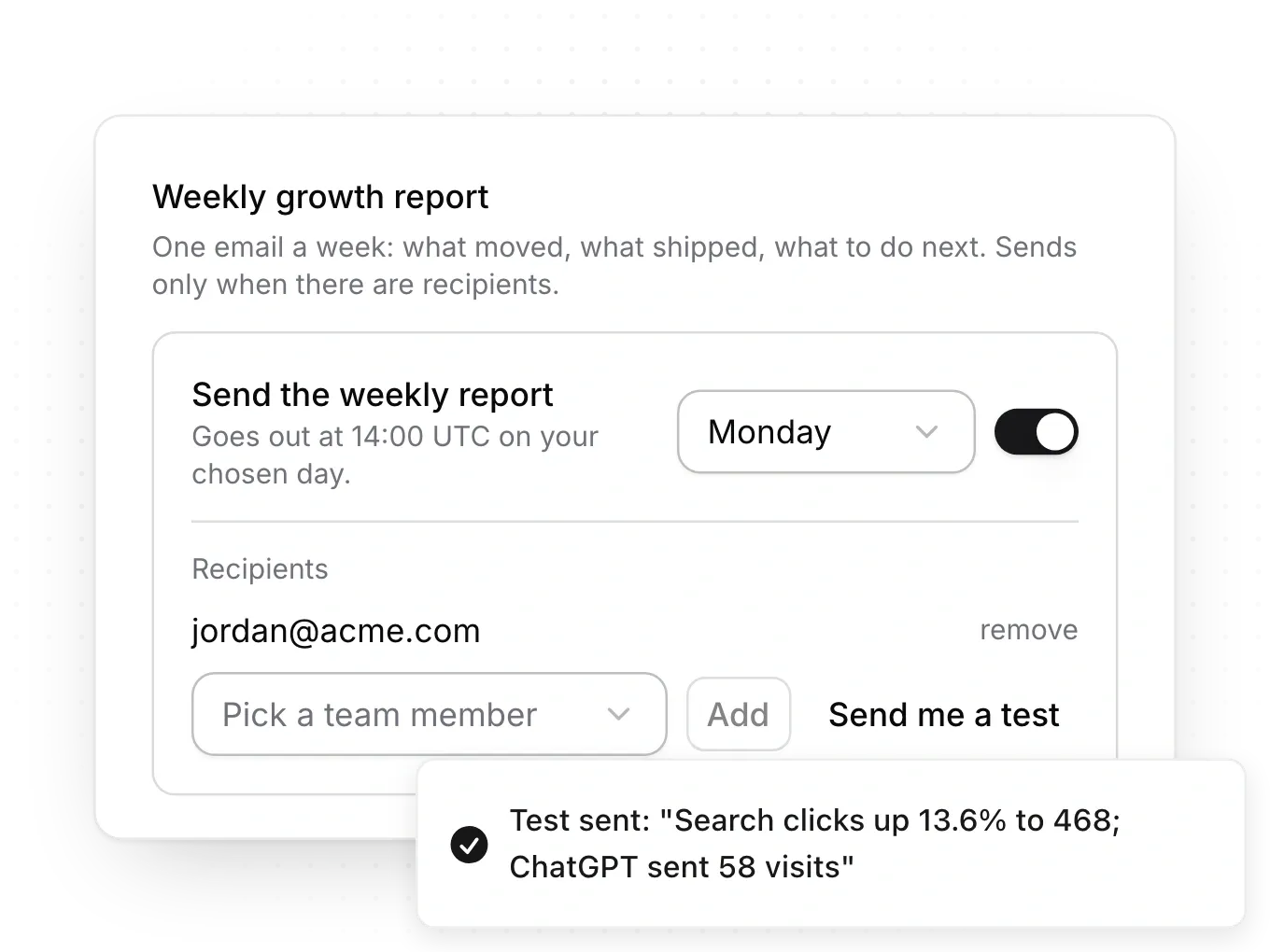
- Turn on Send the weekly report and pick a day.
- Under Recipients, choose people with Pick a team member and click Add.
- Click Send me a test to check it.
Limits
- With Growth on, a new briefing arrives each Monday morning. Without Growth, it's made when you first open it or refresh it.
- Search numbers need Google Search Console. Without it, the briefing shows visitors instead.
- The email goes out at 14:00 UTC on the day you pick, Monday to Friday, and only to people on your team.
- Anyone on the team can read the briefing. Owners and Editors refresh it and tick off actions.
Common questions
What does "No briefing yet" mean?
Click refresh to make one.
Why does it say this week's briefing failed?
Pixelesq shows the last good briefing instead. Click Retry.
Can I send the report to someone outside my team?
No. Invite them to the project first, then add them as a recipient.
On this page
Read the briefingGet it by email each weekLimitsCommon questions
Prerequisites
Still have questions?
Ask Pixel in your dashboard. It can make many changes for you, or take you to the right screen. Our team can also help you plan, build or move your site.


