HELP CENTER -> Content management
Replace an image on your website
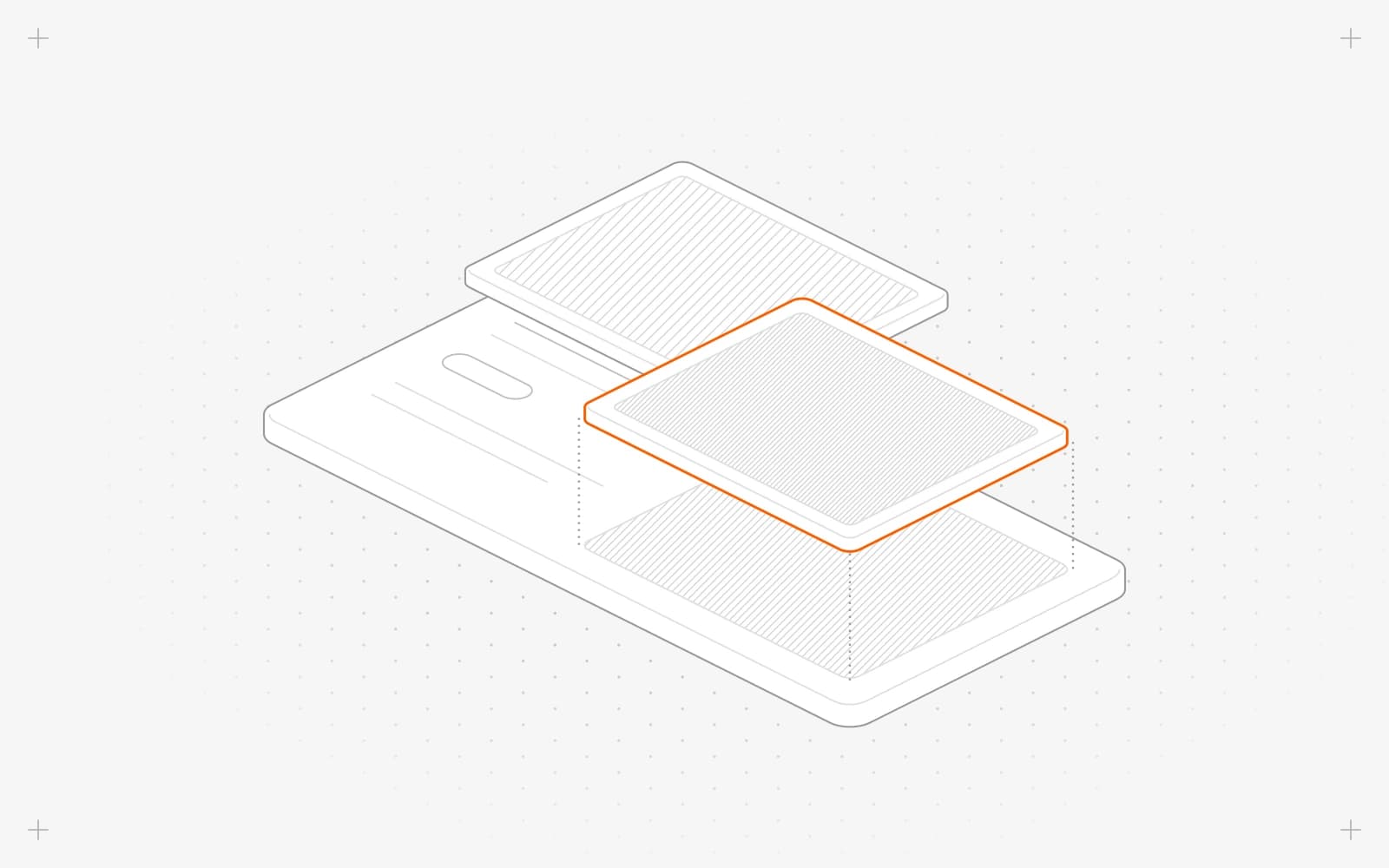
Replace the image
- Click the image on the page.
- In the panel, click the small button on the Media thumbnail.
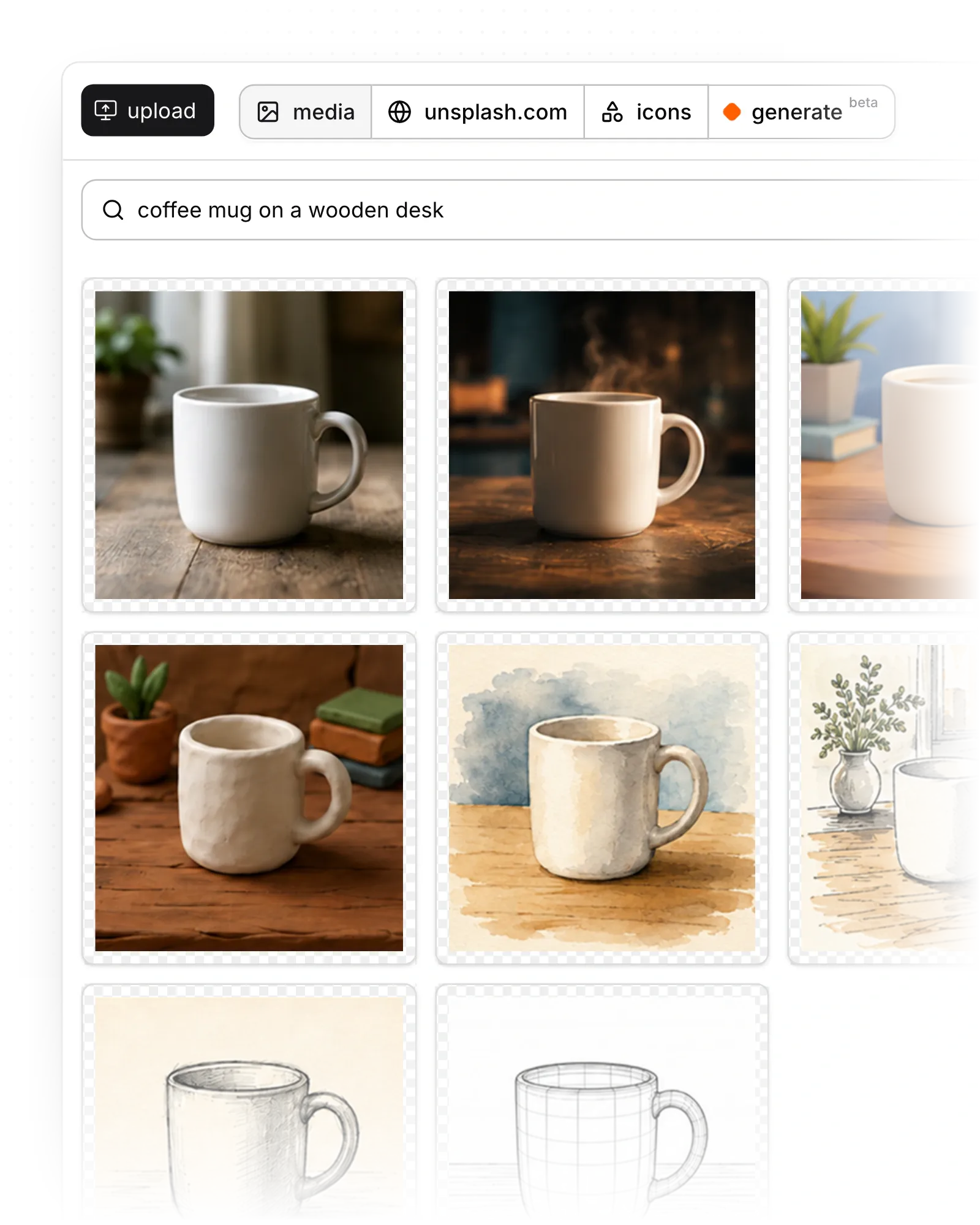
- Pick an image from media, unsplash.com, icons or generate, or paste an image address under URL.
- Update Alt/Description to describe the new image.
Limits
- The alt text stays the same when you swap an image, so update it yourself.
- Library images can't be cropped or given a focal point. In Advanced mode, use Object Fit, Object Position and Ratio to control how the image fills its space.
Common questions
Why does my image look cut off?
Set Object Fit to contain, or pick a Ratio that matches the image.
Can I use free stock photos?
Yes. Pick one from unsplash.com in the image picker.
Can AI make the image for me?
Yes. Click generate in the picker. See Generate an image with AI.
On this page
Replace the imageLimitsCommon questions
Prerequisites
Still have questions?
Ask Pixel in your dashboard. It can make many changes for you, or take you to the right screen. Our team can also help you plan, build or move your site.


