HELP CENTER -> Publishing & teams
Restore an earlier version of a page or blog post
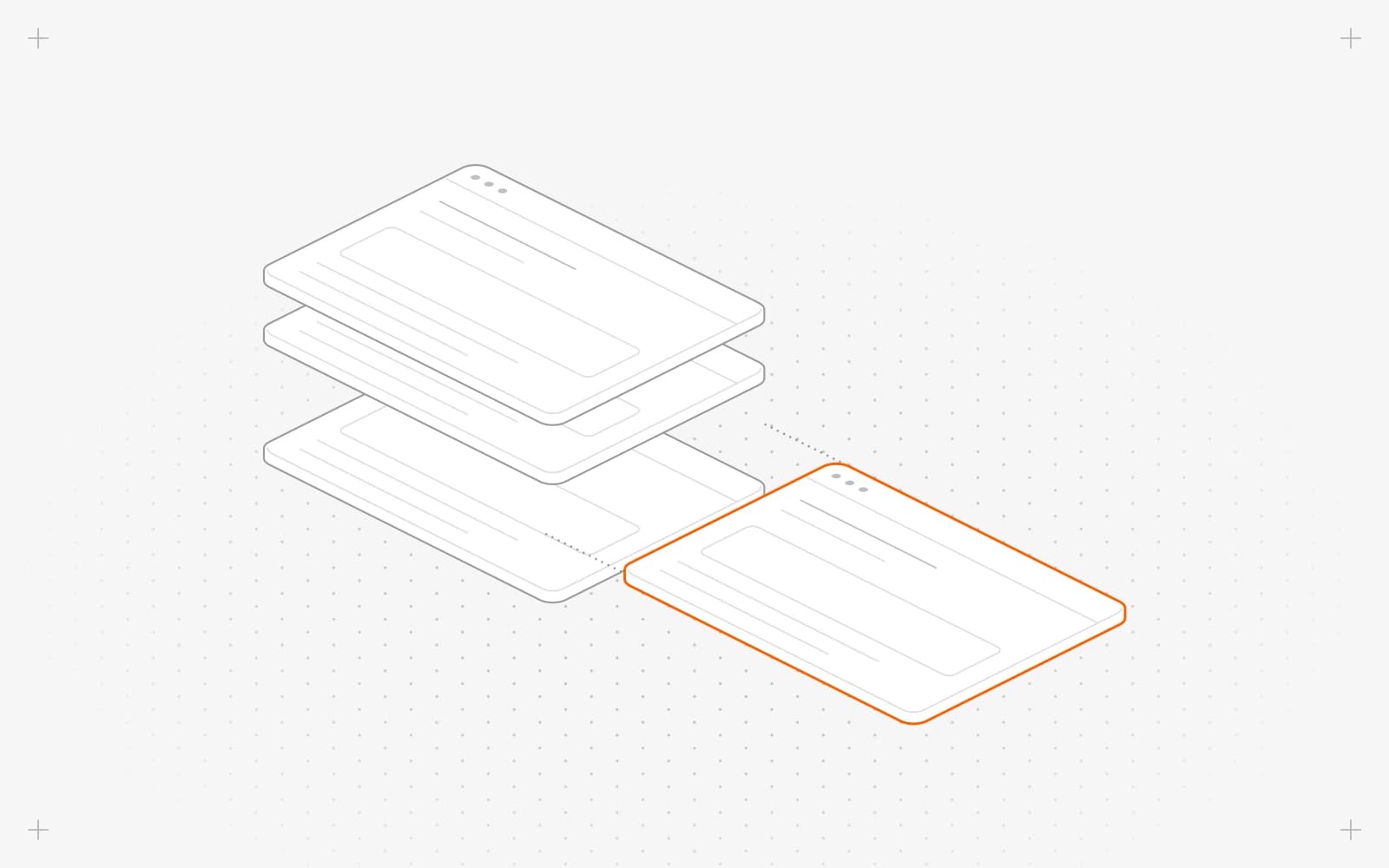
Step back with the version menu
- Save your changes first. The menu is off while it shows Unsaved Changes.
- Click the version menu at the top left. It shows the address and the current version.
- Pick a version, click Revert and confirm.
- Publish to put it live.
Bring back older work with Revisions
- Open Page settings, or Settings in an entry, and find Revisions.
- Click the restore button next to a revision and confirm Restore. It comes back as a new draft.
- Publish to put it live.
Or ask Pixel to undo
On a page, ask Pixel, for example "Undo this morning's changes to the homepage". Pixel shows a restore card. Click Approve, then publish.
Limits
- Reverting removes the versions after the one you pick. Restoring a revision keeps your history.
- Restoring never publishes on its own.
- Pixel can undo pages. For entries, headers and footers, use the menus above.
- You bring back a whole version at a time, so you can't restore a single field.
Common questions
Why is the version menu grayed out?
You have unsaved changes. Save first, then open it.
Which revision is live?
In an entry's Revisions, the live badge marks the one visitors see.
What does "Failed to revert to version" mean?
Reload the page and try again.
On this page
Step back with the version menuBring back older work with RevisionsOr ask Pixel to undoLimitsCommon questions
Prerequisites
Still have questions?
Ask Pixel in your dashboard. It can make many changes for you, or take you to the right screen. Our team can also help you plan, build or move your site.


