HELP CENTER -> Content management
Show your latest blog posts or other entries on a page
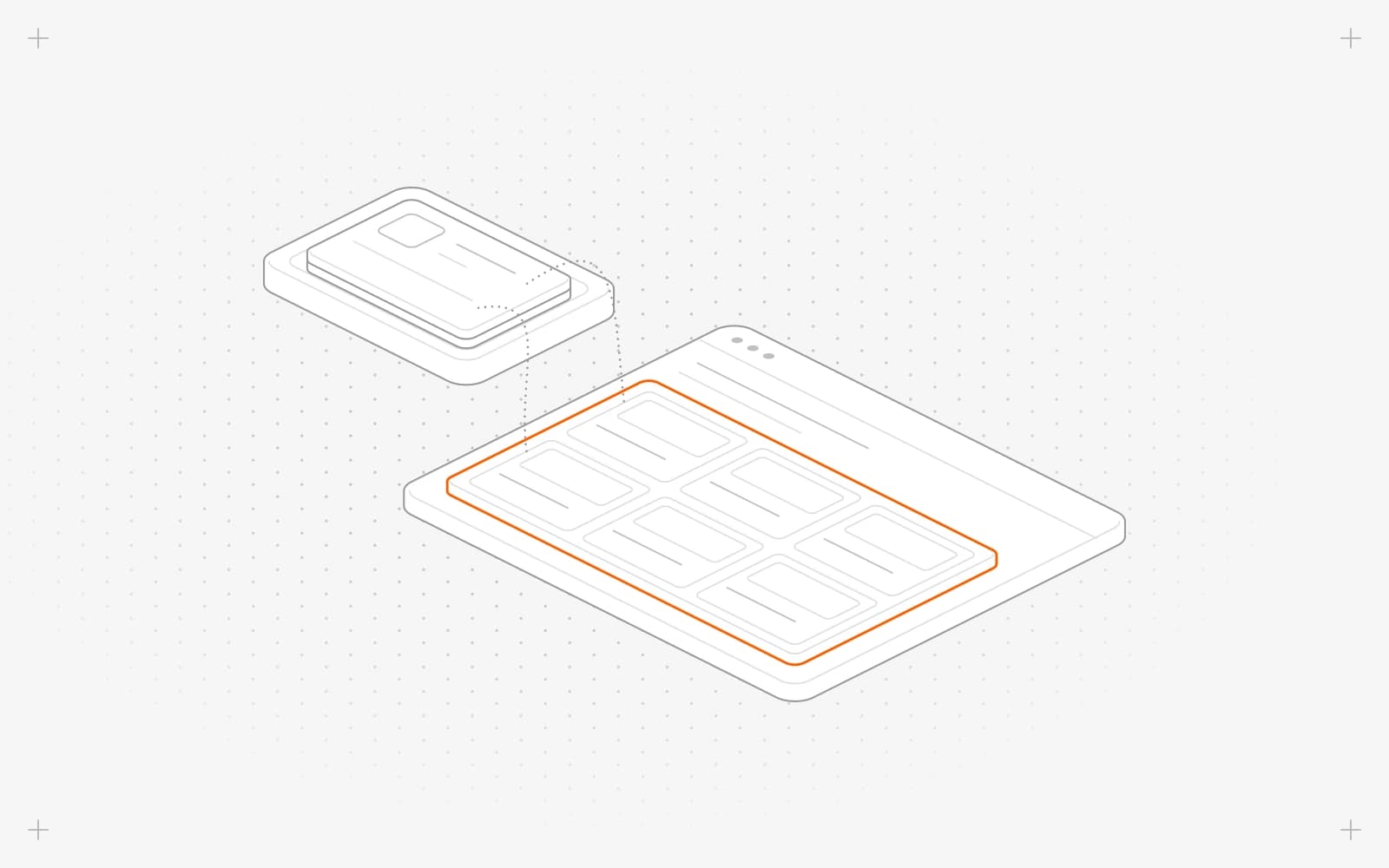
Ask Pixel
- Open the page and click ask pixel.
- Ask, for example, "Show the latest 3 posts in this cards section".
- Publish the page.
Connect it yourself
- Add a list section, such as a cards section. Let it save, then reload the page.
- Select the section. On the database tab, choose your collection under datasource.
- On the content tab, click the database icon on the list of items, then choose Select a source and Entries.
- Map each item field, such as the title and image, the same way.
- Publish the page.
Limits
- Lists show published entries only.
- Cards don't link to entry pages on their own. In the link's Data source path, type the address pattern, such as /blog/<%=slug%>.
- The list updates when you publish entries. You don't need to republish the page.
Common questions
Why don't I see the database tab on a new section?
New sections need to save first. Wait a moment, reload the page and select the section again.
Why is my list empty?
No entries in the collection are published yet. Publish at least one.
What does "Datasource changes need sync" mean?
Sync is turned off for this project, so the connection can't save. Contact support.
On this page
Ask PixelConnect it yourselfLimitsCommon questions
Prerequisites
Still have questions?
Ask Pixel in your dashboard. It can make many changes for you, or take you to the right screen. Our team can also help you plan, build or move your site.


