HELP CENTER -> Growth tools
Track your Google rankings and AI Overviews for your keywords
Track keywords
- In growth, open AI Visibility, then Rankings.
- Type keywords in Track keywords (comma-separated) and click Track.
- Read the totals: Tracked, Top 10, This period and AI Overview on results.
- Click a keyword to see its history.
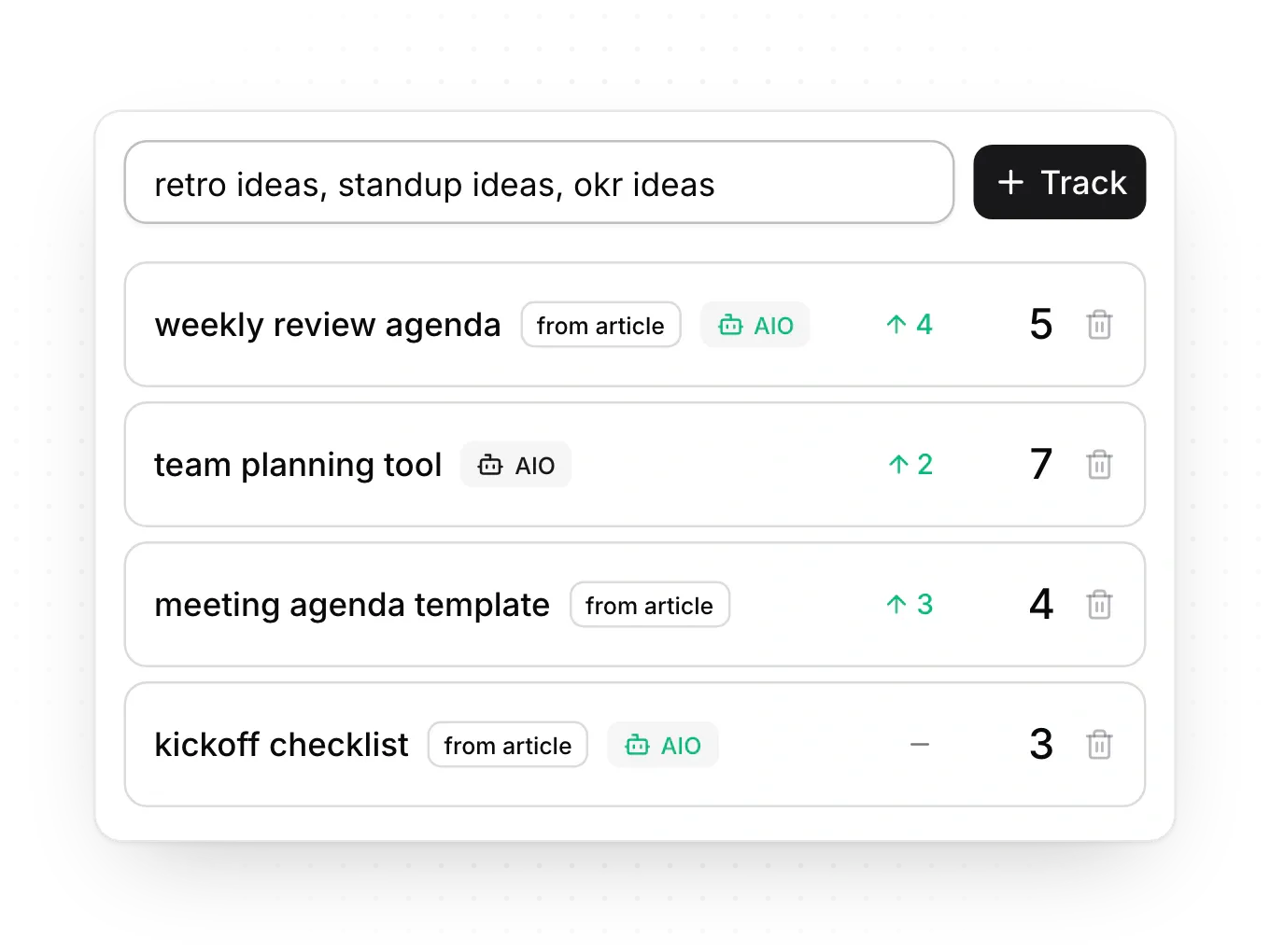
To stop tracking a keyword, click its trash icon and choose Stop tracking.
Limits
- Each plan tracks a number of keywords: 25 on Launch, 100 on Grow and 300 on Scale.
- Rankings are checked weekly on Launch and Grow, and daily on Scale.
- Pixelesq checks desktop Google in the United States, in English, and only the top 10 results. Lower positions show a dash.
- Articles you publish from Growth and fixes you apply are tracked for you.
- History goes back 13 months.
Common questions
Why does a keyword show no data?
It hasn't been checked yet. The next scheduled check fills it in.
Why does it say I've reached the tracked keyword limit?
You're tracking as many keywords as your plan allows. Stop tracking some, or upgrade.
What does AI Overview on results mean?
It counts the tracked keywords where Google shows an AI Overview, and the check shows whether that overview cites your site.
On this page
Track keywordsLimitsCommon questions
Prerequisites
Growth turned on.
Still have questions?
Ask Pixel in your dashboard. It can make many changes for you, or take you to the right screen. Our team can also help you plan, build or move your site.


