HELP CENTER -> Lead capture
Turn on the AI chatbot for your website
Turn it on
- In the sidebar, under manage, click chatbot.
- On General, flip the switch at the top right from Disabled to Live on your site.
- Wait for "Saved".
- Check the name, greeting and conversation starters. Pixel fills in any that are empty.
Limits
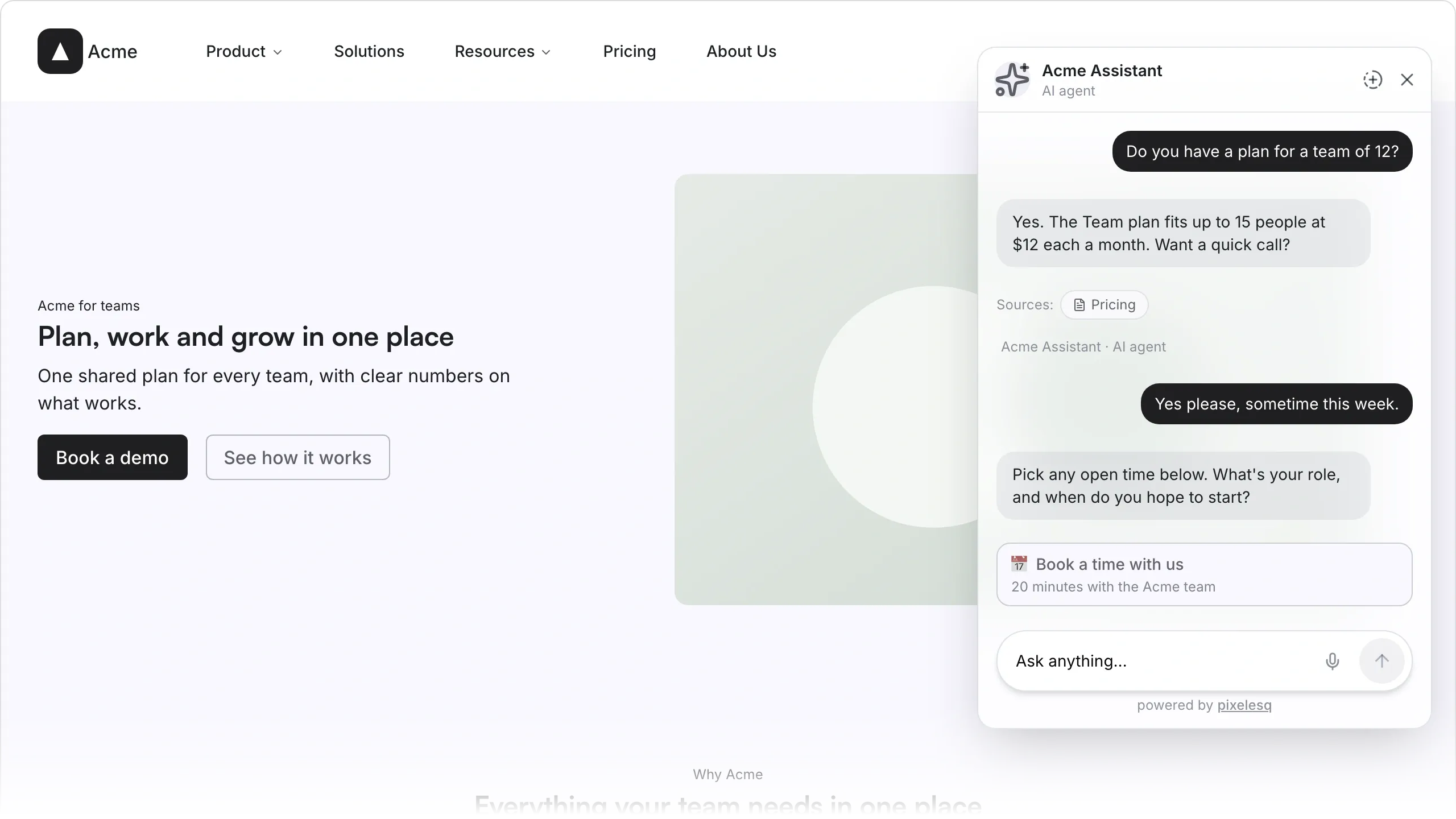
- The chatbot shows on every published page. It can't be limited to some pages.
- Each plan includes a number of conversations a month: 100 on Launch, 500 on Grow and 2,000 on Scale.
- Only Owners and Editors can manage the chatbot.
Common questions
What does "You do not have permission to manage the chatbot" mean?
You're a Viewer. Ask an Owner to make you an Editor.
How do I pause the chatbot?
In chatbot, open Settings and turn on Pause AI conversations. Visitors then see a short form to leave their details. To remove the chat completely, flip the General switch back to Disabled.
On this page
Turn it onLimitsCommon questions
Prerequisites
Still have questions?
Ask Pixel in your dashboard. It can make many changes for you, or take you to the right screen. Our team can also help you plan, build or move your site.


