Build and edit your website from VS Code
Connect Pixelesq to VS Code and ask Copilot to build pages, edit content and publish your site.
Overview
Add the Pixelesq server to VS Code and GitHub Copilot works on your website from the chat view: build landing pages section by section, write blog posts into collections, update SEO titles and redirects, read Search Console and traffic numbers, and adjust the theme. Page and entry edits stay drafts until you publish. Some changes, such as redirects and theme updates, apply right away.
It suits teams who already work in VS Code. Release notes, docs pages and launch posts can be written and published from the same window.
How it Works
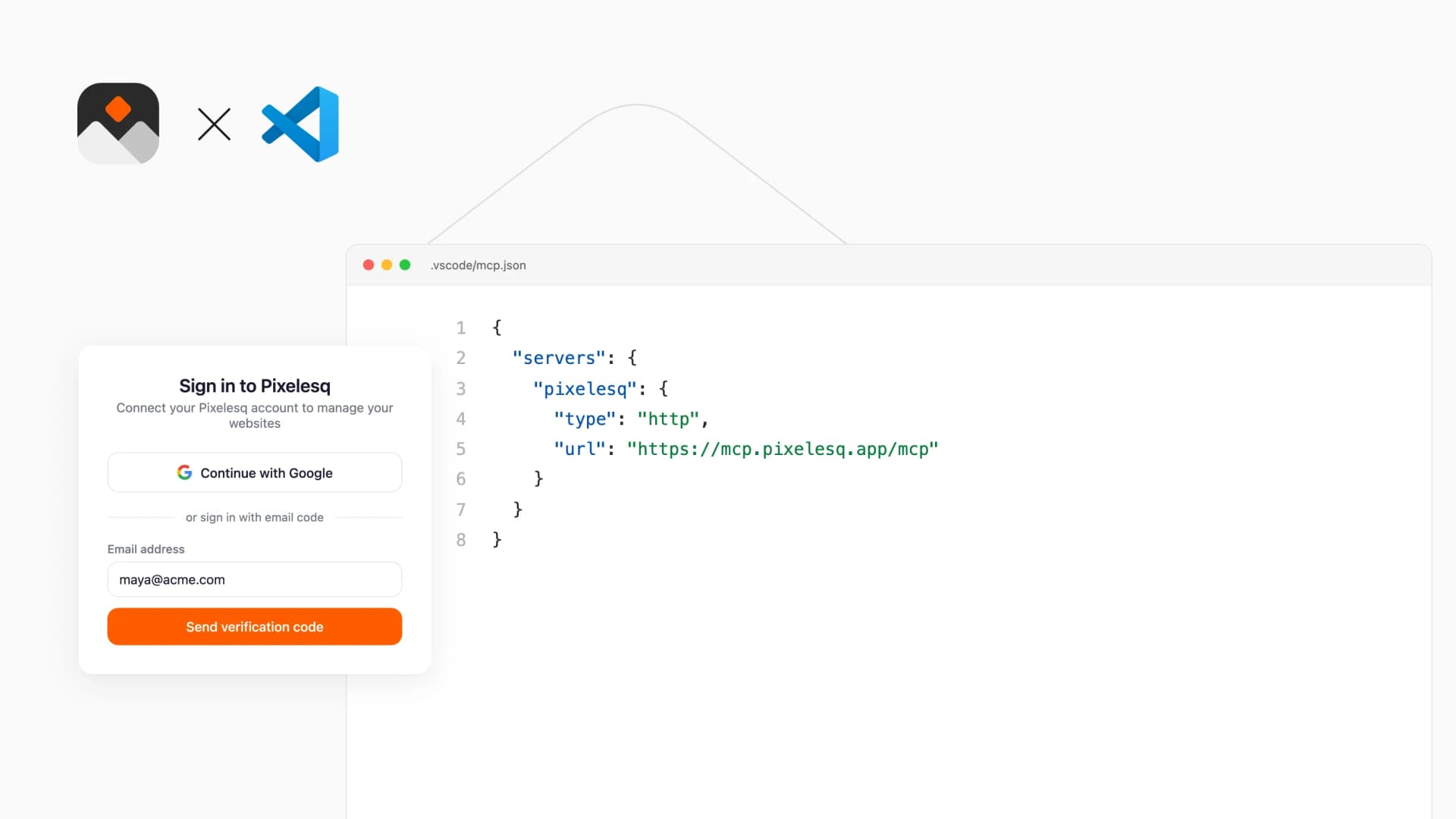
Add Pixelesq as an HTTP server in VS Code and sign in with Google or your Pixelesq email. You need a Pixelesq account with at least one project. Copilot then works with your projects with the same role you have in Pixelesq.
In an agent session, ask in plain words, such as "publish the draft post about our spring launch" or "show this month's top search queries". Copilot reads the current content first and changes only what you asked for.
Configure
Click Install App on this page to add Pixelesq to VS Code in one step, or add it by hand:
1. Open the Command Palette and run MCP: Add Server
2. Choose HTTP and enter https://mcp.pixelesq.app/mcp
3. Enter pixelesq as the server ID and choose where to save it
4. Sign in with Google or your Pixelesq email when VS Code asks
5. In an agent session in Copilot Chat, ask Copilot to list your Pixelesq projects