HELP CENTER -> Analytics & performance
Add Google Analytics, Tag Manager or a Meta Pixel to your site

Add your ID
- Click settings, then Tracking.
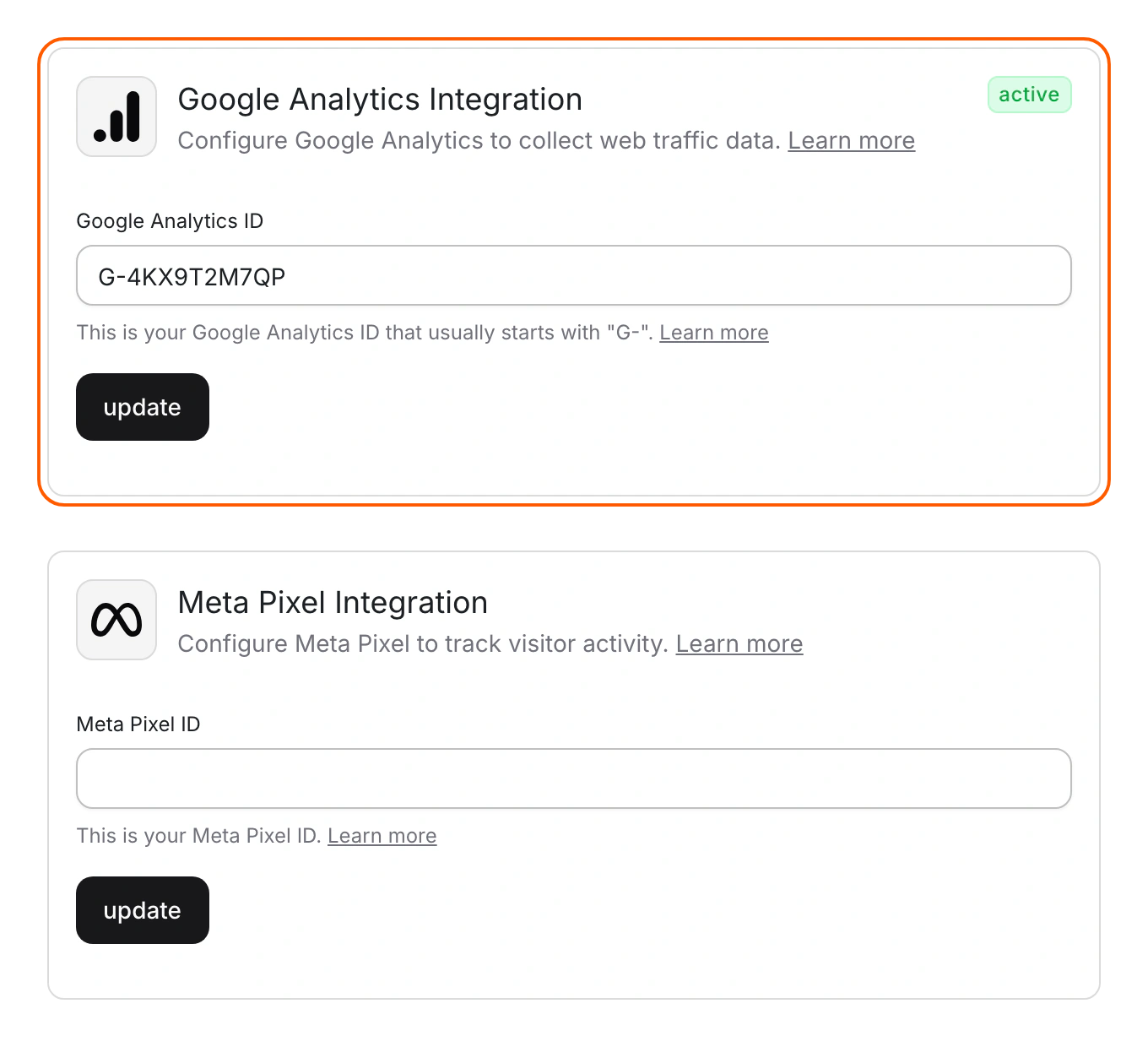
- Find the card for your tool:
- Google Analytics Integration: paste your measurement ID in Google Analytics ID.
- Google Tag Manager Integration: paste your container ID in the field labeled Property ID.
- Meta Pixel Integration: paste the number in Meta Pixel ID.
- Click update. Look for "Updated project setting" and the Active badge.
- Open a published page and check your tool's live view, such as GA4 Realtime or Meta Pixel Helper.
Remove a tag
Clear the field and click update.
Limits
- Paste only the ID. A full code snippet stops the tag from working, and Pixelesq doesn't check the ID.
- Tags load on every published page and can't be limited to some pages. The editor preview loads none.
- The Meta Pixel sends a PageView on each page. Form submissions don't send Lead events.
- Only Owners can change tracking.
- For other tools, add their code under Custom Code.
Common questions
Why don't I see data in Google Analytics?
Check that the field holds only the ID, starting with G-. Then visit a published page and look in GA4 Realtime.
Should I use Google Analytics or Tag Manager?
Use Google Analytics for GA4 on its own. Use Tag Manager to manage several tags in one place. Adding GA4 both ways counts each visit twice.
Do I need Google Analytics to see my traffic?
No. Pixelesq counts visits for you in analytics. See See how many people visit your site.
On this page
Add your IDRemove a tagLimitsCommon questions
Prerequisites
An ID from the tool you use: a GA4 measurement ID that starts with G-, a Tag Manager container ID that starts with GTM- or a Meta Pixel ID.
Still have questions?
Ask Pixel in your dashboard. It can make many changes for you, or take you to the right screen. Our team can also help you plan, build or move your site.


