HELP CENTER -> Building pages
Edit the header and footer on every page of your site
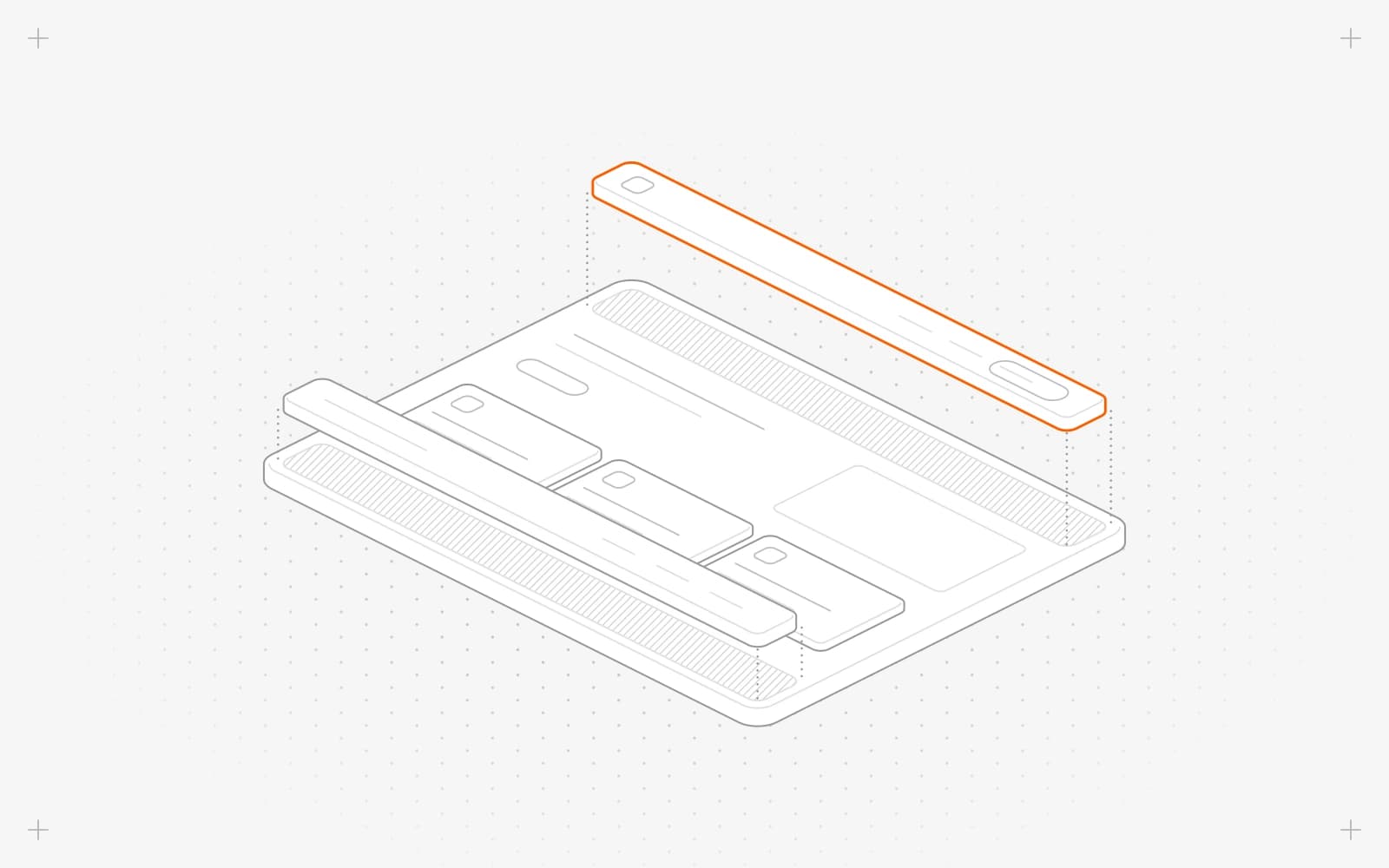
Edit the header or footer
- In the page editor, hover the header or footer and click Edit Partial. Your unsaved page edits save first.
- Click the menu, logo or buttons to edit them.
- Click publish and confirm.
You can also open it from partials in the sidebar by double-clicking the header or footer.
Limits
- Changes show on your pages only after you publish the header or footer.
- Let your edits finish saving before you publish. Use Save here, since Cmd+S doesn't work in this editor.
- Every page that uses the header or footer shows the same one.
Common questions
Why don't my header changes show on my live site?
The header isn't published yet. Open it with Edit Partial and click publish.
What happens if I close it without publishing?
Pixelesq asks "Exit without publishing?". Choose Publish & Exit to publish, or Exit to leave without publishing.
Why is publish grayed out?
You're offline. It works again when you're back online.
On this page
Edit the header or footerLimitsCommon questions
Prerequisites
Still have questions?
Ask Pixel in your dashboard. It can make many changes for you, or take you to the right screen. Our team can also help you plan, build or move your site.


