HELP CENTER -> Building pages
Edit the text, images and buttons on your pages
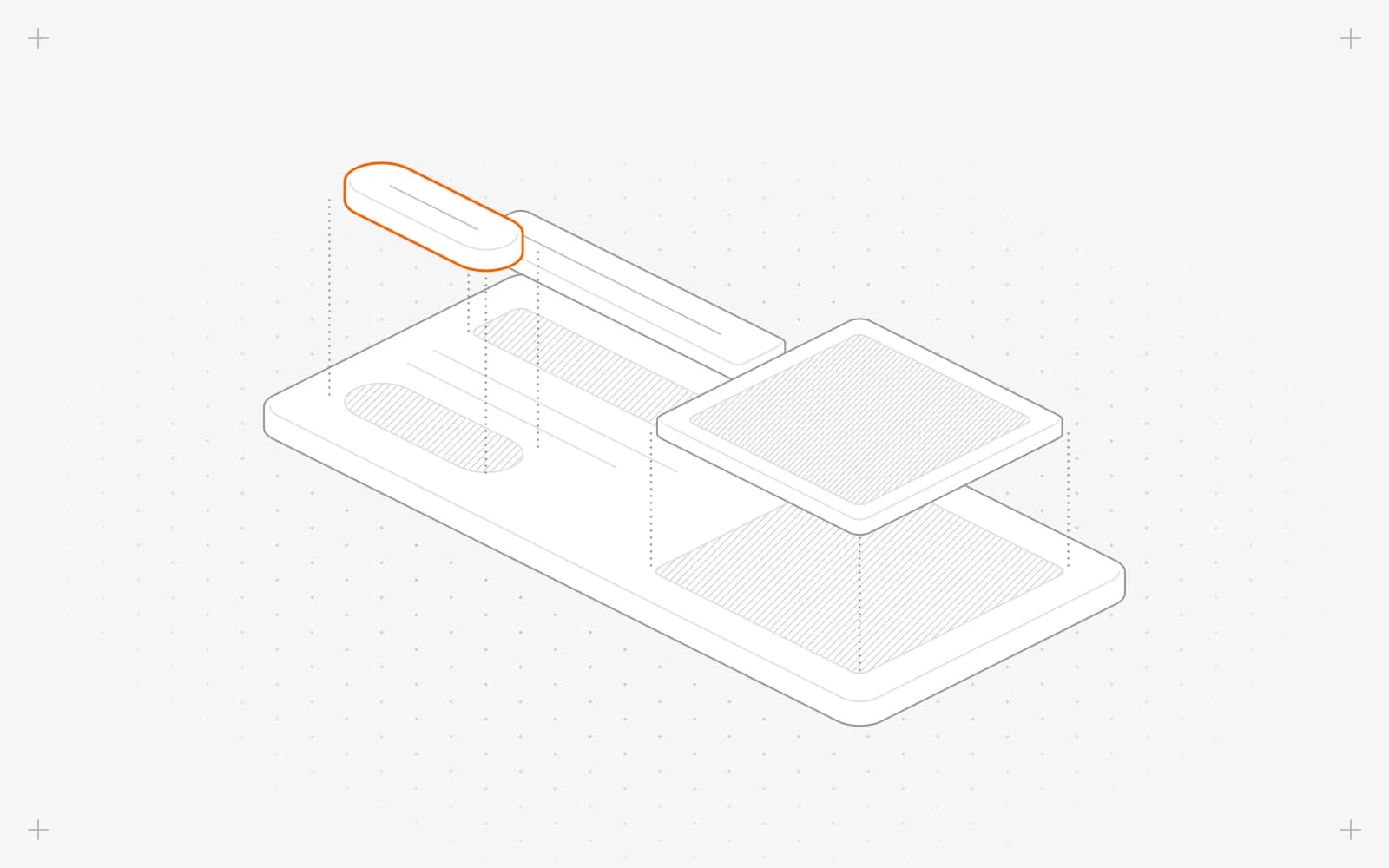
Edit a section
- Click a text, image or button on the page, or right-click a section and choose edit content.
- Edit the field that opens on the content tab, such as title, subtitle or desc. In desc, press / to add blocks.
- To change an image, click it to open its field and pick a new one.
Edit lists of cards, buttons or menu items
- Open a row to edit it.
- Use the copy icon to duplicate a row, or the trash icon to delete it.
- Drag the grip to reorder rows.
- Click Add Items, Add Menu Item or a similar button to add a row.
Limits
- Fields depend on the section type, so sections don't all have the same ones.
- Lists filled from a collection can't be edited here. Edit the entries in the collection instead.
- The form menu shows your first 20 forms.
- Changes save as you work. Visitors see them after you publish.
Common questions
A button or list is missing from the panel. What happened?
The section lost that list. Restore an earlier version of the page from the version menu in the top bar.
Why can't I add cards to this list?
It's filled from a collection. Add an entry to that collection instead, and it appears in the list.
On this page
Edit a sectionEdit lists of cards, buttons or menu itemsLimitsCommon questions
Prerequisites
Still have questions?
Ask Pixel in your dashboard. It can make many changes for you, or take you to the right screen. Our team can also help you plan, build or move your site.


