Design one template for every entry page in a collection
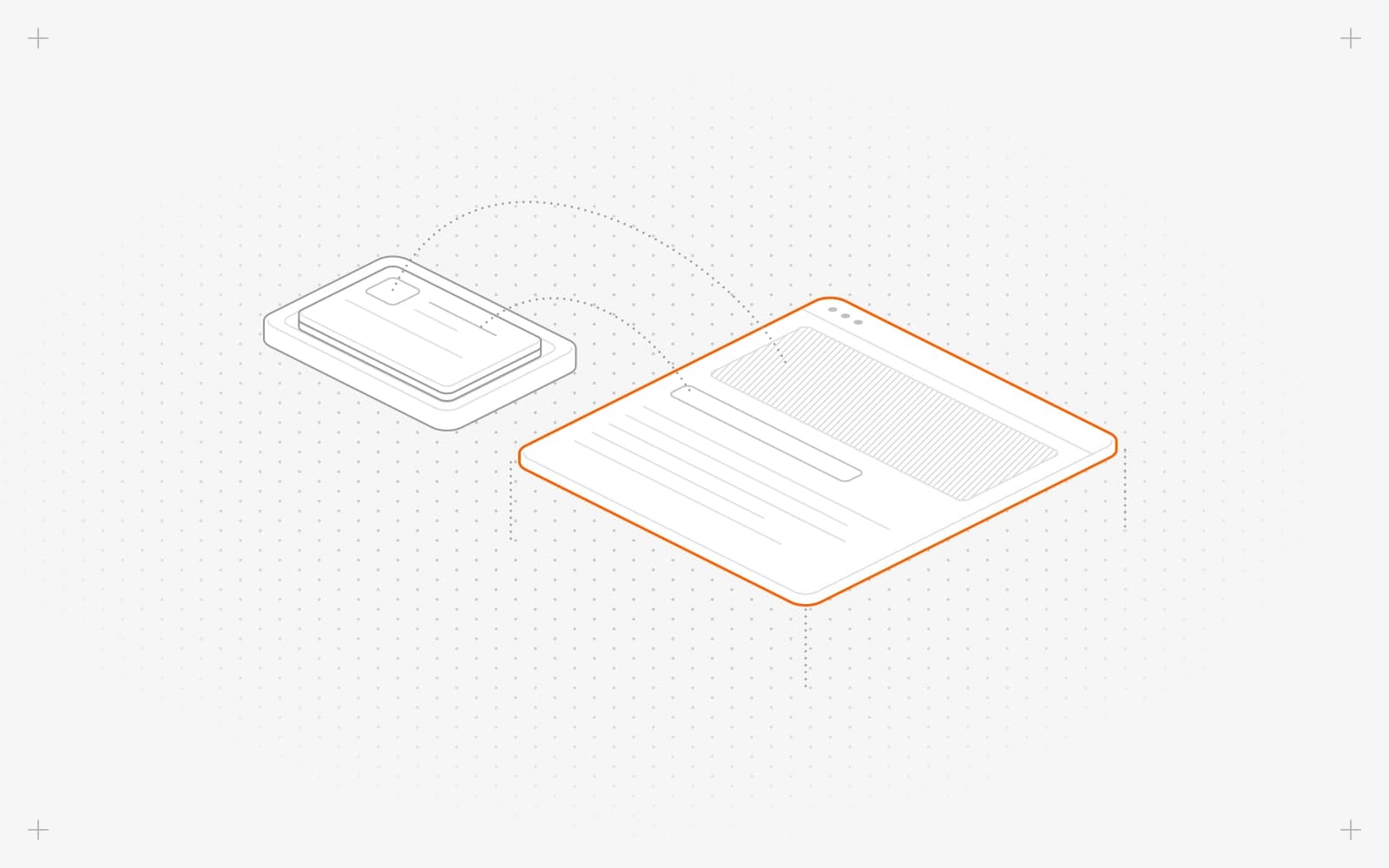
Design the template
- Open the collection and click the folder icon, Edit collection settings. The header reads "editing template".
- Add sections from the section library, as you would on a page.
- Select a section and click the database icon beside a field.
- Click Select a source and pick an entry field, or type the field in Data source path, such as <%=title%>.
- For a list, such as related posts, pick a Reference or Related list field.
Add your header, footer and other partials
Click Add a new section and open the partials tab, as on a page. Every entry page then shows them, and they update when you publish the partial.
Publish the template
- Click publish. It shows only when the template has changes.
- The confirm says how many entry pages will rebuild. Click Publish.
Live entry pages rebuild from their published content, so drafts stay drafts.
Limits
- The preview uses your most recently edited entry.
- Template edits save as a draft. Live entry pages change only when you publish the template.
- There's no button to throw away a template draft.
- Pixel can't edit templates.
Common questions
Why are my entry pages blank or showing an old design?
The template isn't published. See Entries missing or showing an old design.
What does "Failed to publish template" mean?
The publish didn't go through. Check your connection and try again. Offline, publish shows "Available when back online".
How do I remove a field connection?
Click the database icon on the field and click Disconnect.
On this page
Design the templateAdd your header, footer and other partialsPublish the templateLimitsCommon questions
Prerequisites
A collection with Has Pages on, and its fields added.
Still have questions?
Ask Pixel in your dashboard. It can make many changes for you, or take you to the right screen. Our team can also help you plan, build or move your site.


