HELP CENTER -> Lead capture
Get an email every time someone submits your form

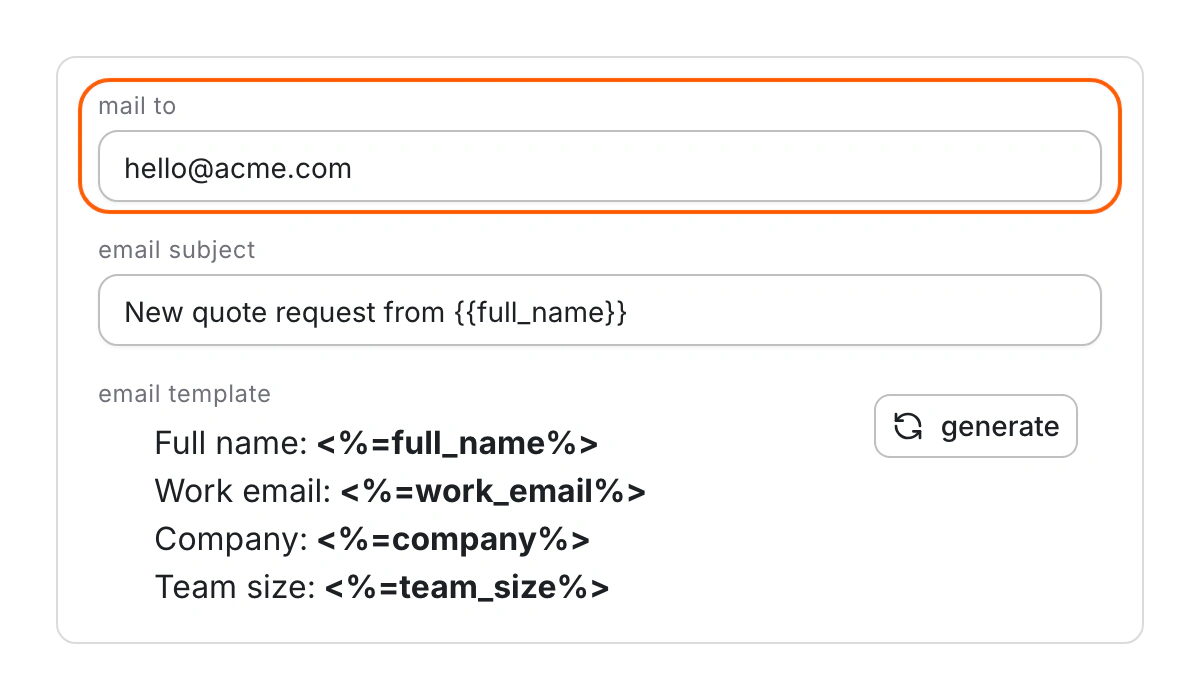
Turn on submission emails
- In the form editor, type your address in Mail To.
- If Email Template is empty, click generate, or write your own.
- Optional: set an Email Subject, such as "New enquiry from {{name}}".
Send some submissions to someone else
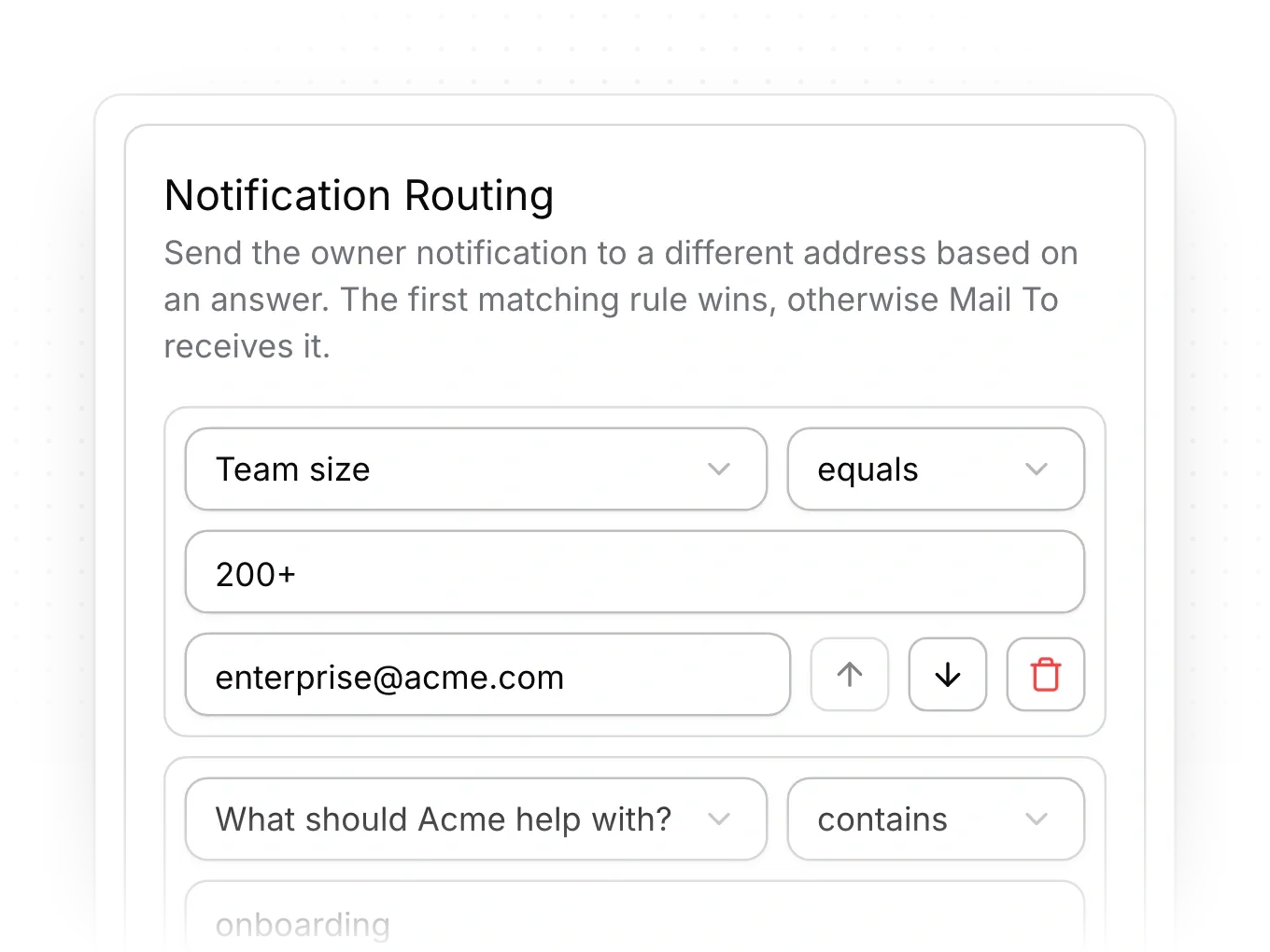
- Open Notification Routing and click Add routing rule.
- Pick the field and how to match it: equals, not equals or contains.
- Fill in the value to match and the email address to send to.
- Order your rules. The first rule that matches wins, and everything else goes to Mail To.
Limits
- Pixelesq sends nothing unless both Mail To and Email Template are set. Forms from templates and complete AI forms start without them.
- Submissions marked as spam don't send an email.
- Emails come from Pixelesq, so replying doesn't reach the visitor.
- A routing rule swaps the recipient. It can't copy in extra people.
Common questions
What's the default subject?
"Pixelesq - Form Submission:" followed by the form's name.
How do I get alerts in Pixelesq too?
Keep Form submissions turned on in settings, under Notifications.
My emails aren't arriving. What now?
On this page
Turn on submission emailsSend some submissions to someone elseLimitsCommon questions
Prerequisites
Still have questions?
Ask Pixel in your dashboard. It can make many changes for you, or take you to the right screen. Our team can also help you plan, build or move your site.


