HELP CENTER -> SEO & AEO
Set the SEO title, description and share image for a page

Edit a page's SEO
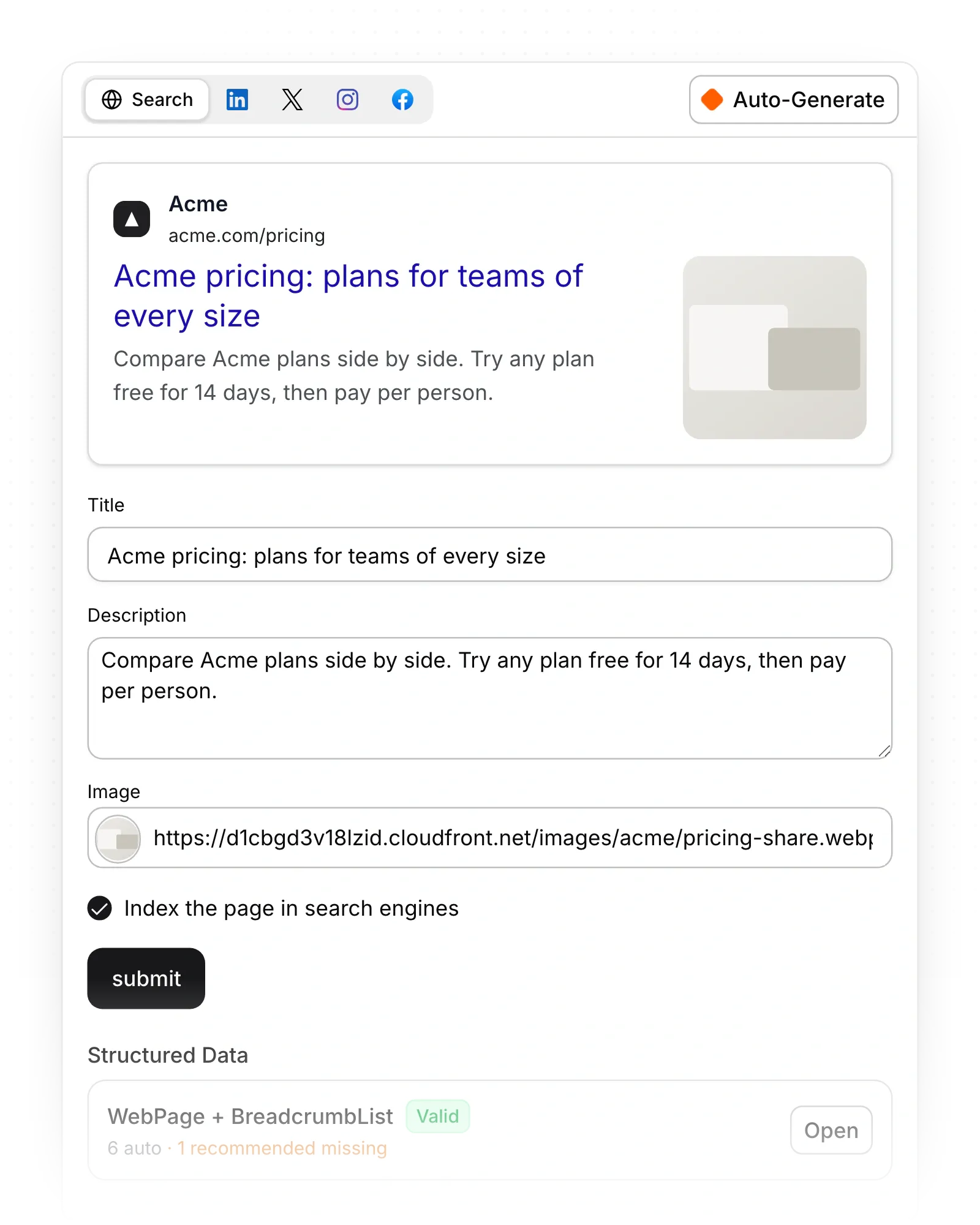
- In the page editor, click the globe icon (SEO & Social Preview). Or right-click the page in pages and choose edit meta.
- Stay on the Search tab.
- Edit Title and Description. Set Image, or click Choose from library.
- Click submit. Look for "Updated page SEO".
Set SEO for a blog post or other entry page
- Open the collection.
- Right-click the entry and choose edit meta.
- Edit the fields and click submit.
Limits
- SEO changes skip the draft. On a published page they're live as soon as you click submit, and there's no history to go back to.
- There are no character counters. Aim for 50 to 60 characters in a title and 150 to 160 in a description.
- An entry page's title starts as the entry's name, and renaming the entry doesn't change it.
- Renaming or duplicating a page doesn't update or copy its SEO.
- If you leave the fields empty, the first publish fills them for you. See Let AI write your SEO fields and social posts.
Common questions
What does "Title must be at least 2 characters." mean?
The title is too short. Type at least two characters.
How do I keep a page out of Google?
In the same SEO view, turn off the index option and click submit.
Why does Google show a different title?
Google sometimes rewrites titles. Keep yours short and close to the page's main heading.
On this page
Edit a page's SEOSet SEO for a blog post or other entry pageLimitsCommon questions
Prerequisites
Still have questions?
Ask Pixel in your dashboard. It can make many changes for you, or take you to the right screen. Our team can also help you plan, build or move your site.


