Train your website chatbot on your own content and documents
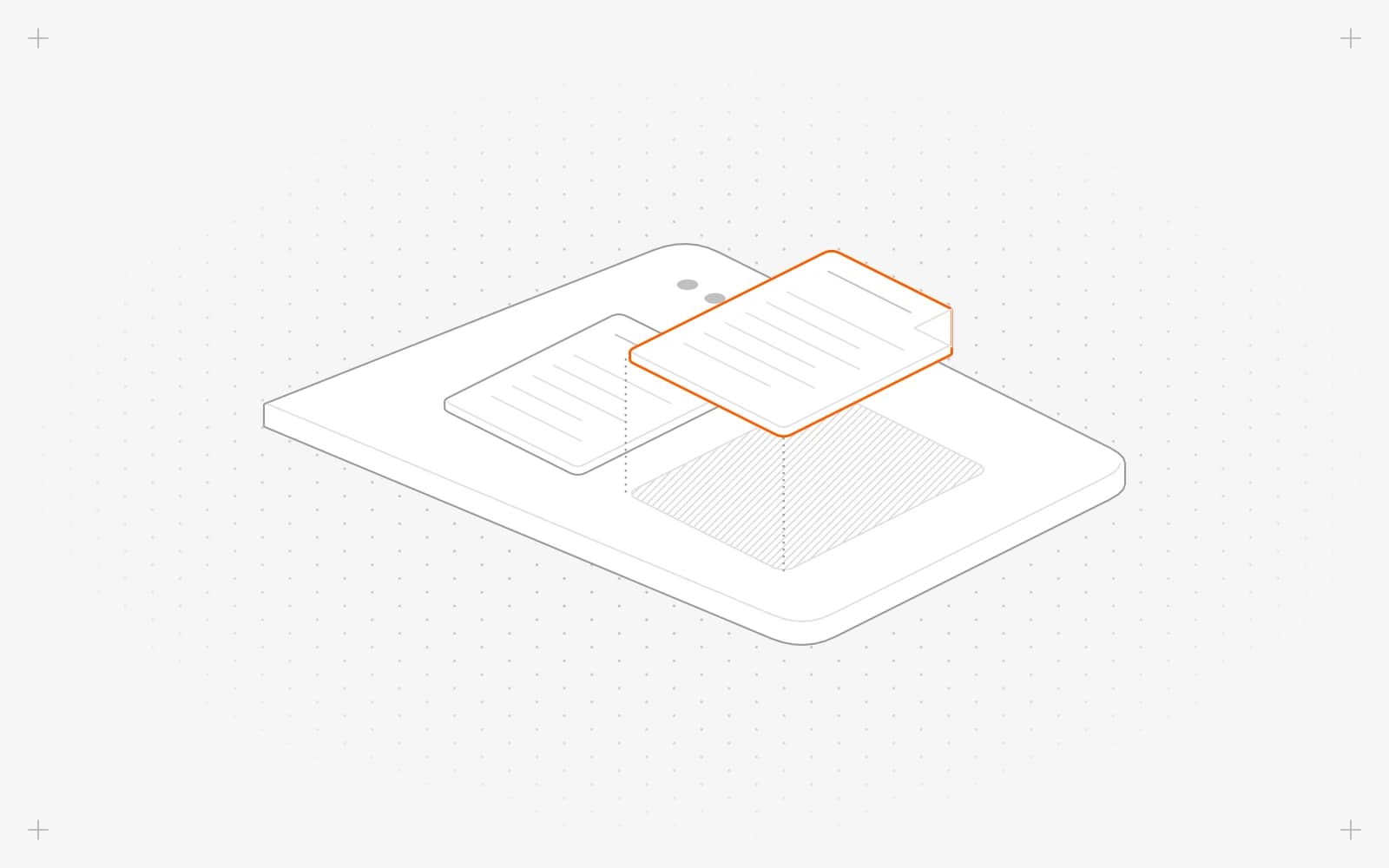
What the chatbot learns from
- Your published pages and entries. Pages are added when you publish them.
- Your business details in context, such as your site name, email, phone and address.
- Documents you upload under Knowledge.
Upload a document
- In the sidebar, under manage, click chatbot.
- On General, open Knowledge.
- Click Upload document, or drop a file on the box below it.
- Wait for the status to change from indexing to ready.
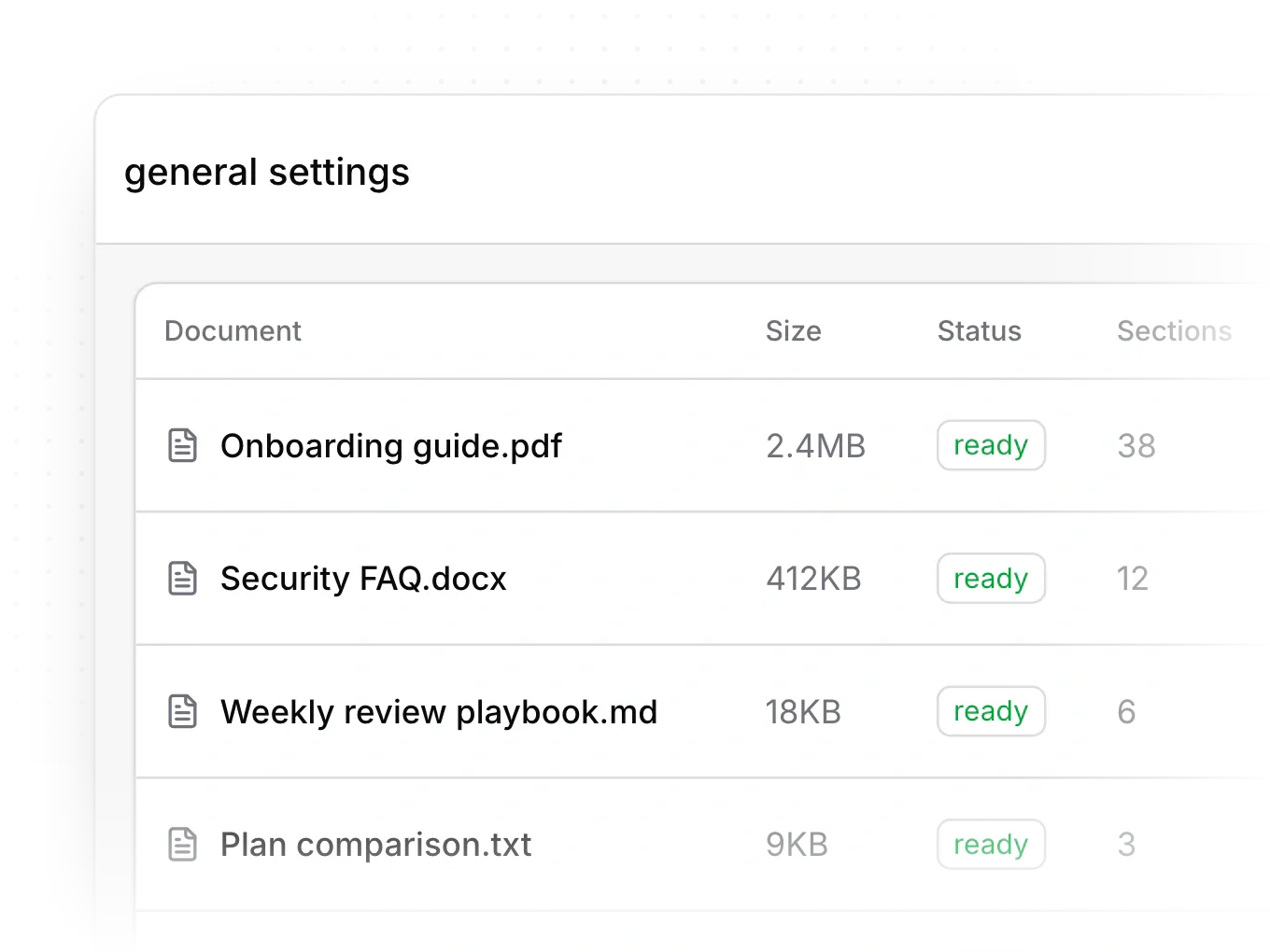
Good files to add are case studies, one-pagers and FAQ documents that aren't on your site. Only upload what any visitor may know.
Limits
- You can keep 1 document on the limited plan, 5 on Launch, 10 on Grow, 25 on Scale and 100 on Enterprise.
- Files can be PDF, DOCX, Markdown or TXT, up to 10MB each.
- The chatbot is told to use your documents as its own knowledge, without quoting, naming or linking the files.
- Long documents are cut off after 200 sections.
- Scanned PDFs have no text to read. Upload a PDF with selectable text.
Common questions
What does "Unsupported file type. Upload PDF, DOCX, MD or TXT." mean?
The file is in another format. Save it as PDF, DOCX, Markdown or plain text and upload it again.
What if my file is bigger than 10MB?
Split it into smaller files, or remove large images, and upload it again.
Why does a document show failed?
Pixelesq couldn't read text from it, and the reason shows under the file name. For a scanned PDF, export a text-based PDF and upload that. To try the same file again, click Re-index.
How do I update a document?
Click Delete document on the old file, then upload the new version.
On this page
What the chatbot learns fromUpload a documentLimitsCommon questions
Prerequisites
- The chatbot turned on. See Turn on the chatbot.
- Files in PDF, DOCX, Markdown or TXT format, up to 10MB each.
Still have questions?
Ask Pixel in your dashboard. It can make many changes for you, or take you to the right screen. Our team can also help you plan, build or move your site.


