HELP CENTER -> Building pages
Add an AI-written section to a page with Magic Add
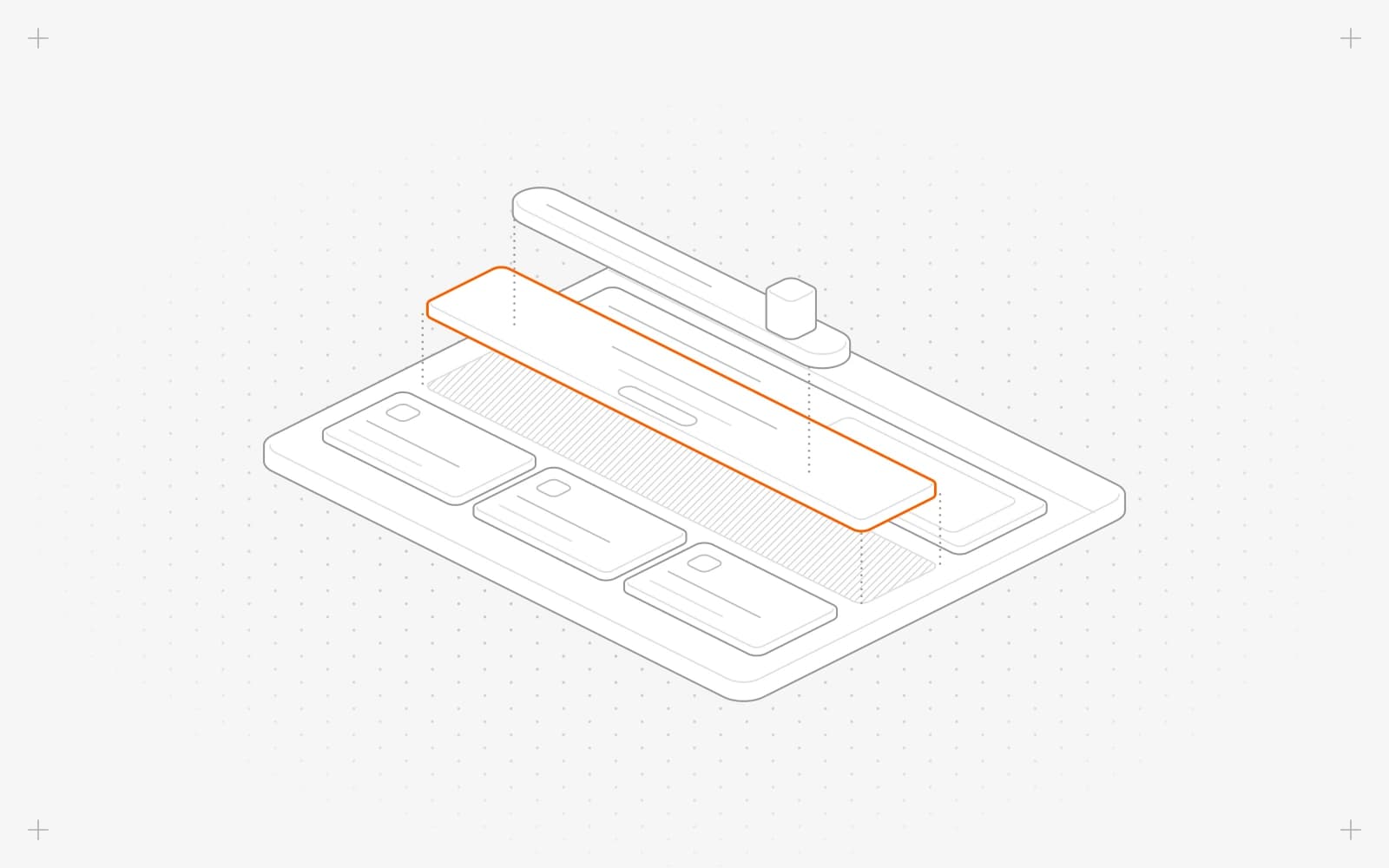
Use Magic Add on the page
- In the editor, hover a section and click magic add above or below it.
- Wait while "Adding a new section and suggesting content..." shows. Pixel picks a section type for that spot and writes the copy.
Or use it from the picker
- Click the plus button (Add a new section).
- Optional: type a hint in What should the new section say? (optional).
- Click Auto Generate.
Limits
- You can't edit the page while Magic Add runs. It stops after 75 seconds.
- Magic Add doesn't add headers, footers or custom sections.
- It won't add a second hero, testimonials, FAQ, logos or stats section if the page already has one.
Common questions
What does "Content generation timed out" mean?
Pixel took too long. Try again, or add the section yourself. See Add a section to a page.
Pixel added the section but no content. What now?
Try Magic Add again, or fill in the section yourself.
Can I tell Magic Add what to write?
Yes. Type a hint in the picker before you click Auto Generate.
On this page
Use Magic Add on the pageOr use it from the pickerLimitsCommon questions
Prerequisites
Still have questions?
Ask Pixel in your dashboard. It can make many changes for you, or take you to the right screen. Our team can also help you plan, build or move your site.


