HELP CENTER -> Lead capture
View, sort and export your form submissions
See submissions
- Open forms and click the form.
- Click Submissions.
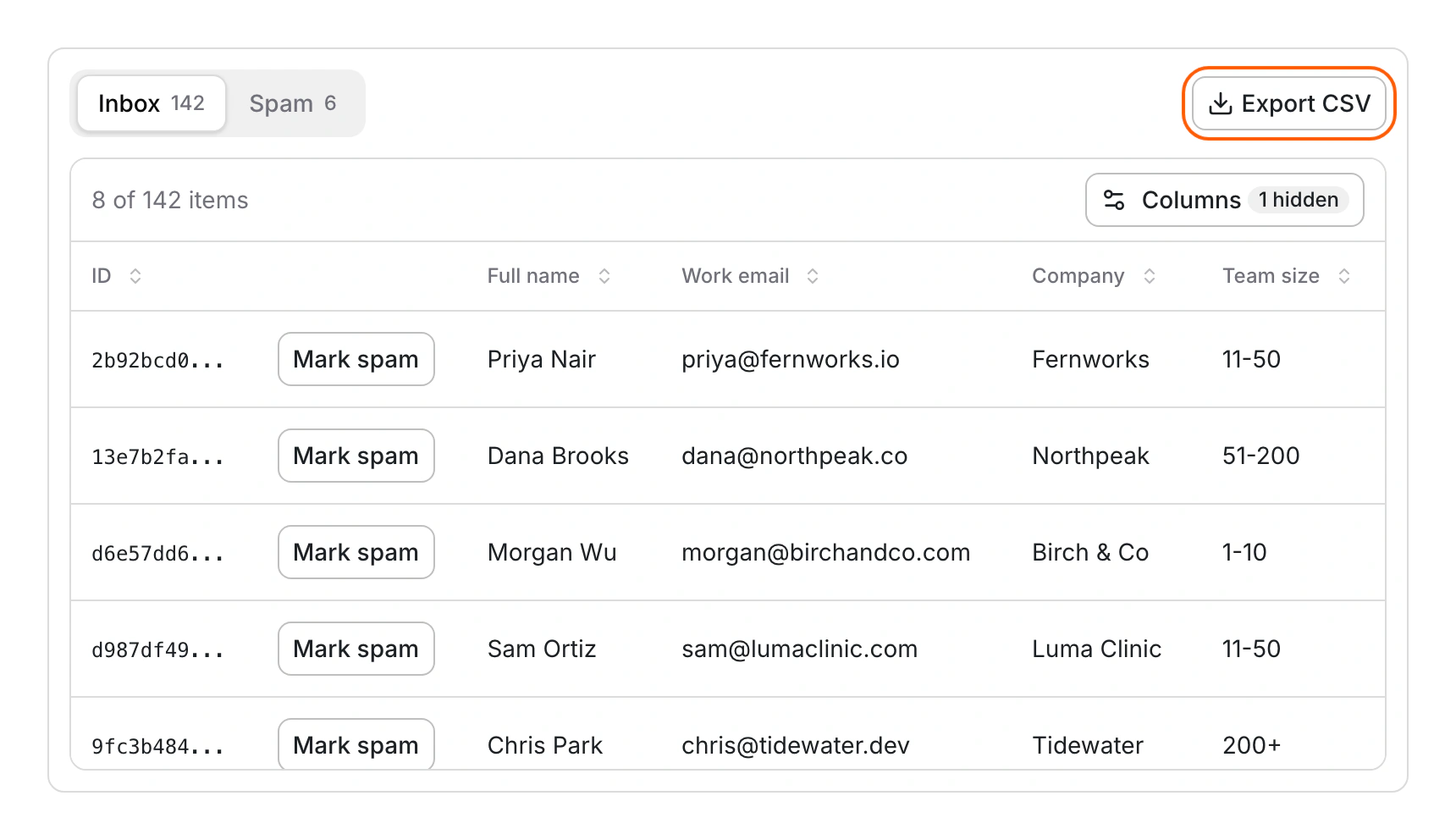
- Use Inbox for real submissions and Spam for filtered ones. Each answer has its own column.
- Sort a column, or hide some with Columns. Scroll to load more.
Fix spam mistakes
- Click Mark spam on a submission that's spam.
- In the Spam tab, click Not spam on a real one.
Export to CSV
- Pick the Inbox or Spam tab. The export follows the tab you're on.
- Click Export CSV. You get up to 10,000 rows, newest first.
Limits
- There's no search, date filter, delete or file download here.
- Quiz results and UTM values aren't shown or exported. Uploaded files appear as file names.
- Columns use each field's system name, and answers from deleted fields drop out.
Common questions
What does "Error loading submissions" mean?
Reload the page.
Does marking a submission Not spam send its email?
No. Pixelesq doesn't resend past emails.
Where else do submissions show up?
Submissions with an email address also appear as leads. Open chatbot and look in Inbox.
On this page
See submissionsFix spam mistakesExport to CSVLimitsCommon questions
Prerequisites
Still have questions?
Ask Pixel in your dashboard. It can make many changes for you, or take you to the right screen. Our team can also help you plan, build or move your site.


