Manage your website tags with Google Tag Manager
Add your Tag Manager container ID once, then add and change tags in GTM without editing your site.
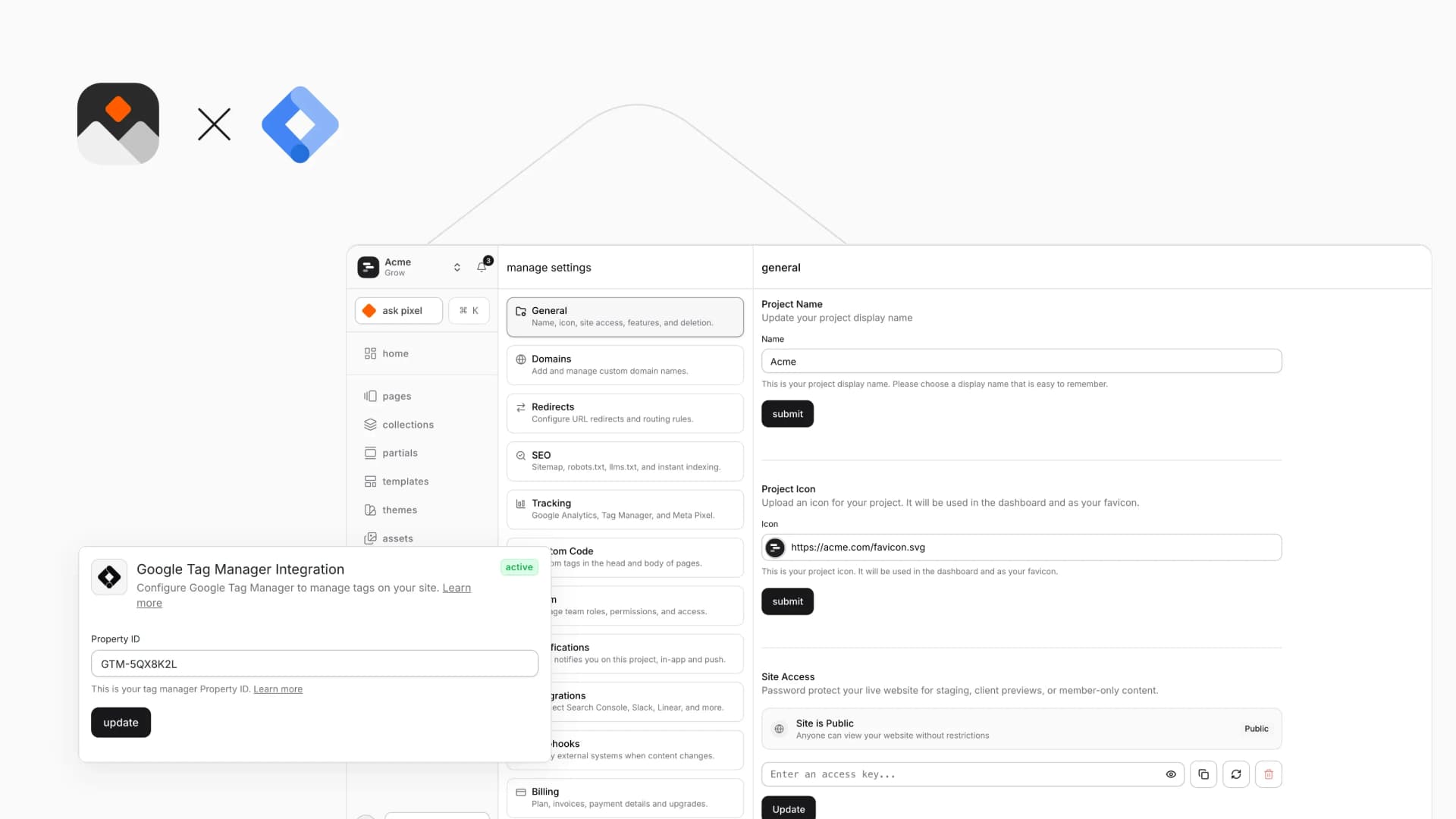
Overview
Connect Google Tag Manager to your Pixelesq site and manage your tags from one place. Paste your container ID in settings and the container loads on every published page. From then on you add, change and remove tags in Tag Manager, and they reach your live site without a republish.
When your cookie banner is on, you choose which consent category Tag Manager waits for.
How it Works
Pixelesq loads your Tag Manager container on every published page. The editor preview loads no tags, so your own editing never triggers them.
If you also use Google Analytics, add GA4 inside Tag Manager or in the Google Analytics card. Adding it both ways counts each visit twice.
Configure
Go to Settings > Tracking in Pixelesq. Only project owners can change tracking.
Paste your container ID, which starts with GTM-, in Property ID on the Google Tag Manager card
Click update and look for the Active badge
Check your tags on a published page with Tag Manager's Preview mode
To set the consent category, go to Settings > Privacy.