How to Add, Reorder, and Customize Page Sections

What Sections Actually Are
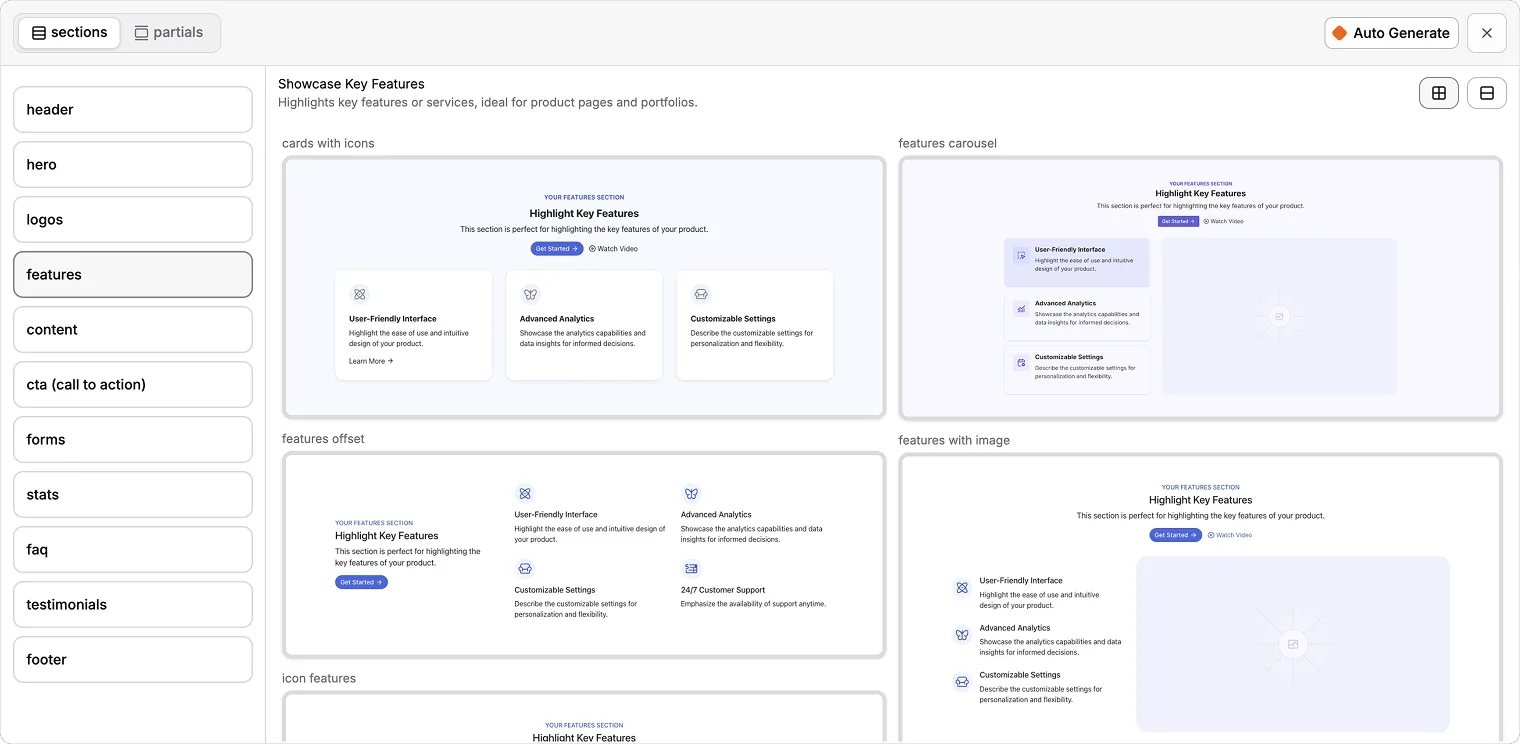
A section is a self-contained block of content on a page. Headers, heroes, feature lists, testimonials, pricing tables, footers, and so on are all sections. Pixelesq has over 70 section types organized into 11 categories: Header, Hero, Logos, Features, Content, CTA, Forms, Stats, FAQ, Testimonials, and Footer.
Sections live in a flat list on your page. They render top-to-bottom in the order you arrange them. They cannot be nested inside each other, but sections with items (like a features list or testimonial grid) contain repeatable content blocks internally.
Add a Section
Open any page in the editor. Click the plus button that appears between existing sections, or at the bottom of the page if you want to append one. The section picker opens with category tabs at the top.
Browse by category or switch between grid and list view. Click any section thumbnail to add it. The section appears at your chosen position with placeholder content ready to customize.
Smart Defaults When You Click the Plus Button
Pixelesq pre-selects a category based on where you are adding the section. At the very top of the page, Header is suggested. In the first few slots, Hero is suggested. Further down, Features. Near the bottom, FAQ. These are suggestions, not restrictions. You can add any section anywhere.
Reorder Sections
Every section in the section outline (left sidebar) has a grip handle on the left. Drag a section up or down to reorder it. The page viewport updates as you drag, so you can see exactly where the section will land.
Reordering auto-saves after the 30-second debounce. To save immediately, press Cmd+S.
Copy, Paste, and Duplicate Sections
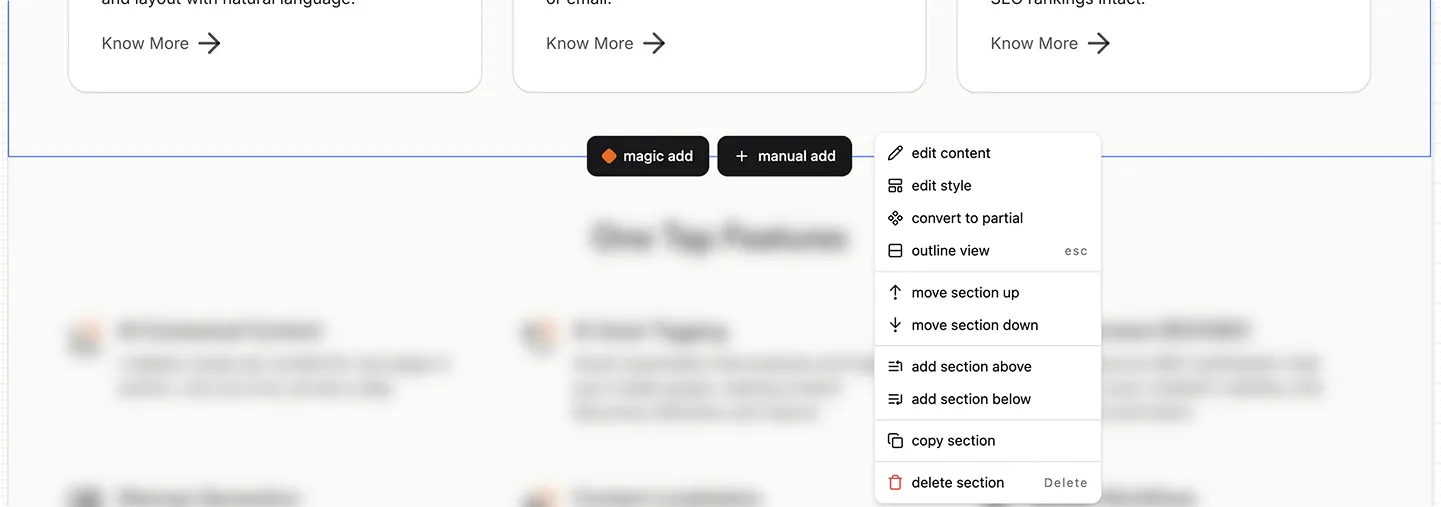
Right-click any section in the outline to access the context menu. You can copy the section to paste it elsewhere, duplicate it in place, or delete it.
Copied sections persist in the editor's memory for your current session, so you can paste the same section onto a different page as long as you do not refresh the browser in between.
What Copy-Paste Preserves
All content and styling from the original section
Items inside the section (list entries, features, testimonials)
Media references (images, videos, icons)
What Copy-Paste Does Not Preserve
Data source connections. If the original section pulls content from a collection, the pasted copy will not. You need to reconnect it manually.
Custom form links. If a form section references a specific form, the paste may reset this to the default placeholder form.
Convert a Section to a Reusable Partial
If you build a section you want to use on multiple pages (like a unique CTA block or a custom testimonial layout), convert it to a partial. Right-click the section and select convert to partial. Give it a name and Pixelesq creates a partial, saves the content, and auto-publishes it.
Once converted, the section on your current page becomes a reference to the partial. Any edits you make to the partial reflect on every page that uses it. This is how you build consistent headers and footers across a site.
The Field Editor: Context vs Config
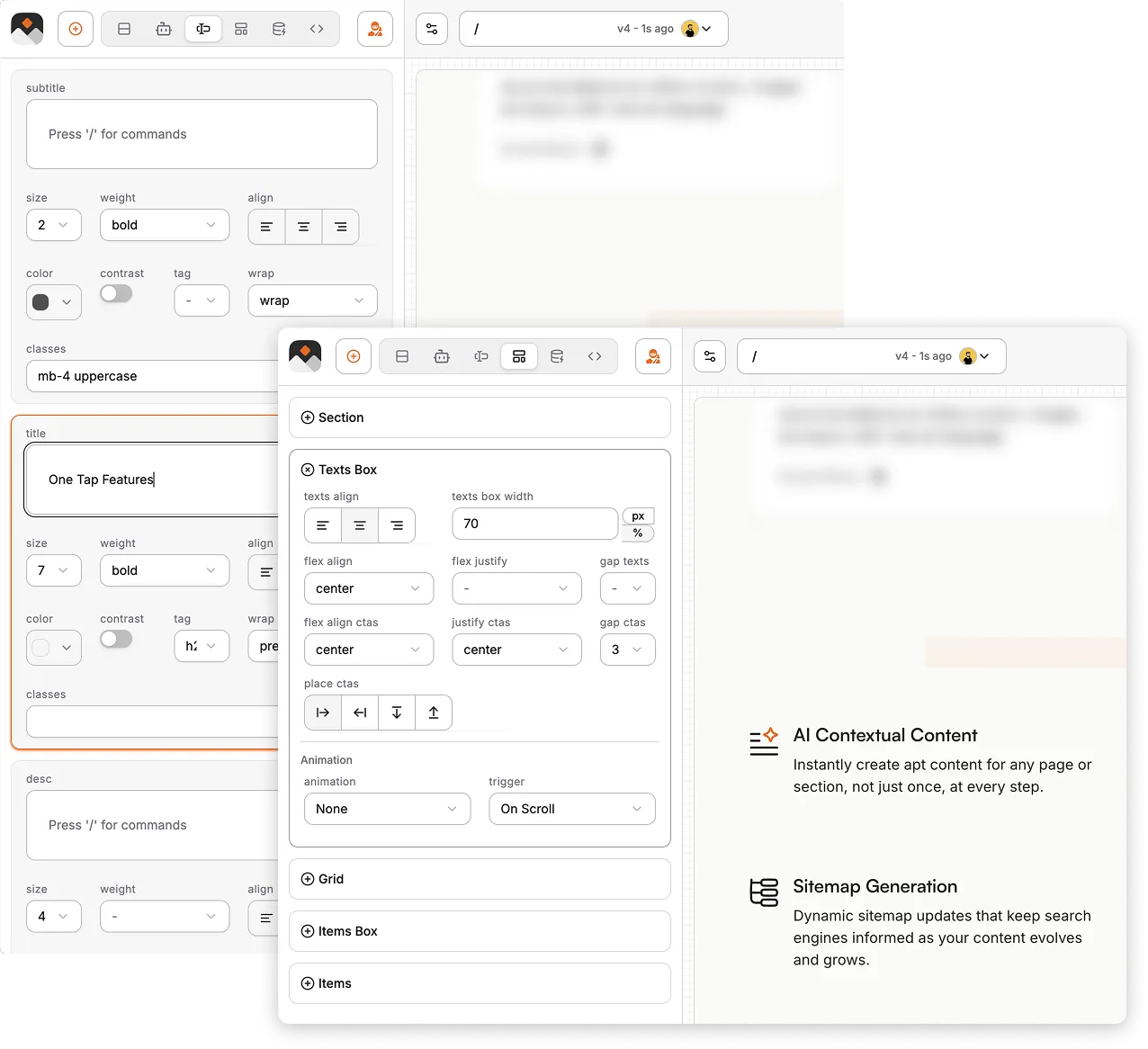
Click any section to open the field editor in the left sidebar. Most sections have two tabs:
Context - The content fields (title, description, media, CTAs, list items). This is what visitors see.
Config - The layout and styling (background color, text alignment, spacing, column counts, CTA button variants). This is how it looks.
Changes update the preview in real time. Once you deselect the section or switch to another one, your changes join the auto-save queue.
Use AI to Generate Section Content
On Pro plans and above, Pixelesq offers Magic Add. When you click to add a section, the Pixel Agent can automatically pick the right section type and pre-fill it with content based on your page context. You see a brief loading toast while the AI generates both the structure and the copy.
You can also use Magic Add on an existing placeholder section. When a section is freshly added and still shows placeholder content, click Generate in the toast that appears. The AI reads your page context and fills in appropriate content for that section.
On the Free plan, you still get access to all 100+ uislices, but content generation is manual.

Pro Tips
Right-click is your friend. The section context menu has copy, paste, duplicate, convert to partial, and delete in one place. Faster than hunting through menus.
Convert early. The moment you realize a section will appear on more than one page, convert it to a partial. Otherwise you end up with five copies of the same CTA that you have to update separately.
Use the section outline to jump around. Clicking a section in the outline selects it and scrolls it into view. On long pages this is much faster than scrolling.
Start with category defaults, customize later. Grab a section that is roughly what you want, then tweak the Context and Config tabs. Building from scratch is slower.
Keep the page structure standard. Header at top, hero below, content sections in the middle, CTA near the bottom, footer at the bottom. Visitors expect this. Novel layouts confuse more than they impress.
Troubleshooting
I cannot find a specific section type: Section types are organized by category tabs. If you are looking for a pricing table, check the Pricing tab (grouped under Content or CTA depending on your view). If a section does not appear, your plan may not include it.
My drag-and-drop is laggy: If your page has 30 or more sections, drag performance can slow. Consider splitting the page into multiple pages or extracting repeating sections into partials.
A copied section looks broken: The copy likely referenced a data source or form that does not exist on the target page. Open the Config tab and reconnect it.
Convert to partial failed: Check your plan limits. The Free plan caps the number of partials you can create. Upgrade or delete unused partials to free up slots.
FAQ
How many sections can a single page have in Pixelesq?
There is no hard limit, but drag-and-drop performance slows noticeably around 30-40 sections. For very long pages, consider splitting content across multiple pages or extracting repeated elements into partials. Most well-designed landing pages use between 6 and 12 sections.
Are there section types for specific niches like real estate or restaurants?
Pixelesq ships with 70+ general-purpose sections that work for most industries. You can customize any section (colors, content, media) to fit a specific niche. For highly specialized layouts, combine standard sections or convert a custom section into a reusable partial.
Can I save a section as a template to use later?
Saving individual sections is not supported, but you can achieve the same result by converting a section to a partial. Partials are reusable across pages and can be updated in one place. For a full page template with multiple sections, use the Templates feature instead.
What happens to a page if I delete a partial it references?
Pages that reference a deleted partial show a broken reference indicator. The page still loads, but the partial slot is empty. Before deleting a partial, check which pages use it and either replace the reference or replace the section with a different one.
Is there a way to preview a section before adding it?
The section picker shows a thumbnail preview for each section type. For a full-size preview with your actual content, add the section first, review it, and either keep it or delete it. Deletion is instant and does not affect other content.
Does Magic Pick-n-Drop work on the Free plan?
Magic Pick-n-Drop and AI content generation for sections require a Pro plan or higher. On Free, you can still browse and add all 70+ sections manually, but content generation with Pixel Agent is gated behind Pro and above.
On this page


