Capture and qualify leads with your website chatbot
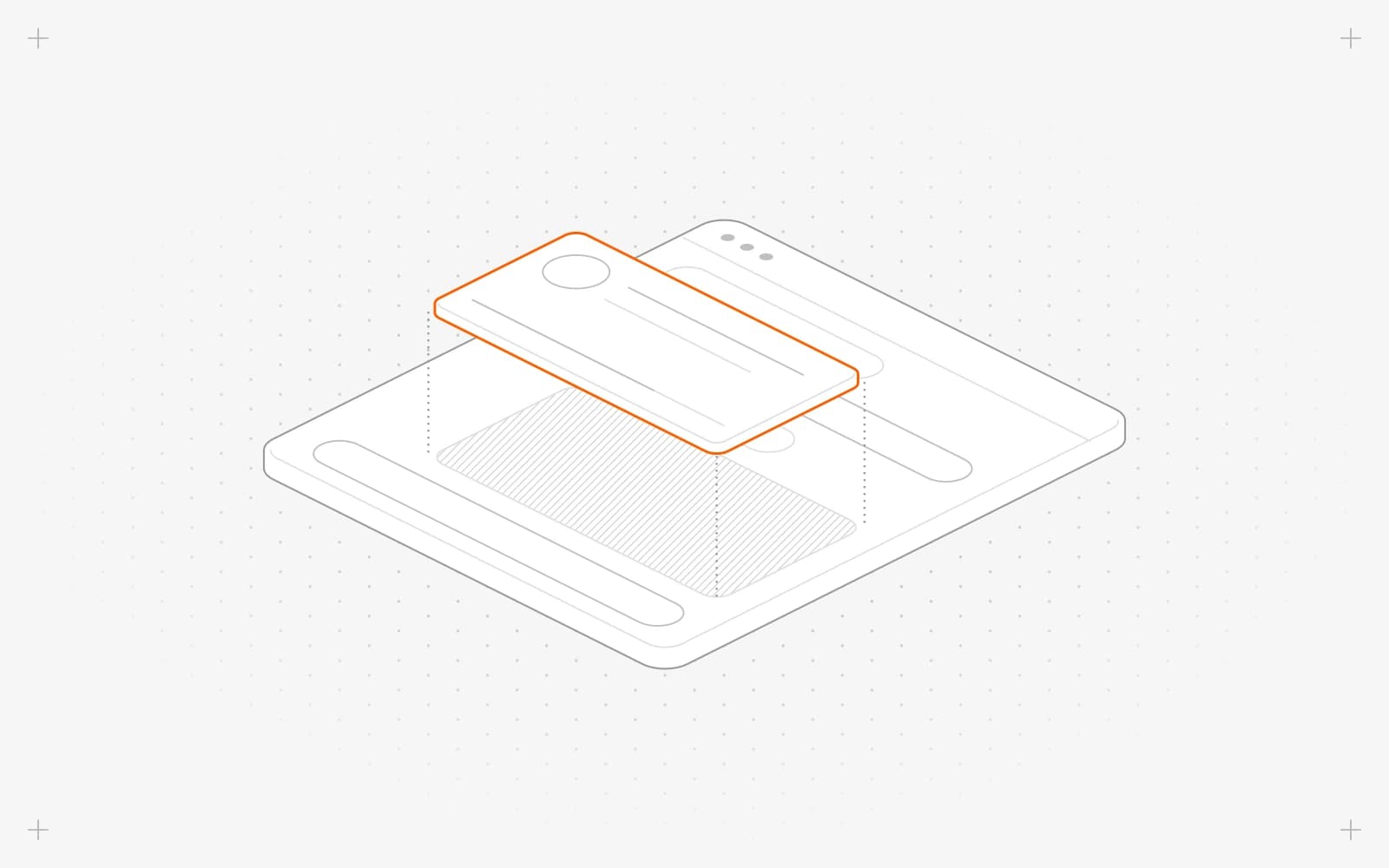
Choose when the chatbot asks for an email
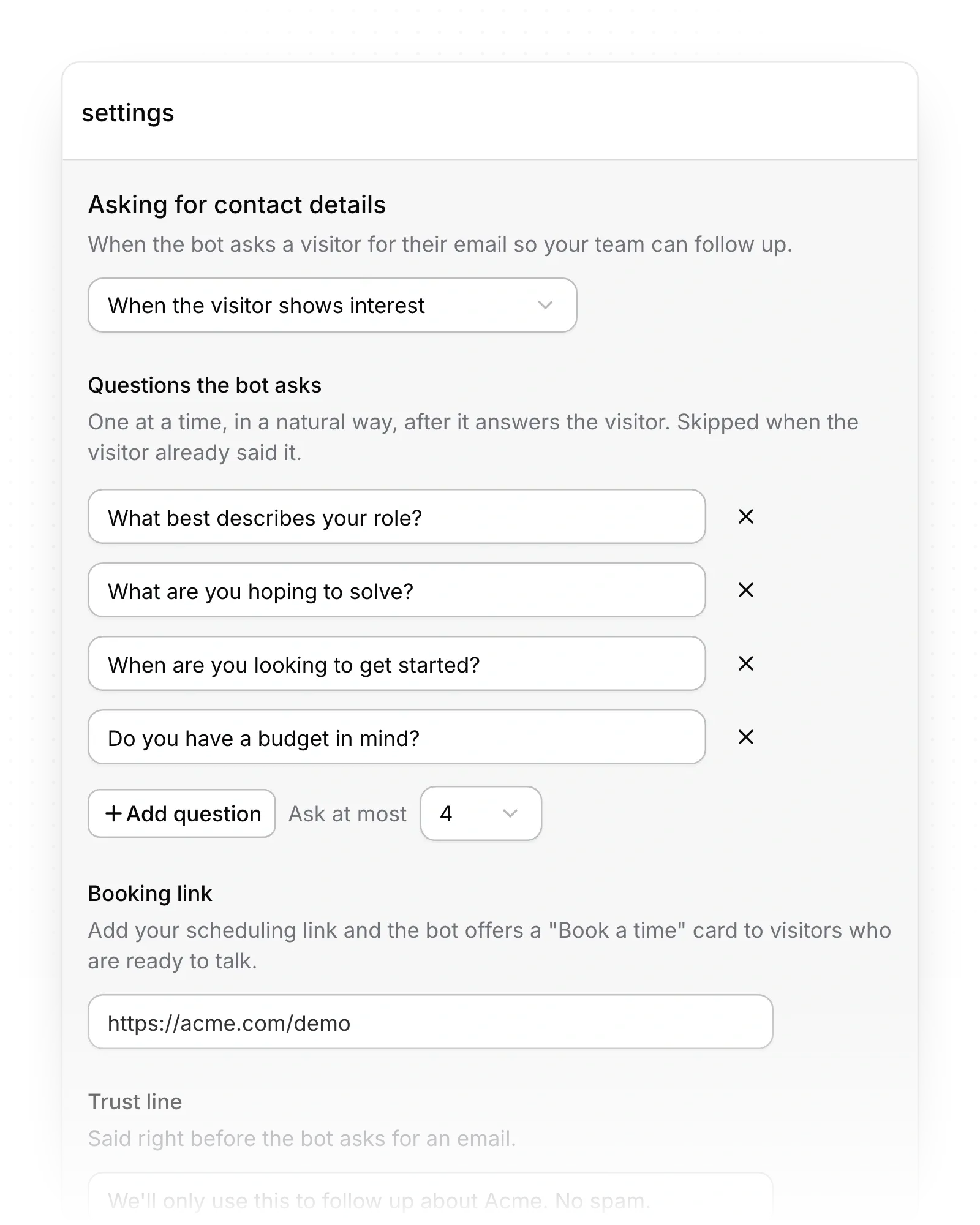
- In the sidebar, under manage, click chatbot, then Settings.
- Under Asking for contact details, pick an option:
- Automatic (based on your site's goal): asks early when your site's main goal is lead generation, and otherwise waits for interest.
- When the visitor shows interest: asks after a buying signal, such as a pricing or demo question, or by the third question.
- Early in the conversation: offers to take details after answering the first real question.
- Before the chat starts: shows a short form for name and email before the first message.
- Never (point them to the contact page): sends visitors to your contact page instead of asking.
Choose the questions
- Under Questions the bot asks, click Add question and type it. You can add up to 8.
- Set Ask at most to the number of questions one visitor gets.
- Under Trust line, edit what the chatbot says right before it asks for an email. The default is "We'll only use this to reply to you. No spam."
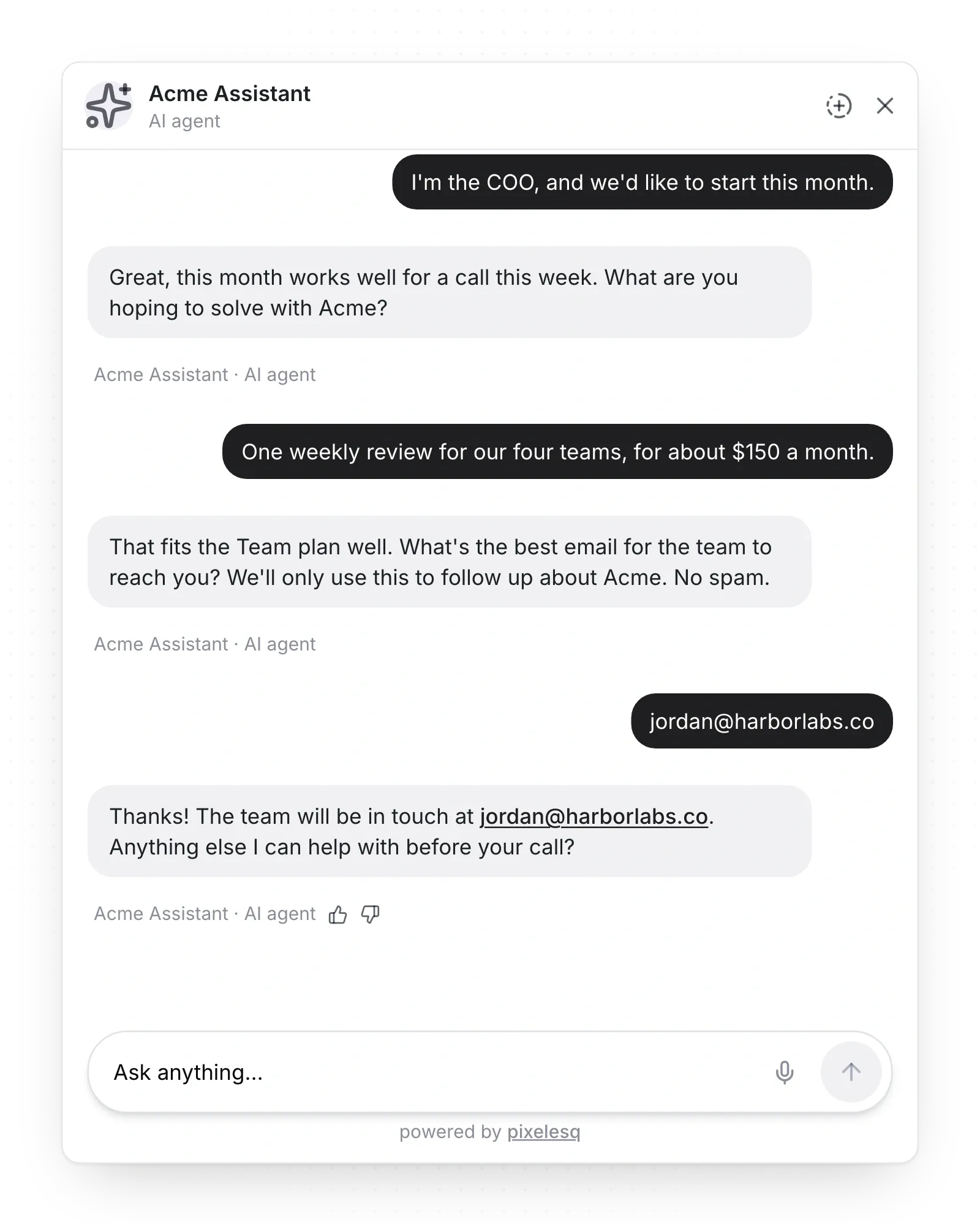
The chatbot asks one question at a time, after it answers the visitor, and skips anything the visitor already said. With no questions of your own, it asks what the visitor needs and when they want to start, plus role and company when your site's goal is lead generation.
Limits
- The form before the chat asks for name and email. Its fields can't be changed.
- A phone number is never required.
- Scores use answers about role, needs, timeline and budget. Answers to your own questions don't add points.
Common questions
Where do new leads show up?
In chatbot, under Inbox, then Leads. See Find, work and export your leads.
Why did the chatbot ask a visitor for another email?
Throwaway email addresses get one request for a work email. In the form before the chat, the visitor sees "Please use your work email address."
Can visitors book a meeting from the chat?
Yes. Paste your scheduling link under Booking link in Settings. Visitors who are ready to talk get a card that opens it.
On this page
Prerequisites
The chatbot turned on. See Turn on the chatbot.
Still have questions?
Ask Pixel in your dashboard. It can make many changes for you, or take you to the right screen. Our team can also help you plan, build or move your site.


