HELP CENTER -> Lead capture
Find, follow up on and export your website leads

Find your leads
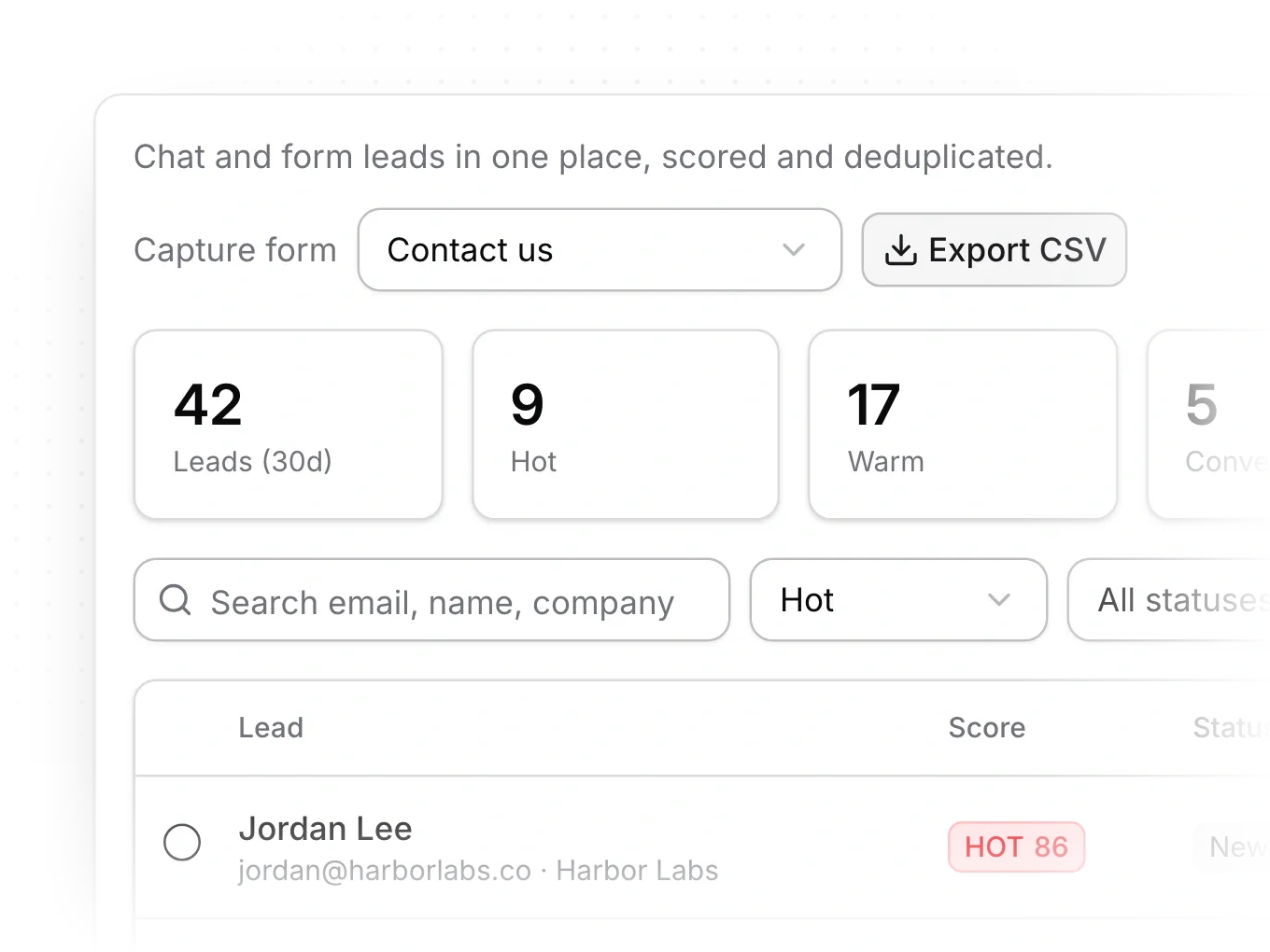
- In the sidebar, under manage, click chatbot, then Inbox, then Leads.
- Check the totals at the top: Leads (30d), Hot, Warm and Converted.
- Search by email, name or company, or filter by band and status.
- Click a lead to see its details, Captured on, Why this score and its conversations.
Follow up on a lead
- In the lead's panel, set its status: New, Contacted, Qualified, Disqualified or Converted.
- Type in Note and click Save note.
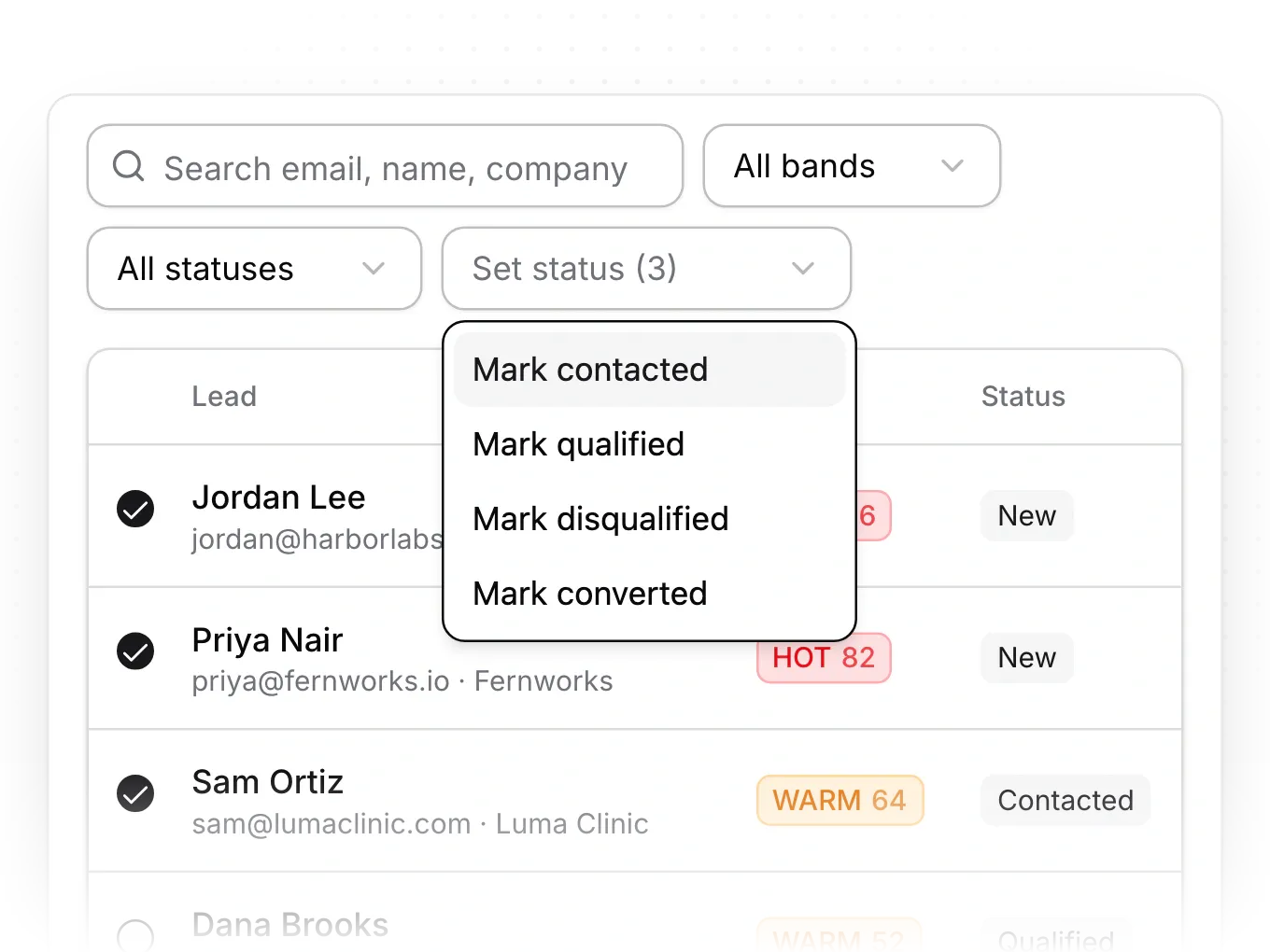
- To update several leads, tick their boxes, open Set status and pick an option such as Mark contacted.
Export your leads
- Set a search or filters if you want only some leads.
- Click Export CSV. The file has today's date in its name, such as leads-2026-10-09.csv.
Limits
- Leads come from the chatbot and from form submissions that include an email. Forms without an email field create no leads.
- Leads with the same email become one lead.
- The list shows 25 leads a page, newest first.
- An export holds up to 10,000 leads. Notes, answers and chat transcripts aren't included.
- Leads can't be assigned to a teammate, tagged or imported.
Common questions
How is the score worked out?
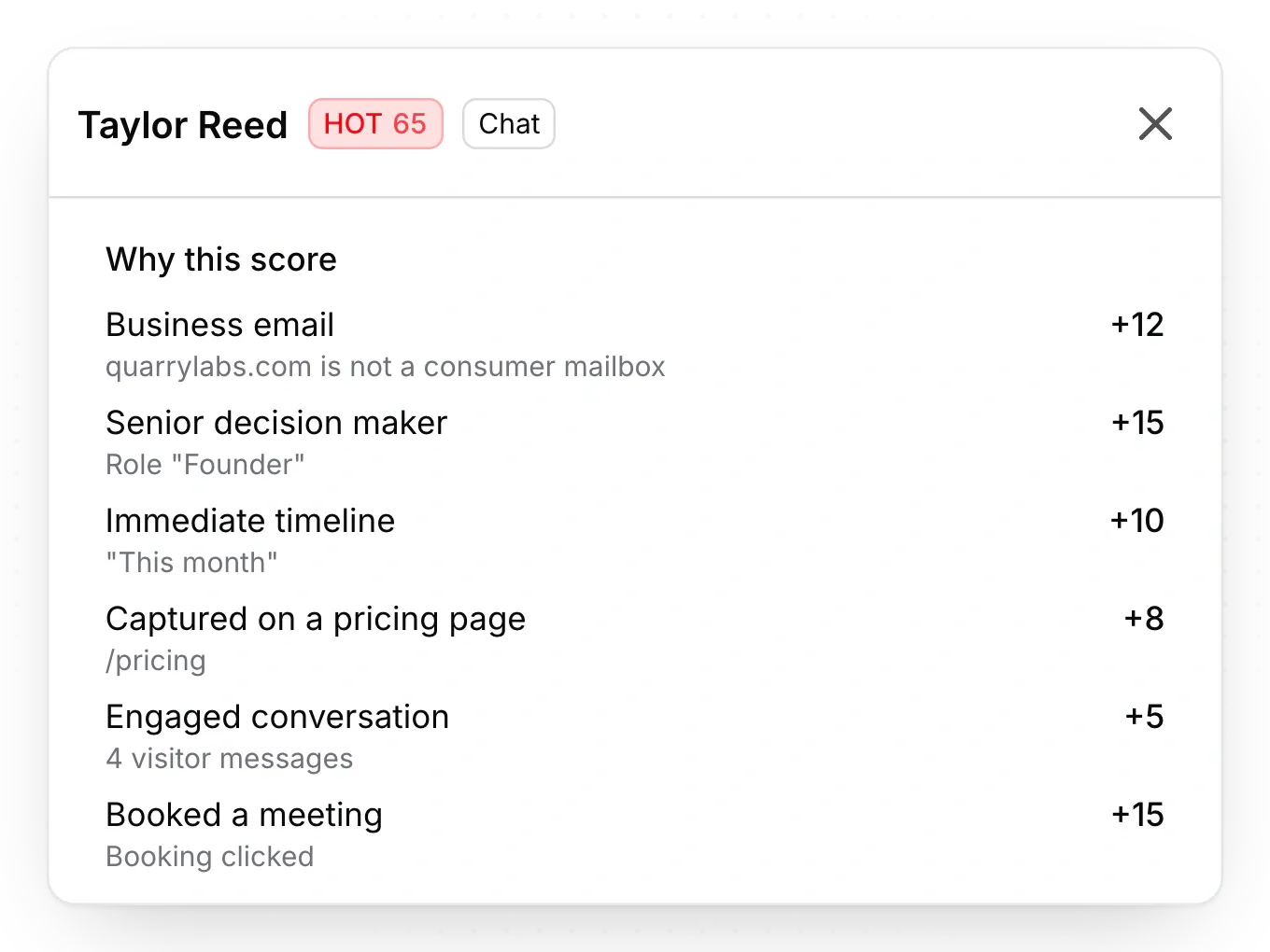
Each lead scores 0 to 100 from fit, such as a business email or a senior role, and intent, such as a near timeline or a booked meeting. 65 and up is Hot, 35 to 64 Warm and under 35 Cold. Why this score lists each reason.
What does "Could not update status" mean?
The change didn't save. Reload the page and try again.
Can my leads go to a CRM?
Yes. See Send leads to HubSpot or another CRM.
On this page
Find your leadsFollow up on a leadExport your leadsLimitsCommon questions
Prerequisites
Still have questions?
Ask Pixel in your dashboard. It can make many changes for you, or take you to the right screen. Our team can also help you plan, build or move your site.


