HELP CENTER -> SEO & AEO
Connect Google Search Console to your Pixelesq site
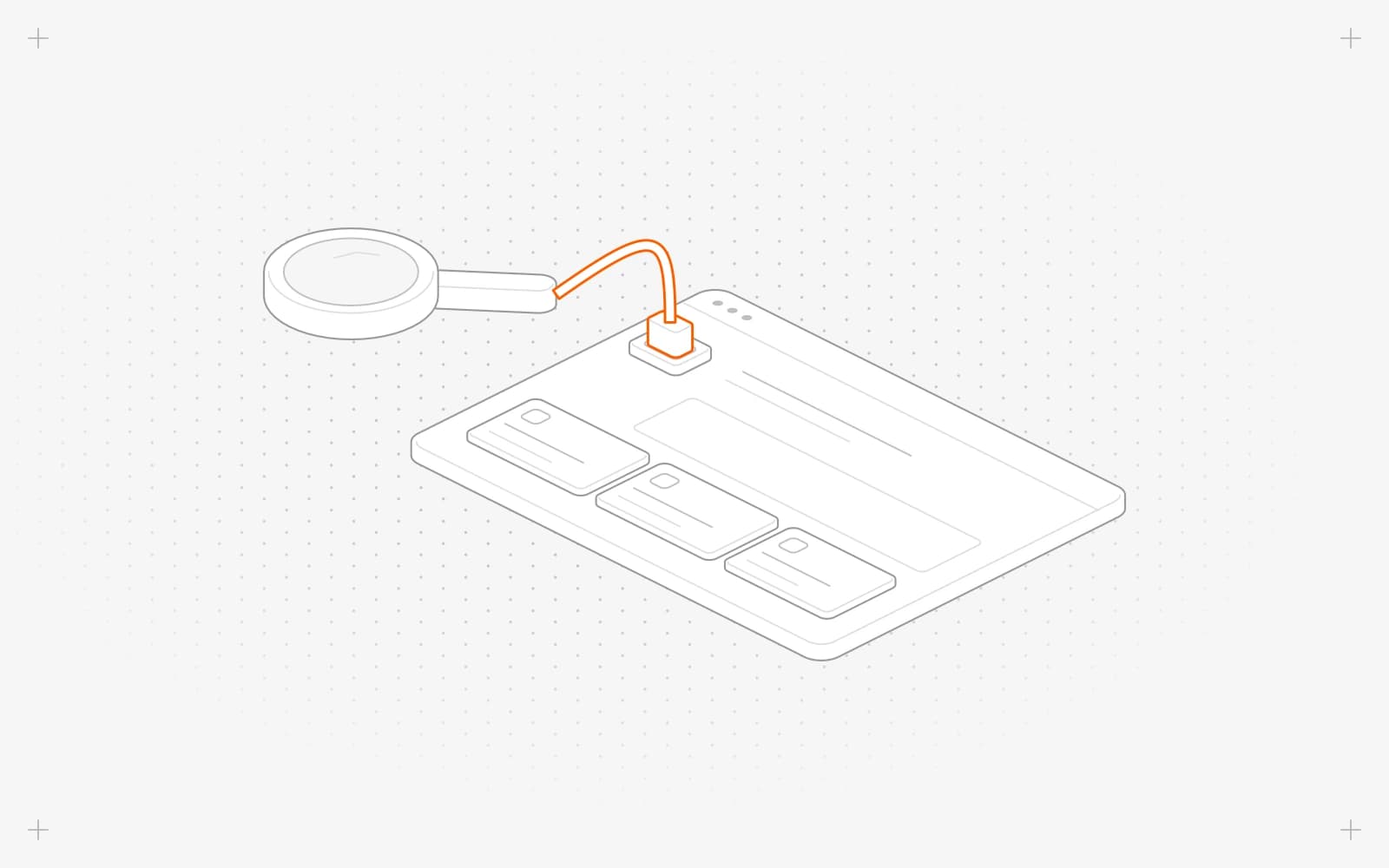
Connect it
- Click settings, then Integrations.
- Click the Google Search Console card, then Connect.
- Allow access in Google.
- The card shows connected.
What Pixelesq does next
- Looks for your property: a domain property first, then https://yourdomain/ and https://www.yourdomain/.
- If none exists, adds one and verifies it with a tag on your live site.
- Submits your sitemap and starts pulling your search data.
Limits
- Only Owners can connect it, and the site needs a custom domain.
- Search data updates every 6 hours.
Common questions
Why does the card say "requires domain"?
Connect your own domain first. See Connect a custom domain.
What does "Failed to integrate google-search-console" mean?
Click Connect again and finish the steps in Google.
Where do I see my search data?
Your dashboard home's growth briefing shows search clicks once the data arrives.
On this page
Connect itWhat Pixelesq does nextLimitsCommon questions
Prerequisites
- A custom domain connected in settings under Domains.
- A Google account that owns your Search Console property, or can verify one.
Still have questions?
Ask Pixel in your dashboard. It can make many changes for you, or take you to the right screen. Our team can also help you plan, build or move your site.


