HELP CENTER -> Getting started
Create your Pixelesq account and sign in
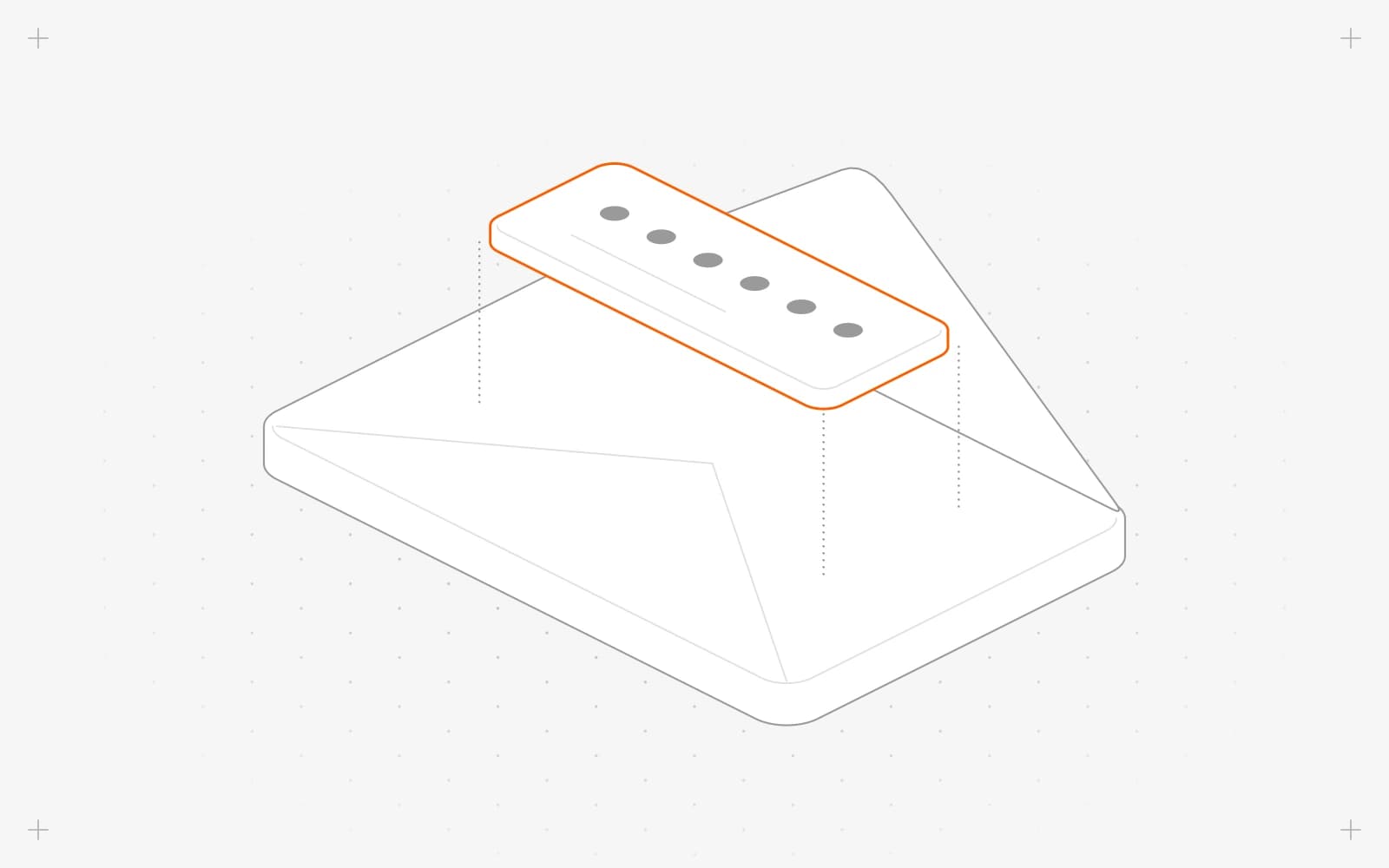
Sign up or sign in with an email code
- Go to app.pixelesq.ai.
- Type your email in Company Email and click Continue.
- Find the email titled "Your Access Code Inside".
- On Enter verification code, type the 6-digit code, or click the link in the email.
Sign in with Google
- On the sign-in page, click Login with Google.
- Choose your Google account.
On your first sign-in, Pixelesq creates your account and takes you straight to setting up your first site. See Create your first site.
Limits
- Pixelesq doesn't use passwords. You sign in with an email code or with Google.
- Codes expire after 20 minutes.
- Create your Pixelesq account here before you connect Claude or ChatGPT.
Common questions
What if my code doesn't arrive?
Check your spam folder, then click Resend code. See Your sign-in code did not arrive for more fixes.
What does "Login Failed Invalid OTP" mean?
The code was mistyped or has expired. Click Resend code and use the newest email.
Is there a separate sign-up page?
No. The same page signs you in, and it creates your account the first time you use it.
On this page
Sign up or sign in with an email codeSign in with GoogleLimitsCommon questions
Prerequisites
An email address. No card is needed.
Still have questions?
Ask Pixel in your dashboard. It can make many changes for you, or take you to the right screen. Our team can also help you plan, build or move your site.


