Edit, duplicate or delete a blog post or other entry
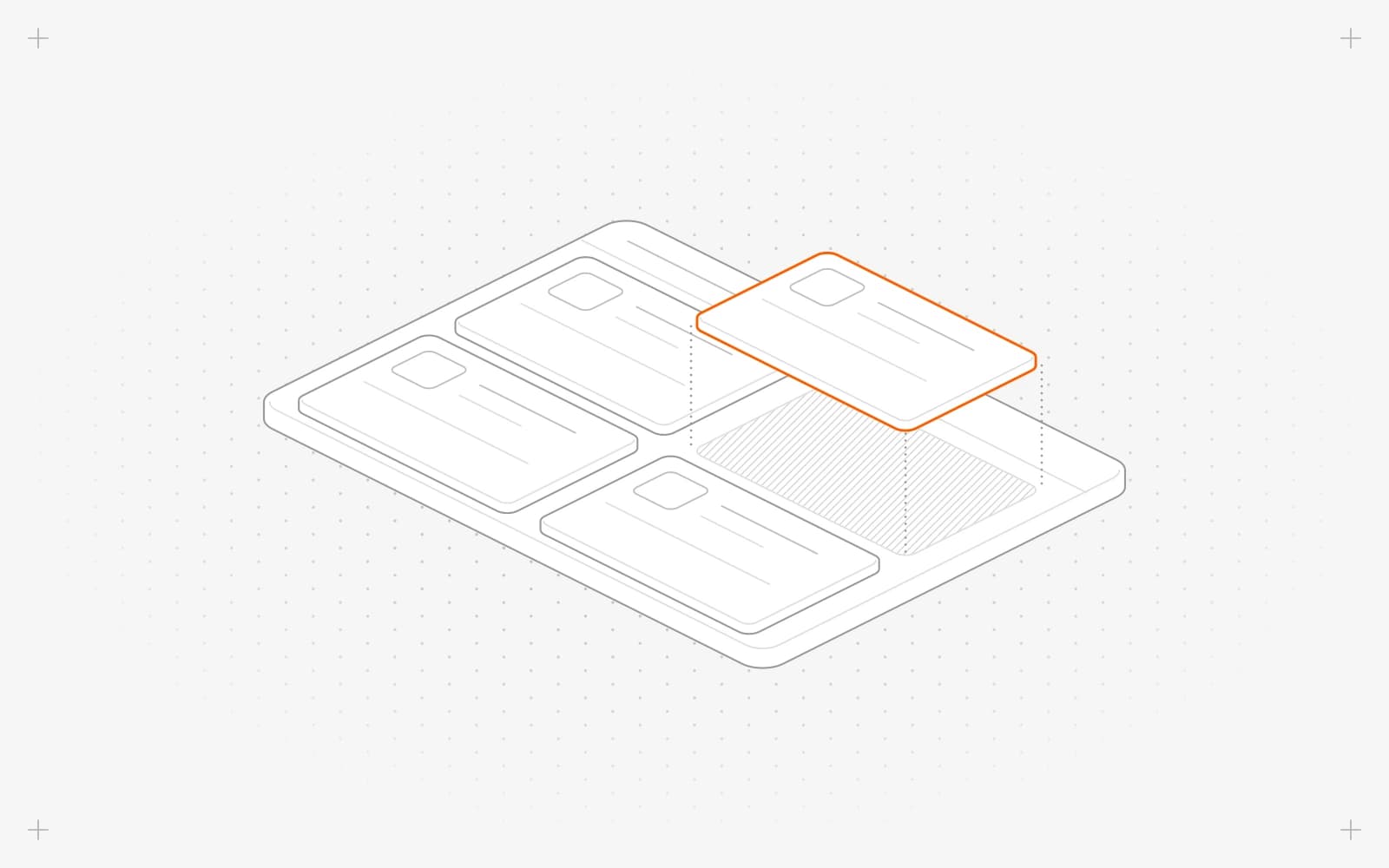
Edit an entry
- Open the collection and double-click the entry, or right-click it and click edit entry.
- Fill in the form. A * marks required fields.
- Click the preview to jump to that field's box. To stop this, click the toggle so it reads Preview field sync: off.
- Edits save on their own. Click Save, or press Cmd+S, to save now. Saving never publishes.
For raw JSON, open the code tab, edit entry json and click Save.
Duplicate an entry
- Right-click the entry and click duplicate, or click Duplicate this entry in its preview.
- In Duplicate entry, keep or change the Name and Slug. They start as the name with "(Copy)" and the slug ending in -copy.
- Click Duplicate. The copy opens as a draft.
Delete an entry
- Right-click the entry and click delete.
- Read "This action cannot be undone. You will lose access to this entry." and click Delete.
- If the entry had a page with visitors, redirect its old URL. See Redirect an old URL to a new page.
Limits
- Deleted entries can't be brought back. Unpublish instead if you may need the entry again.
- The name and slug can't be changed in the JSON view.
- A copy gets its own URL and stays unpublished until you publish it.
Common questions
What does "Outdated revision" mean?
Someone else, or another tab, saved this entry after you opened it. Click Reload to get the latest version, then make your change again.
What does "Failed to duplicate entry" mean?
The copy wasn't made. If the slug is the problem, the message shows under Slug instead.
Can I go back to an earlier version?
On this page
Edit an entryDuplicate an entryDelete an entryLimitsCommon questions
Still have questions?
Ask Pixel in your dashboard. It can make many changes for you, or take you to the right screen. Our team can also help you plan, build or move your site.


