Fix a failed payment and keep your Pixelesq plan active
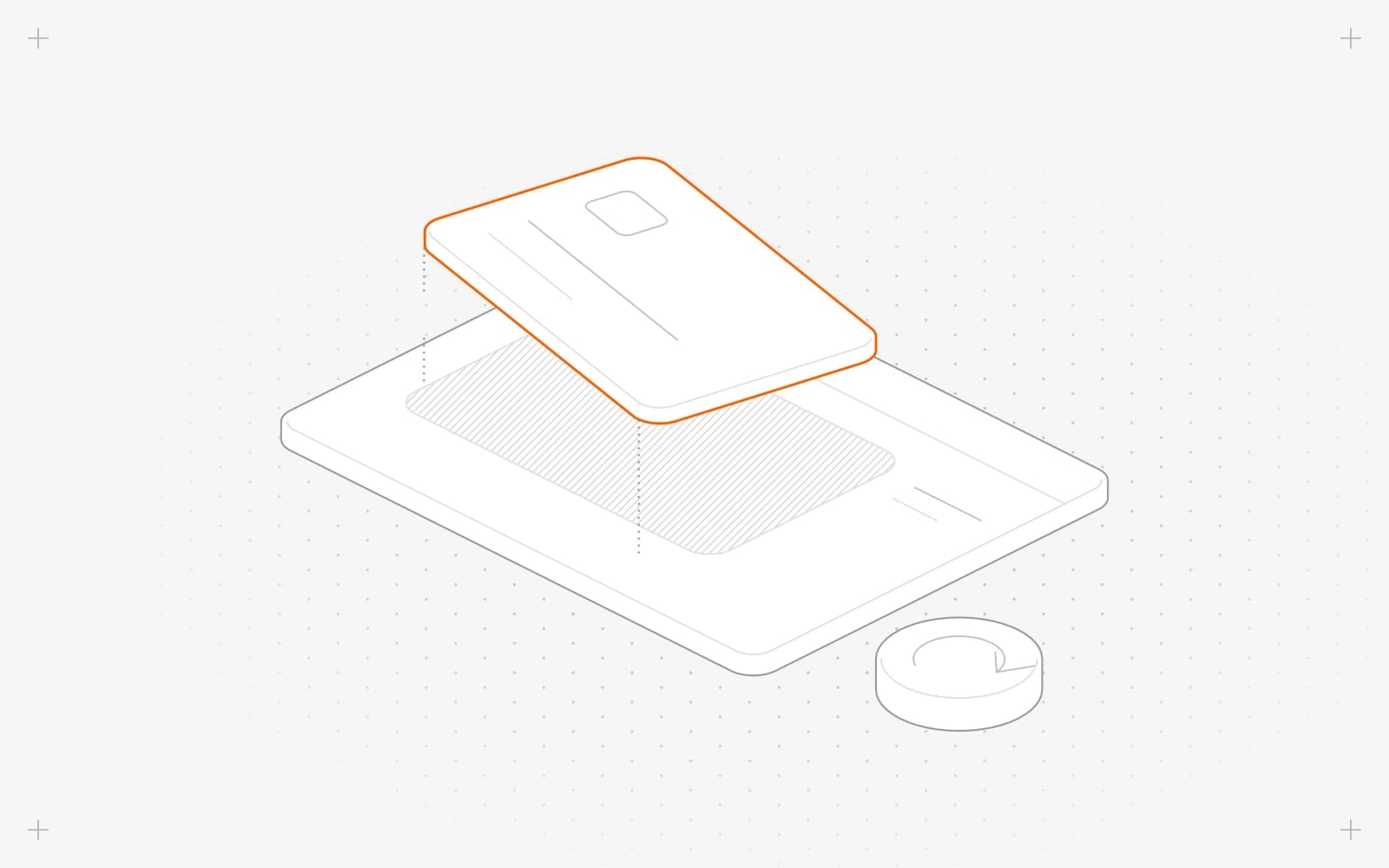
Update your card
- Look for "We could not process your last payment." at the top of the dashboard. The Owner also gets an email.
- Click Update payment method. Stripe's billing portal opens.
- Add a card that works, then go back to Pixelesq.
Stripe retries the payment automatically. To pay right away, open the unpaid invoice, marked open, under History in Billing, and pay it on its page.
If your bank asks you to confirm
- Look for "Your payment needs to be confirmed to keep your plan."
- Click Confirm your payment and finish the check from your bank.
Limits
- Your plan and your published site keep working while the payment is retried. Billing shows payment issue next to your plan.
- If every retry fails, the subscription ends and the project becomes read-only, with your site still live. See "This project is read-only".
- Only Owners can update the card. Others see "Ask the project owner to resolve billing."
Common questions
Why did my payment fail?
Common reasons are an expired card, low funds or a block by your bank. Your bank can tell you more.
Does a declined upgrade change my plan?
No. If the card is declined during an upgrade, your plan stays as it was. Update the card and try again.
Will my site go offline?
No. Published pages stay live.
On this page
Update your cardIf your bank asks you to confirmLimitsCommon questions
Still have questions?
Ask Pixel in your dashboard. It can make many changes for you, or take you to the right screen. Our team can also help you plan, build or move your site.


