Install the Pixelesq Mac app and sign in

Download and install the app
- Go to pixelesq.com/download and click Download for Mac, or Download the Intel version on an Intel Mac. The file is about 124 MB, or about 131 MB for Intel.
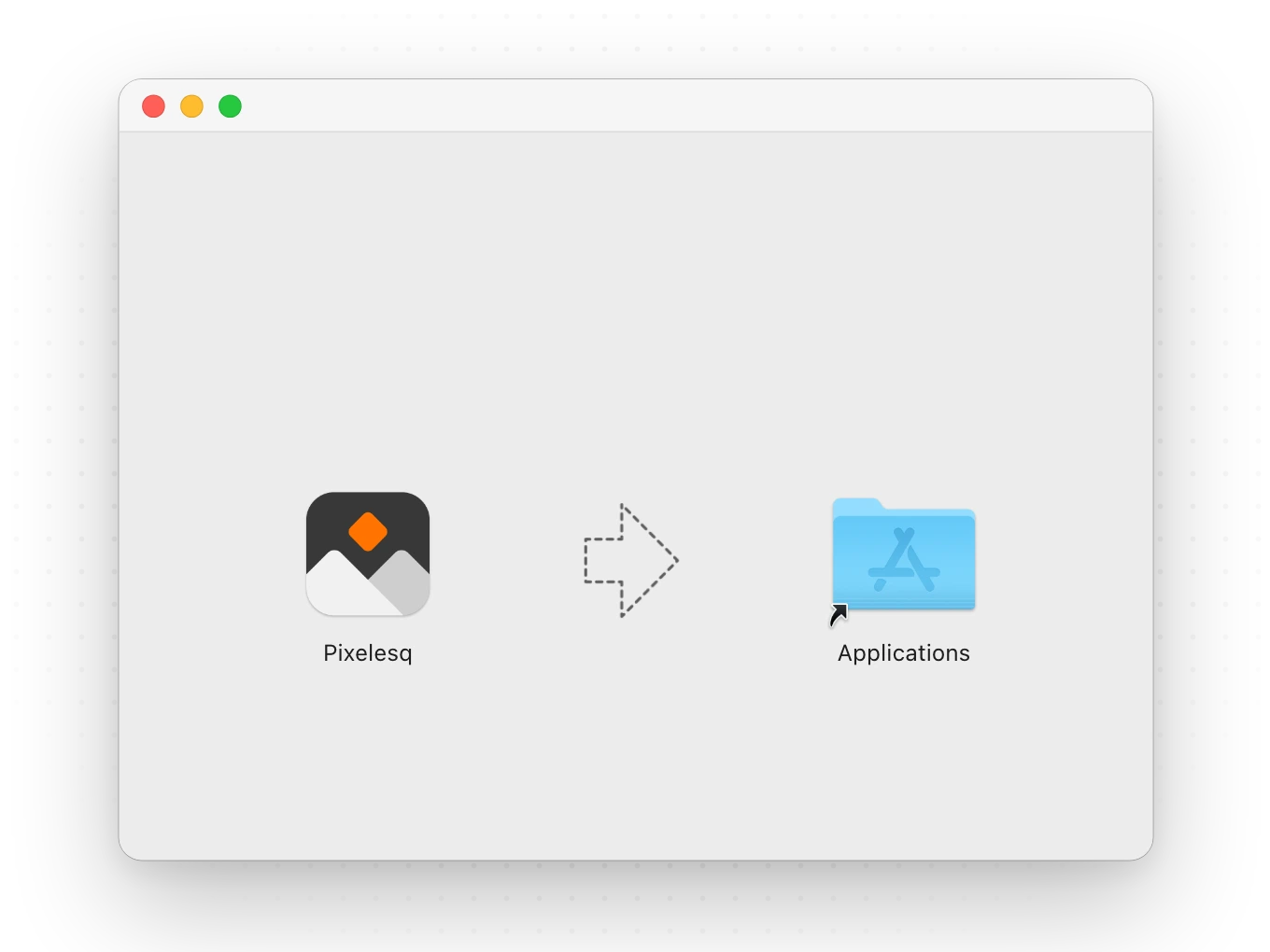
- Open Pixelesq.dmg from your Downloads folder, or Pixelesq-Intel.dmg on an Intel Mac.
- Drag Pixelesq onto the Applications folder.
Open the app and sign in
- Open Pixelesq from your Applications folder. The first time, macOS asks whether to open an app downloaded from the internet. Click Open.
- Sign in with your Pixelesq account, by email code or with Login with Google. Signing in to Pixelesq in your browser doesn't carry over to the app, so you sign in here once.
- If you chose Google, your browser opens for that step. When it asks to open Pixelesq, allow it, and you're signed in to the app.
Allow notifications
The first time Pixelesq has a notification for you, macOS may ask whether to allow it. Choose Allow. You then get a Mac notification for new items in your bell, such as new and hot leads, form submissions, chat visitors who ask for a person, and pages a teammate publishes.
To choose which types you get, open settings in your project, then Notifications.
Get updates
When a new version of the app is ready, Update ready and a Restart button appear at the bottom left of the window. Click Restart to switch to it. Pixelesq sends your latest edits first, and asks before leaving if the editor has unsaved changes. If you don't click it, the update installs the next time you quit.
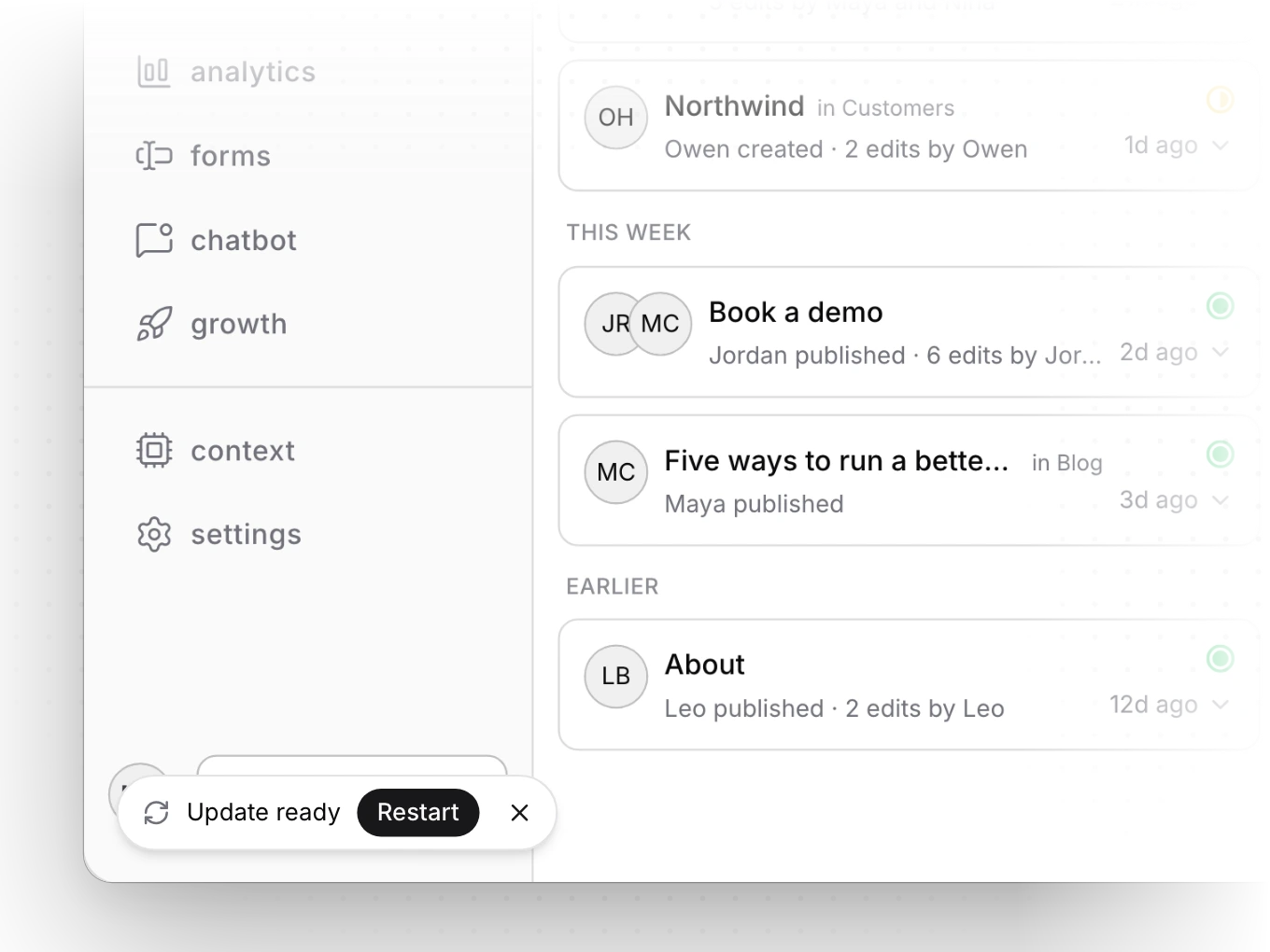
When the Pixelesq dashboard has a new release, New version of Pixelesq and Reload appear in the same place. Click Reload to load it. A What's new link shows when the version number changes.
Remove the app
- Quit Pixelesq with Cmd+Q.
- Drag Pixelesq from Applications to the Trash.
Your sites and work stay in your Pixelesq account.
Limits
- Pixelesq needs an internet connection to open.
- Notifications arrive while Pixelesq is running and signed in with a project open, even with its window closed. Cmd+Q quits it and stops them, and it doesn't start by itself when you log in to your Mac.
- While Pixelesq is the app in front, new items show on the bell instead.
- If several arrive at once, you get one notification for the newest, and the Dock count shows the rest.
- Project notifications go to owners and editors, and you aren't notified about pages you publish yourself.
- A lead or chat notification opens your chatbot inbox, and a form notification opens that form's submissions.
- The Dock count covers all your projects, so it can differ from the bell, which counts the open project.
- Offline, you can keep editing in a window that's already open. Publishing, invites, domain verification and connecting integrations need a connection and come back when you're online.
- Changes left offline for more than 72 hours wait for you to confirm them before they sync.
- Integration sign-in windows may not offer passkeys or password manager extensions.
- On Windows and Linux, use Pixelesq in your browser at app.pixelesq.ai.
Common questions
Is there a Pixelesq desktop app?
Yes. Pixelesq for Mac is in beta, for Apple silicon and Intel Macs with macOS 13 Ventura or later. It runs the same Pixelesq you use in your browser, with the same account and work, and adds Mac notifications and a Dock count. Download it at pixelesq.com/download. On Windows and Linux, use Pixelesq in your browser at app.pixelesq.ai.
Does the Mac app cost extra?
No. It's included with every Pixelesq plan and with the 14-day trial.
What if macOS says Pixelesq isn't supported on this Mac?
You have the Apple silicon download on an Intel Mac. Go to pixelesq.com/download, click Download the Intel version, and install that instead.
What if macOS says my version is too old?
Pixelesq for Mac needs macOS 13 Ventura or later. Update macOS in System Settings, or use Pixelesq in your browser at app.pixelesq.ai.
I installed the Intel version on an Apple silicon Mac. Is that OK?
Yes. It runs there too, though macOS may ask to install Rosetta first. It switches to the Apple silicon version with the next update.
Google sign-in doesn't come back to the app. What do I do?
When your browser asks to open Pixelesq, allow it, and finish within about 10 minutes. If it times out, start again from the app.
What does "You're offline" mean?
Pixelesq can't reach the internet. If you see it when you open the app, it reconnects by itself once you're back online, or click Try again. If Wi-Fi drops while a window is open, keep editing. Your changes sync once you're back online.
What does "You have unsaved changes" mean?
The editor has edits that haven't saved yet, and you're closing a window or quitting. Click Stay to keep working, or Leave to go without them. When you're quitting, that button says Quit Anyway.
Why don't I get notifications?
Open System Settings, then Notifications, then Pixelesq, and turn on Allow notifications. If Pixelesq isn't in the list yet, it shows up after its first notification. Keep Pixelesq running with a project open. Closing the window is fine. Then check that the type is on in your project's settings, under Notifications.
Why doesn't a three-finger swipe go back?
In System Settings, open Trackpad, then More Gestures, and set Swipe between pages to Swipe with two or three fingers. Cmd+[ and Cmd+] go back and forward with any setting.
On this page
Prerequisites
- A Pixelesq account. See Create your account and sign in.
- A Mac with macOS 13 Ventura or later.
- To pick your download, open the Apple menu and choose About This Mac. A Chip line means Apple silicon, and a Processor line means Intel.
Still have questions?
Ask Pixel in your dashboard. It can make many changes for you, or take you to the right screen. Our team can also help you plan, build or move your site.


